
How to run your first Scout Event end to end
Use one Event to give leaders, families, and volunteers the same current plan. This flow follows Autumn Service Day from publication through RSVP, volunteer signup, and one focused update.
Follow the four handoffs
Section titled “Follow the four handoffs”| Handoff | Action | Complete when |
|---|---|---|
| Leader to family | Publish the Event for the intended audience | Eligible families can open the current Event detail |
| Family to leader | Answer for each Household member | Each relevant person shows Going or Not Going |
| Volunteer to lead | Claim an open role | The Event shows the member on the claimed role |
| Leader follow-up | Check gaps and publish one update | The Event is current and the Announcement is published |
1. Publish the Event for the right audience
Section titled “1. Publish the Event for the right audience”Create the Event, choose the whole Unit or the specific Groups that should participate, and turn on RSVP or volunteer signups when the activity needs them. Review the plan, then select Create.
For every field and audience choice, follow How to create an Event.
Woggle opens the published Event detail after creation. Confirm the title, timing, location, organizer, audience context, RSVP entry, and volunteer action before sharing it.
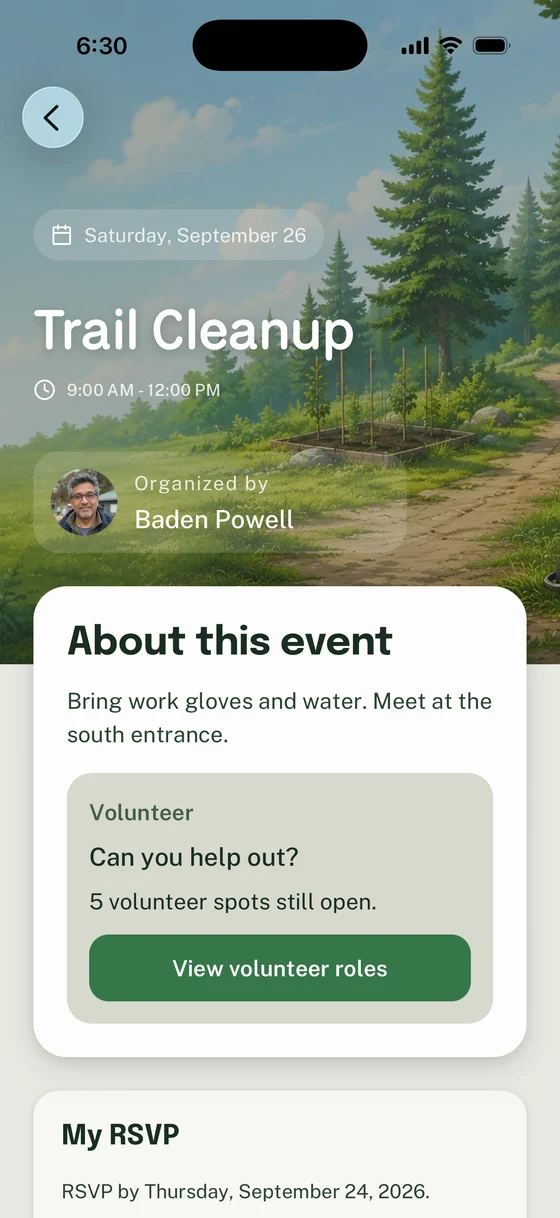
The published Event is the shared plan families and volunteers act from.
Eligible audience members may receive an Event notification according to their preferences. The person who created the Event is normally excluded from their own notification.
2. Confirm the family handoff
Section titled “2. Confirm the family handoff”Ask one Parent/Guardian in the intended audience to open the Event. The Event should appear only when the person’s Unit or Group membership and the Event audience allow it.
The handoff is complete when the family can read the current Event detail and find My RSVP or the volunteer section that applies to them. If the Event is missing, check its audience and the person’s Group membership before creating another Event.
Use How to find missing content when the audience looks correct but the Event still does not appear.
3. Record the Household RSVP
Section titled “3. Record the Household RSVP”Before collecting responses, check the Event audience and attendance rules. Household attendance can include eligible people outside the audience, while pending or removed participation in this Unit can exclude a person. A Household profile or pending family request alone does not grant Event access. Families can check their Household and track requests; Unit Admins can review family requests.
In My RSVP, the Parent/Guardian chooses Going or Not Going for each relevant Household member. A cleared choice remains No Response.
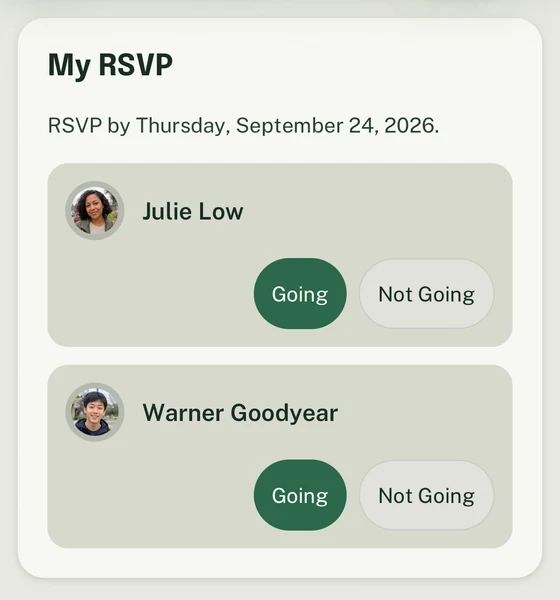
Julie and Warner each have their own response controls. Check every person who should attend.
The family handoff is complete when every person whose plan is known shows the correct response. If someone is missing or the deadline blocks a change, use How to complete a family RSVP.
If RSVP is not required, skip this handoff. The family still uses the Event as the current schedule and location.
4. Let a volunteer claim a role
Section titled “4. Let a volunteer claim a role”An eligible adult opens the volunteer section, selects I can help for an open role, and confirms the claim. Woggle shows You are signed up after the claim succeeds.
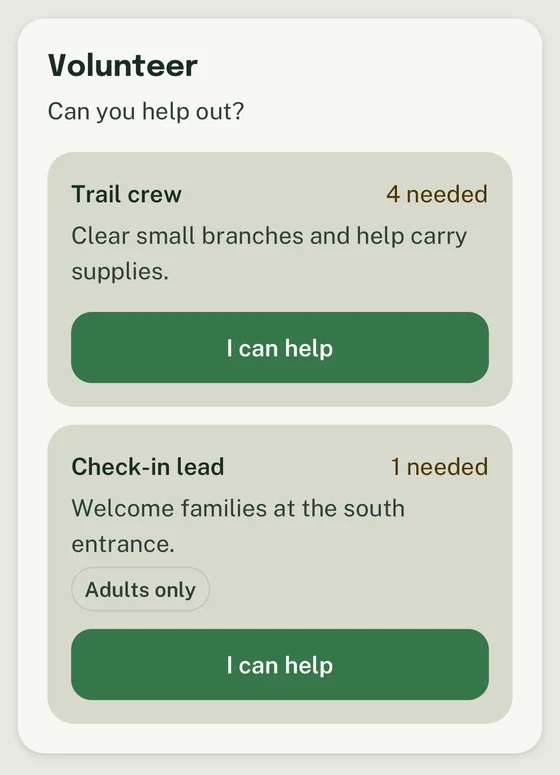
Trail crew needs four people. Check-in lead needs one adult. Choose I can help for a role you can cover.
The volunteer handoff is complete when the Event shows the member on the intended role. For role setup, claim, release, and adults-only behavior, follow How to add and claim volunteer roles.
If the Event does not need volunteer help, leave volunteer signups off and skip this handoff.
5. Check what still needs attention
Section titled “5. Check what still needs attention”Return to the Event and review:
- Who’s coming for Going, Not Going, and No Response totals
- the volunteer section for open and claimed spots
- the Event detail for any schedule, location, or audience change
Response totals are a planning picture, not an official attendance record. Volunteer claims show signup state, not a completed eligibility or training check.
Correct the Event first when its date, location, audience, RSVP setting, or volunteer plan changes. The Event remains the current source that a follow-up should point back to.
6. Send one focused update
Section titled “6. Send one focused update”Use an Announcement when a change or remaining gap needs clear attention. Choose the same Unit or Groups that need the update, state the action, and direct families back to the Event.
For example, a trail closure update can tell Wolf Patrol and Parents which entrance to use while the Event keeps the complete plan. Follow How to send an Announcement for priority, acknowledgement, pinning, and visibility choices.
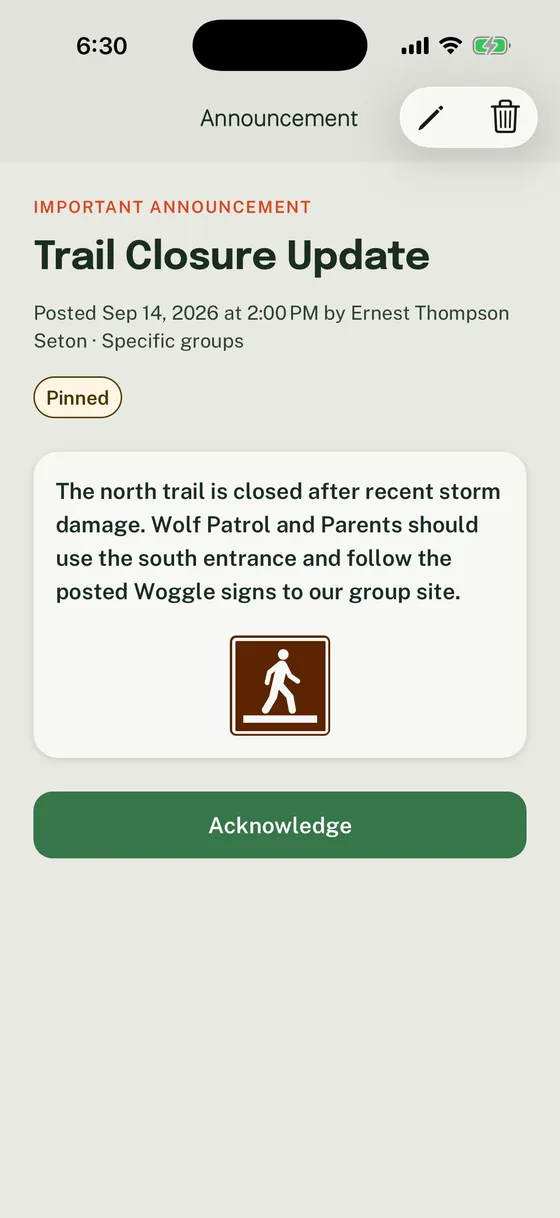
The focused Announcement names the change and keeps the Event available for the full plan.
The follow-up is complete when the Event is current and the Announcement is published to the intended audience. Eligible recipients receive notifications according to the Announcement priority and their notification preferences.
For activity-specific planning, continue with the campout guide, Pinewood Derby guide, Blue and Gold banquet guide, or service project guide.
For coordination support, use the transportation guide, event-chair guide, event-planning checklist, or event-day run sheet.
Thanks. Your feedback helps us keep this page useful.