
How do I change my family’s Unit participation?
As a Household guardian, you can request changes for your family in a Unit. A Unit reviewer must approve the changes before they take effect.
1. Review Household participation
Section titled “1. Review Household participation”Check the current Unit, then open More → Household and select the person. Review their current participation before choosing a change. If your family is joining a different Unit for the first time, use that Unit’s invitation and join as a family with your existing profiles.
2. Choose the participation change
Section titled “2. Choose the participation change”Open the person’s profile and choose Request participation or Request unit changes, whichever Woggle offers.
Check the requested participation, Official registration, roles, and Groups. Choose Not sure when you do not know the registration answer. Woggle does not complete official registration.
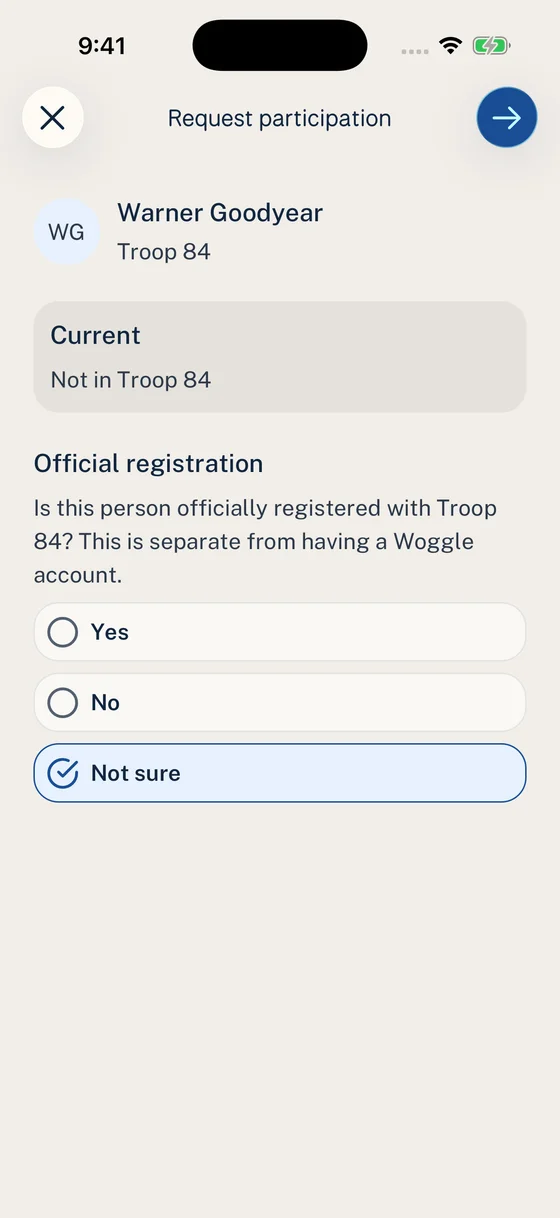
Official registration is separate from a Woggle login. Choose Not sure if you do not know.
If a request already exists, use Continue household request or View household request instead of creating another one.
3. Review and send the request
Section titled “3. Review and send the request”For a single-person participation request, select Review request in the header, check the person and Unit, then use the header’s checkmark (Submit request) or Send request in the review.
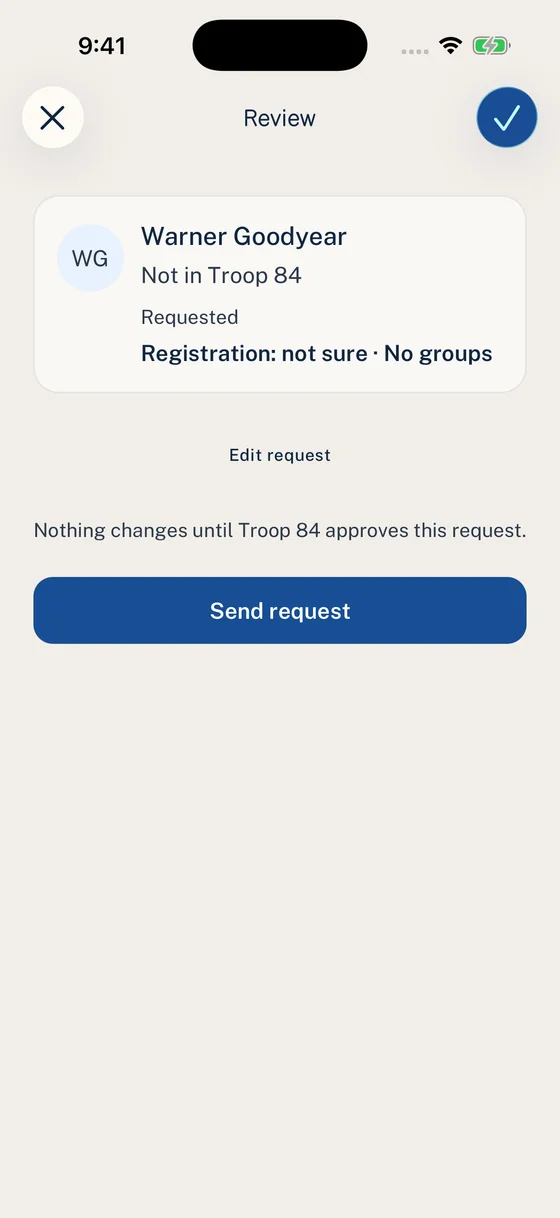
The focused review shows one person. Edit request returns to their choices; sending still requires Unit approval.
For a Household change request, open each person’s row, select Save person after editing, then select Review changes and Send request.
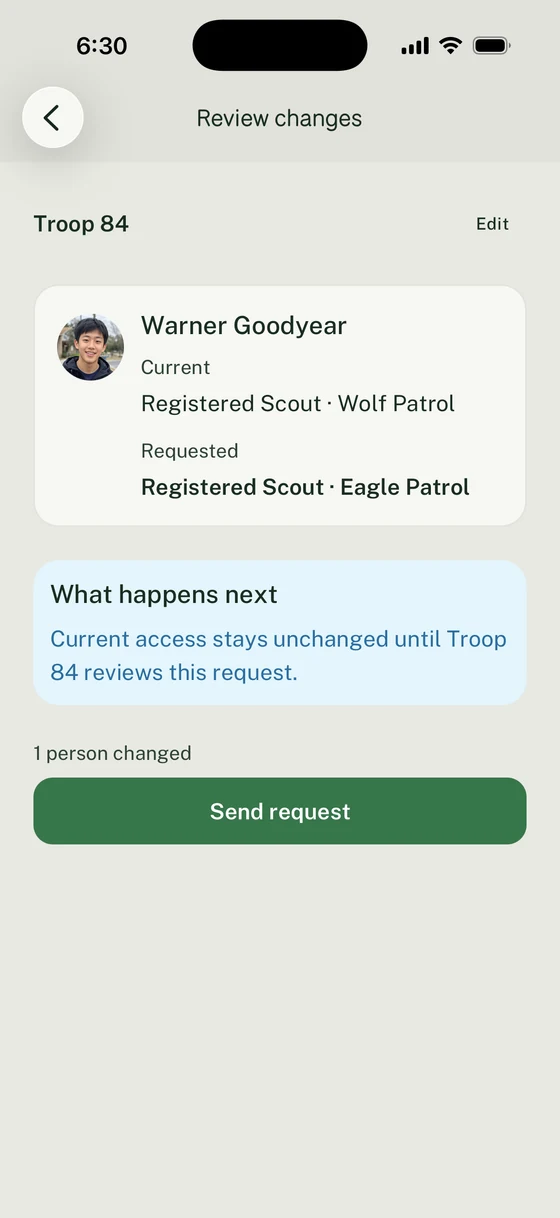
Review the changed people and their requested participation before selecting Send request.
Choose Edit request to make corrections. If you close a person’s editor without Save person, your edits are not saved. Wait for submission to finish before leaving.
Existing participation stays unchanged until the Unit finishes reviewing the request. Track the result through request tracking. Read each person’s result, including any account invitation still needed.
For someone returning to the Unit, request participation from their existing profile. A reviewer must approve Reactivate participation before their access returns.
4. Leave one Unit without removing the person from the family
Section titled “4. Leave one Unit without removing the person from the family”Choose Leave this unit in the person’s participation editor when offered, then select Save person. Review the affected person and Unit before sending the request. Keep the Household profile when the person still belongs to your family.
If this is your family’s last eligible Scout in the Unit, check the warning showing which parents will lose access through them. An adult’s separate Unit responsibilities may still give them access. You can continue with the Scout’s request to leave.
If the required action is unavailable, ask the Unit Admin to review the person’s participation. Removing someone from your Household is a separate action that can affect several Units.
5. Check each person’s result
Section titled “5. Check each person’s result”Open More → Inbox → Pending for open requests or History for completed results. Check each person’s participation and follow any remaining action, such as accepting an account invitation.
To cancel, resume, or retry a request, follow How do I track my family’s requests?.
Thanks. Your feedback helps us keep this page useful.