
How do I RSVP for my Household?
A family RSVP can cover the people in your Household. Answer for each person so the Event count reflects who plans to attend.
1. Open the family RSVP
Section titled “1. Open the family RSVP”Open the Event and find My RSVP. Check the response deadline before making your choices.
If the wrong person appears or someone is missing, open Household and check both the family profile and participation in the selected Unit. Woggle shows the eligible people for this Event. Household attendance can include people outside the Event audience, but someone awaiting or removed from this Unit cannot participate through that pending or removed membership.
2. Answer for each person
Section titled “2. Answer for each person”Choose one response for every Household member shown:
- Going means that person plans to attend.
- Not Going means that person does not plan to attend.
- No Response means no Going or Not Going choice is saved for that person.
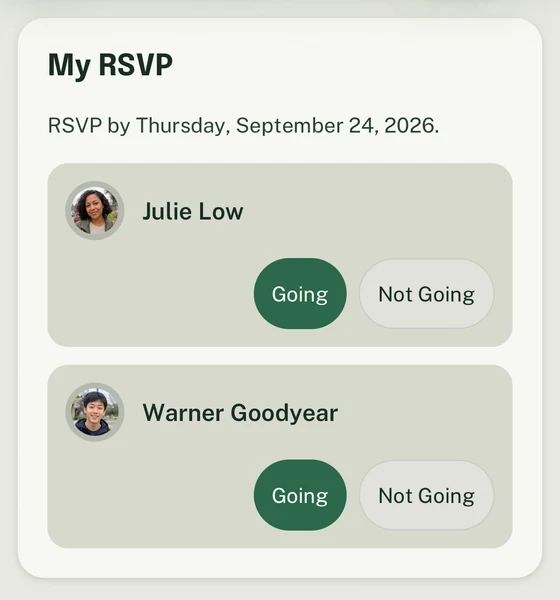
Julie and Warner each have their own response controls. Check every person who should attend.
An adult and a Youth who both plan to attend should each be marked Going when both appear in My RSVP. Claiming a volunteer role is a separate action.
3. Change a response when plans change
Section titled “3. Change a response when plans change”Return to My RSVP and choose the new response while the controls are available.
After the RSVP deadline, Woggle may lock changes based on the Event settings. If the controls are locked, contact the Event organizer instead of assuming the old response changed.
4. Read response status
Section titled “4. Read response status”Scroll to Who’s coming on the Event. Woggle groups visible responses into Going, Not Going, and No Response.
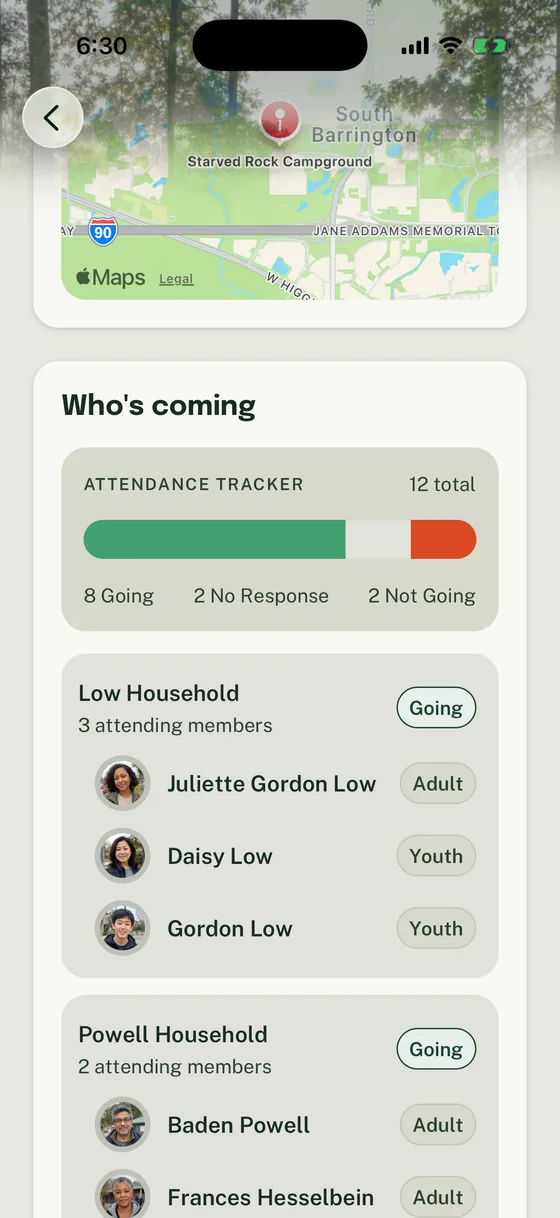
The example reconciles to 12 people: 8 Going + 2 No Response + 2 Not Going.
The total counts people, not Households. A Household with three people marked Going contributes three to the Going total.
Use these totals as the current planning picture. A leader may still need a separate official process to record who actually arrived.
Fix a wrong member or missing response
Section titled “Fix a wrong member or missing response”If My RSVP shows the wrong people, compare it with Household before answering.
- A person is missing: check their existing Household profile, participation state in this Unit, and the Event’s attendance rules. Use Change family participation for a participation request and request tracking for its outcome. Ask a Unit Admin about an existing roster record before creating another profile.
- A person still shows No Response: return to My RSVP and choose Going or Not Going for that person.
- The response controls are unavailable: check whether the deadline passed or the Event is no longer open for changes, then contact the organizer.
- A choice will not persist: reopen the Event and try once more. If it still does not save, use Woggle support.
Leaders who can edit the Event can open its edit screen, change the RSVP deadline or Allow late changes setting, then save. For family follow-up patterns, see Scout RSVP without texting families.
Thanks. Your feedback helps us keep this page useful.