
How to connect a Scoutbook calendar
Use a calendar source when your Unit already maintains an Event schedule in Scoutbook. Choose whether Woggle should copy that schedule, keep selected details in sync, or display Events that remain managed in Scoutbook.
Want Woggle Events in your personal calendar? Follow the Google Calendar or Apple Calendar guide.
1. Open Calendar sources
Section titled “1. Open Calendar sources”Confirm the active Unit, then open More → Calendar sources under Admin. This control appears when your Unit permissions allow you to manage settings. Ask a Unit Admin if it is unavailable.
Select Add source. If the feed already appears in the list, open that source before adding another connection.
2. Preview the feed and its destination
Section titled “2. Preview the feed and its destination”Enter the iCal feed URL. The Need the Scoutbook Plus link? help points to the calendar’s .ics link.
Under Destination, choose Unit calendar for a Unit-wide feed or Group calendar for selected Groups. Those Groups become the audience for Events created from the feed.
Preview the feed. Review the source name, Event count, dates, destination, warnings, and unsupported features. If Source may already exist appears, check the existing source before proceeding. A preview is a review step; it has not created the source yet.
3. Decide where changes belong
Section titled “3. Decide where changes belong”Under Updates, choose one behavior:
| Choice | How to maintain the Events |
|---|---|
| Copy once | Create editable Woggle Events. Later changes in Scoutbook do not update those existing copies. |
| Keep in sync | Scoutbook updates the source-owned title and timing. Use Woggle for the editable coordination details. |
| View only | Events are read-only in Woggle. Make changes in Scoutbook. |
Check the Organizer before continuing. Choose the person who should be shown as the Woggle Event organizer.
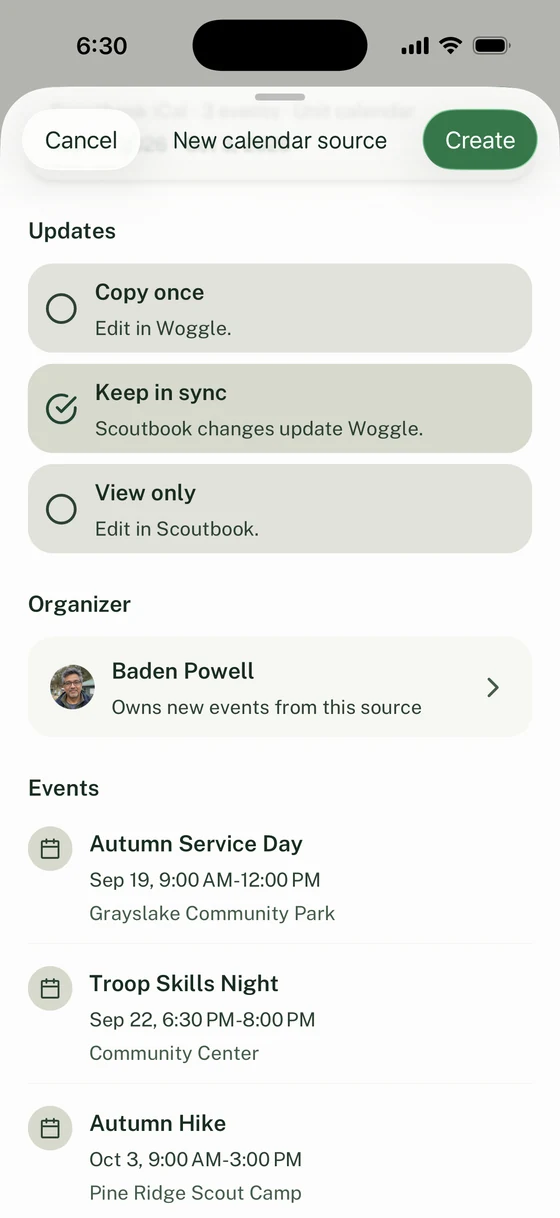
Review the update mode, organizer, and upcoming Events before selecting Create. This preview has Keep in sync selected.
4. Create and check the result
Section titled “4. Create and check the result”Select Create once and wait for the flow to finish. Woggle creates the source and requests its first import or sync. Returning to the source list does not by itself confirm that every Event has finished processing.
Open the source and review Source health and its import or sync history. Then open an Event and check its time, audience, organizer, and source information.
For a copied Event, follow How to create and edit an Event for the coordination settings. A linked Event explains which details Scoutbook manages. Locked title or Timing controls must be changed in Scoutbook; Open in Scoutbook appears when an Event link is available. A view-only Event says Managed in Scoutbook and remains read-only.
5. Maintain an existing source
Section titled “5. Maintain an existing source”Open the source from Calendar sources. Use Edit settings to update its label, URL, destination, or organizer, then select Save changes. Cancel leaves the saved settings in place.
For Copy once, Import again adds new Scoutbook Events; it does not update previously imported Events. For a connected source, Sync now checks for updates. Review the resulting history before repeating an action.
Use Disable source when you need to stop ongoing updates without removing the saved connection. Enable source makes it available again.
6. Recover or remove the connection
Section titled “6. Recover or remove the connection”Preview failed means the feed could not be previewed. Check the URL and the displayed explanation, then try the preview again. If Preview required appears, return to the feed screen and preview the current settings.
If Source not created appears, review the retained settings and try again. If a source is already in the list but its import or sync did not finish, open that source and inspect its health and history instead of creating a duplicate. Use Import again or Sync now when appropriate.
Deleting a source removes the feed connection. It does not delete, cancel, or detach Events already created or mapped from it. Existing read-only Events stay protected; deleting their source does not turn them into editable Woggle Events. Read the confirmation before selecting Delete source.
If an access or source error persists, follow How to troubleshoot Woggle. Include the visible error and source name, and keep the private feed URL out of screenshots or public messages.
Thanks. Your feedback helps us keep this page useful.