
How to add and claim volunteer roles
Unit Admins and Leaders can add volunteer roles to an Event. Eligible adult members can then claim an open spot or leave a role they can no longer cover.
1. Turn on volunteer signups
Section titled “1. Turn on volunteer signups”Create a new Event, or edit an Event you already manage. In the volunteer section, turn on Enable volunteer signups, then select + Add role.
If the Event does not need volunteers, leave this setting off.
2. Add the role and number of spots
Section titled “2. Add the role and number of spots”Enter a Role name, set Spots needed to the number of people required, and add any timing, supplies, or expectations under Notes. Leave Adults only on when a Youth Member should not claim the role, then select Add.
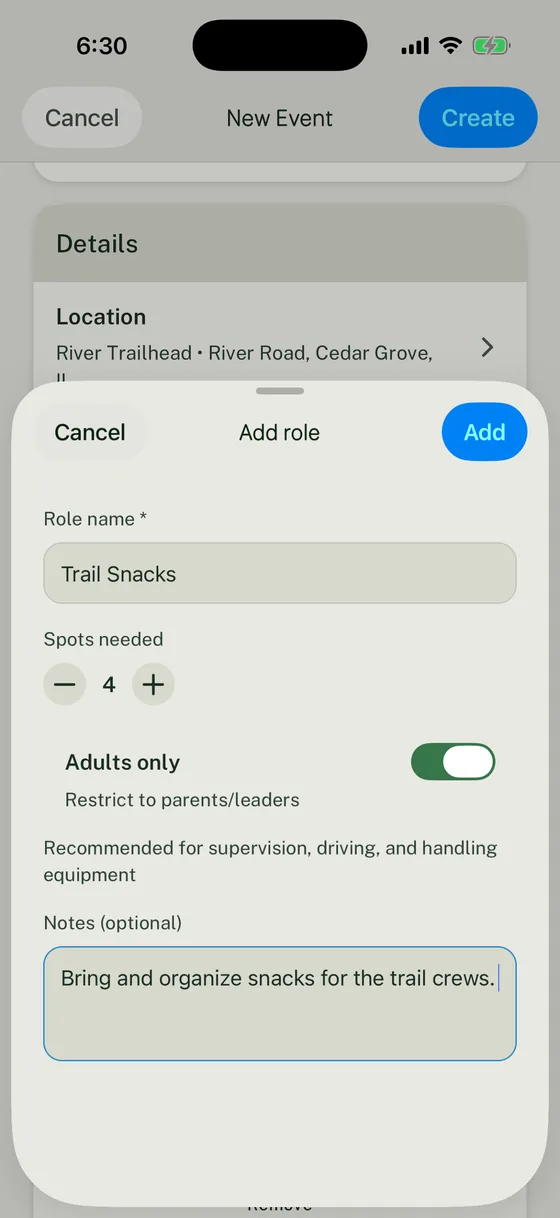
This Trail Snacks role needs four adults and includes a short note about the work.
Use a name that tells a member what they are claiming:
| Instead of | Use |
|---|---|
| Help | Check-in table, arrive 15 minutes early |
| Food | Trail snacks for one crew |
| Setup | Set up six activity stations at 8:30 a.m. |
| Cleanup | Cleanup lead, stay 20 minutes after closing |
3. Save or publish the Event
Section titled “3. Save or publish the Event”Review the Event and its volunteer roles. Select Create for a new Event or Save for an existing one.
Open the Event detail and confirm each role has the intended name, quantity, notes, and adults-only setting. A Unit Admin or Leader can correct those fields by editing the Event.
4. Claim an open spot
Section titled “4. Claim an open spot”Open the Event and find the volunteer section. Select I can help for an open role, then select Confirm.
Woggle shows You are signed up after the claim succeeds. When all spots are claimed, the role shows Full and no additional member can claim it.
5. Leave a role
Section titled “5. Leave a role”Open the Event and select Release spot on the role you claimed. Confirm the change to make that spot available again.
Releasing your spot does not remove or edit the role. It only removes your claim.
6. Check open and claimed spots
Section titled “6. Check open and claimed spots”Return to the Event detail after people have volunteered. Each role shows its quantity, claimed members, and the action available to you.
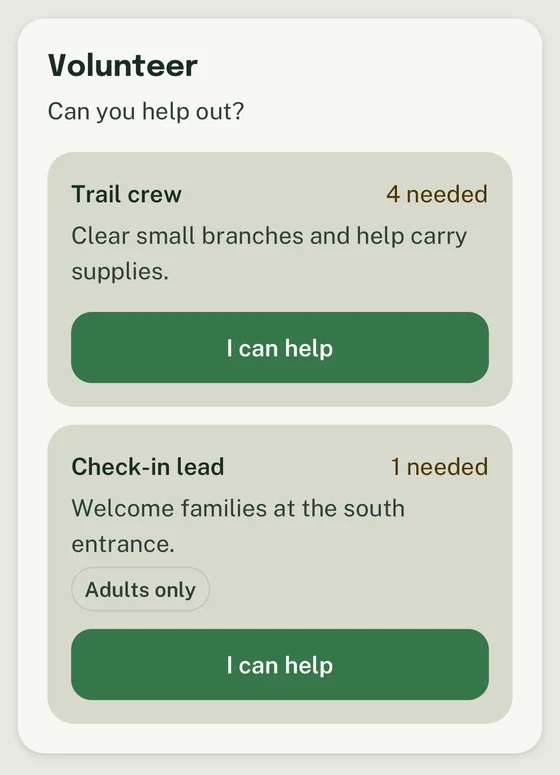
Trail crew needs four people. Check-in lead needs one adult. Choose I can help for a role you can cover.
Eligible Event viewers can see open and claimed roles. Woggle does not provide an independent close action, leader assignment, or waitlist for a volunteer role.
Correct a volunteer-role problem
Section titled “Correct a volunteer-role problem”Volunteer update failed. Read the error in the confirmation dialog. Your claim or release has not succeeded. When the problem is resolved, select Confirm to try again, or Cancel to return to the Event. While Updating… is shown, wait for the result before trying another action.
The role name, quantity, notes, or adults-only setting is wrong. A Unit Admin or Leader can edit the Event, update the role, and save it.
The role became full before your claim finished. Reopen the Event and choose another open role. Capacity is enforced even when two people try to claim the last spot.
An adults-only role cannot be claimed. A Youth Member account cannot claim it. If an adult needs to be assigned, coordinate this through your Unit’s official process.
The Event is canceled, over, or view-only. Volunteer claims and releases are unavailable in those states.
For the surrounding workflow, start with create an Event and use an Announcement when families need a focused update. For help designing clearer jobs, see why volunteer signup sheets fail.
Thanks. Your feedback helps us keep this page useful.