
How to fix missing Woggle notifications
Notification settings cannot make content outside your membership or audience appear. Confirm that the Event, Announcement, volunteer role, or Channel message is visible in Woggle before changing notification settings.
1. Open Woggle notification settings
Section titled “1. Open Woggle notification settings”Open More, select Notifications, and make sure notifications and push delivery are enabled.
2. Turn on the matching category
Section titled “2. Turn on the matching category”Turn on the category for the missing update:
- Announcements
- Events & RSVPs
- Organizer pre-event briefings
- Volunteer signups
- Channel messages
- Mentions & replies
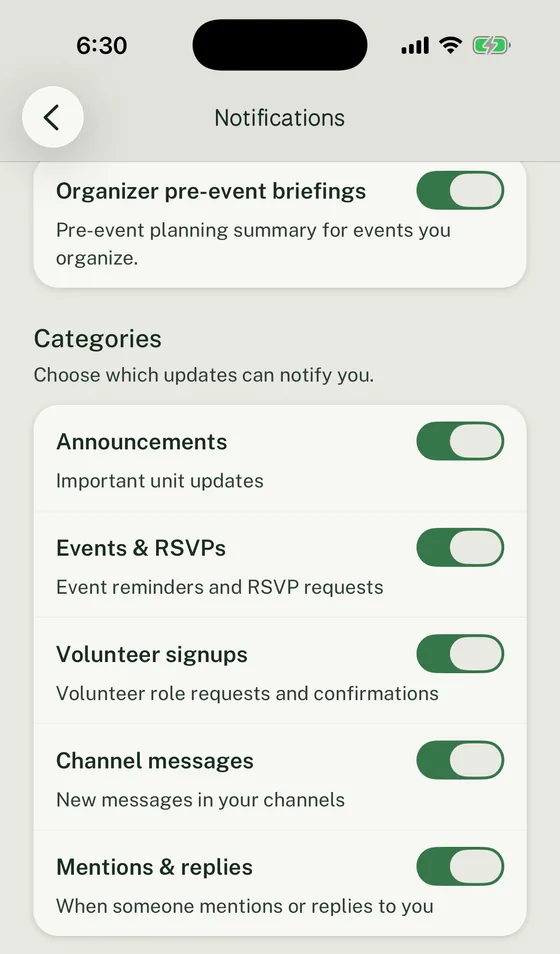
Match the missing update to its category before testing with an eligible recipient.
3. Check device permission
Section titled “3. Check device permission”In the iPhone or Android system settings, confirm that Woggle is allowed to send notifications.
4. Test with an eligible recipient
Section titled “4. Test with an eligible recipient”If you triggered the update yourself, test with another eligible recipient. The actor is normally excluded from notifications for their own Event changes, volunteer actions, Channel messages, mentions, role changes, and Announcements.
5. Check quiet hours
Section titled “5. Check quiet hours”Quiet hours make routine push notifications quiet during the selected window. They do not hold notifications for later delivery.
Contact Support through How to troubleshoot Woggle if the content is visible, the matching category and device permission are on, and an eligible recipient still does not receive the notification.
Thanks. Your feedback helps us keep this page useful.