
Set up Woggle: Quick start for Unit Admins
Use this quick start to set up Woggle for a new pack, troop, crew, ship, or post. Keep a pack setup or troop setup small on day one: one accurate Unit, a few useful Groups and Channels, one real Event, one volunteer ask, and one Announcement.
1. Create or confirm the Unit
Section titled “1. Create or confirm the Unit”If you are creating a new Unit, open Create a new unit and select Start setup. Woggle checks the Unit details and lets you review the starting structure before anything is created.
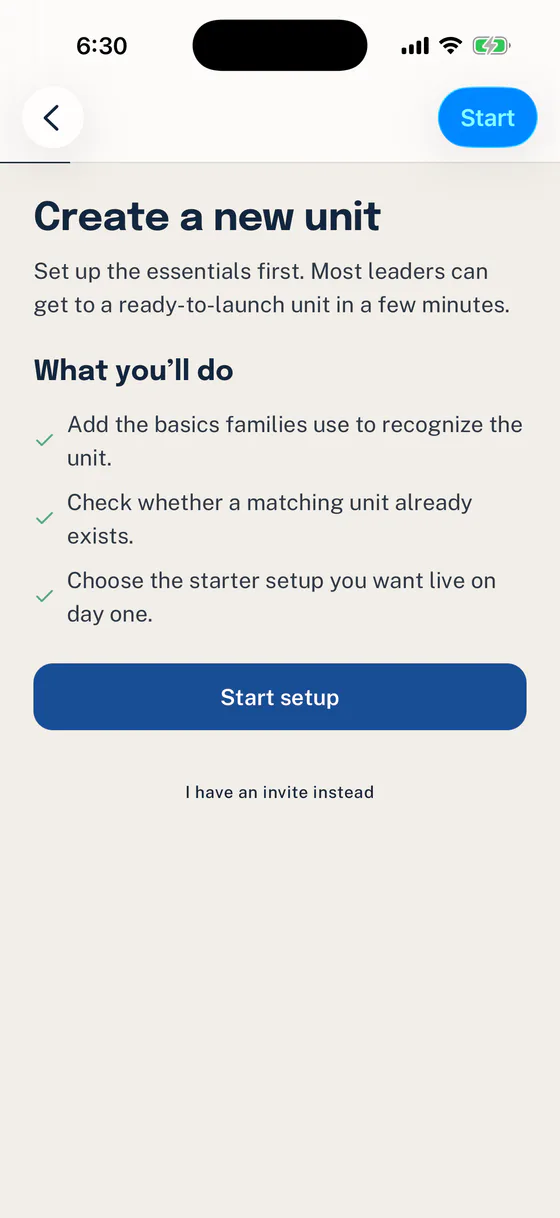
Start a new setup only when the Unit is not already in Woggle.
If you have an unfinished setup, choose Resume or Resume setup to continue the saved draft, including after closing and reopening Woggle. Start over begins a new setup. Use the same account to resume your own draft.
Enter the Unit type, number or name, location, meeting place, and time zone carefully. Families will use these details to recognize the correct Unit.
If you joined an existing Unit, confirm the name and number before continuing. Do not try to correct uncertain roster or Household details during this quick start.
2. Keep the starting structure small
Section titled “2. Keep the starting structure small”On the review screen, check the Unit identity, meeting place, starting Groups, and Channels. Use Edit groups or Edit channels if the proposed structure is more detailed than you need on day one.
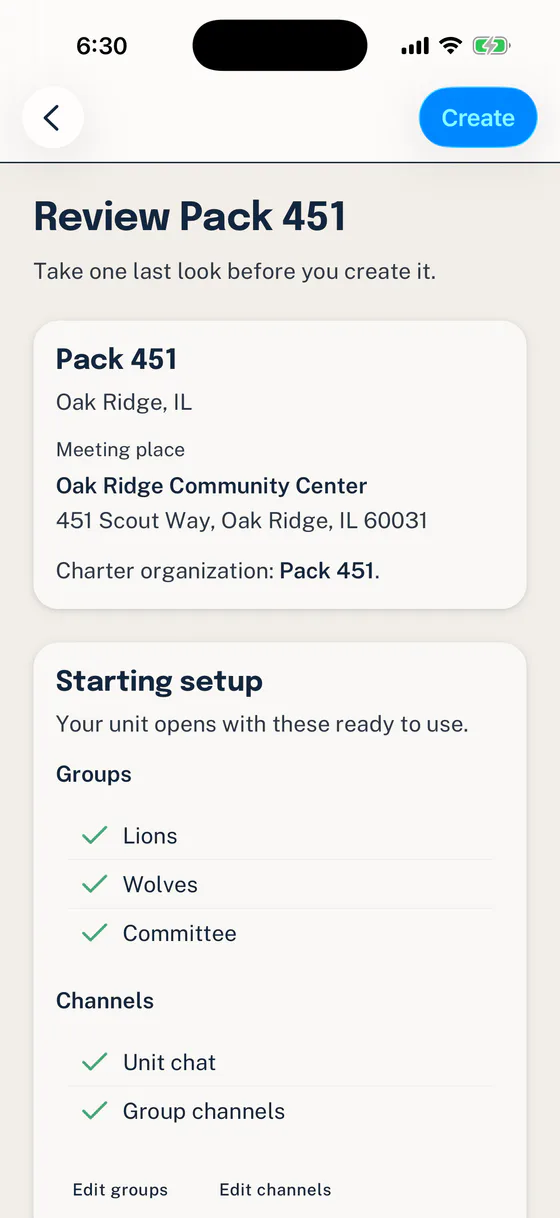
Pack 451 starts with three Groups and a simple set of Channels that can be adjusted before creation.
Select Create when the Unit details and starting structure are correct. The creator becomes a Unit Admin and can continue setup from Home.
Use a Group for a durable part of the Unit, such as a den, patrol, committee, or leader team. Use a Channel for conversation with the Unit or selected Groups. You can add more after families understand the first structure.
3. Plan family joining and request review
Section titled “3. Plan family joining and request review”Choose an Invite that matches the task. Use a family Invite to review several Household members together, or a targeted Invite for a known person and role. If someone already has a roster record, use the claim path to connect that record instead of creating a duplicate.
Assign a Unit Admin to review family requests. Check each person’s registration answer, roles, Groups, and any account-link step. A review decision may still require follow-up before participation is active.
A Household can span Units, and each person has separate Unit participation. Adding a Household profile, linking an account, or marking someone registered does not by itself grant Unit access. Registration in Woggle records the Unit’s understanding of official registration; it does not register anyone with a Scouting organization.
Share How to join as a family with the first families. Have them check request tracking when a result needs review or another action.
4. Publish one real Event
Section titled “4. Publish one real Event”From Home, choose Create event when there is no upcoming Event, or open Events and start a new one. Use a familiar Unit activity so families immediately understand why the Unit is using Woggle.
Follow How to create an Event to add the title, timing, location, audience, RSVP expectation, and details families need.
If your schedule already lives in Scoutbook, connect a calendar source and choose where future changes should be made.
Keep official permission slips, medical information, transportation approvals, and council records in the approved systems your Unit uses.
5. Add one useful volunteer ask
Section titled “5. Add one useful volunteer ask”Add a specific job to the Event, such as check-in, snacks, cleanup, or an activity station. Set the number of spots, add useful notes, and mark the role adults-only when required.
Follow How to add volunteer roles for the complete setup and family-facing check.
6. Send one launch Announcement
Section titled “6. Send one launch Announcement”Open Announcements and publish a short update that tells families what is ready and what they should do first. Name the Event, ask for the RSVP or volunteer action, and choose the whole Unit or the Groups that need the update.
Follow How to send an Announcement to choose the audience, priority, acknowledgement, pin, and end date.
Confirm the Unit is ready
Section titled “Confirm the Unit is ready”Your first-day setup is complete when:
- the Unit identity and meeting details are accurate
- the starting Groups and Channels are easy to explain
- the first Invite batch has a confirmed recipient, role, and Group plan
- one real Event is visible to the intended audience
- the Event contains one clear volunteer ask
- the launch Announcement is published to the correct audience
- uncertain roster, Household, or Youth configuration remains paused for review
Ask one other adult leader to open the Unit, find the Event, and explain the next action. Correct any unclear audience, role, or family context before inviting everyone else.
Thanks. Your feedback helps us keep this page useful.