
How do I join a Unit as a family?
Use your Unit’s Join Code to request participation for your Scouts and their parents or guardians. Scouts do not need their own Woggle account.
1. Open your Unit’s invitation
Section titled “1. Open your Unit’s invitation”Open your leader’s link, scan the QR code, or enter the Join Code in Woggle. Sign in with your own account and check the Unit name.
Select Choose who’s joining. If the invitation names one person instead, follow How to join a Unit with an Invite.
2. Check your family
Section titled “2. Check your family”Woggle shows the Household connected to your guardian account. If you see Set up your family, select Set up my family, add your family, and return to the invitation.
If your family cannot load, try again or contact Support before creating another Household.
3. Choose who is joining
Section titled “3. Choose who is joining”On Enroll your family in [Unit name], start with Which scouts are joining?
- Select a Scout’s existing profile. If they are missing, choose Add scout, enter their details, and select Add scout to request.
- Check their registration answer and any Groups. Choose Not Sure if you do not know their official registration status.
- Under Parents and guardians, include the adults who are joining. Check their requested role and choose Add to request or Save person.
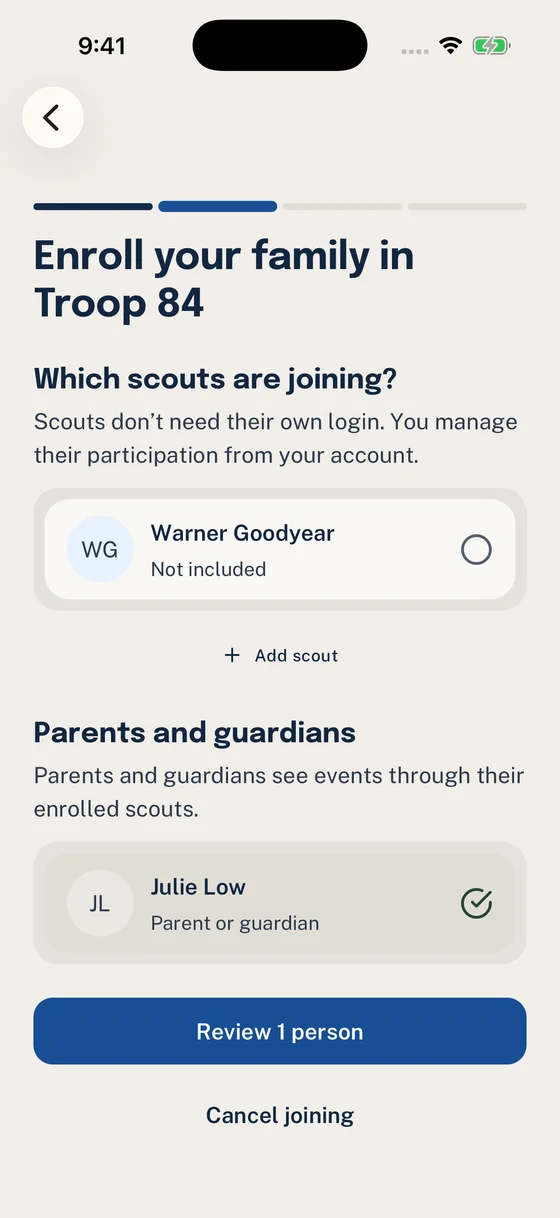
Start with the Scouts who are joining, then confirm the adults in the same request.
An enrolled Scout can give their parents access to that Unit’s Events. The Scout needs a profile and approved participation in this Unit, even when the family uses only a parent’s login.
After you select Review, Woggle checks your family’s existing participation and your requested changes. A Scout already enrolled in this Unit does not need to be included again.
If you see Enroll a Scout to access unit events, choose Choose or add a Scout to update your choices. You can also select Continue and ask for help to reach the final review before sending. Sending it does not grant Event access. If your Scout already has a pending request, continue that request.
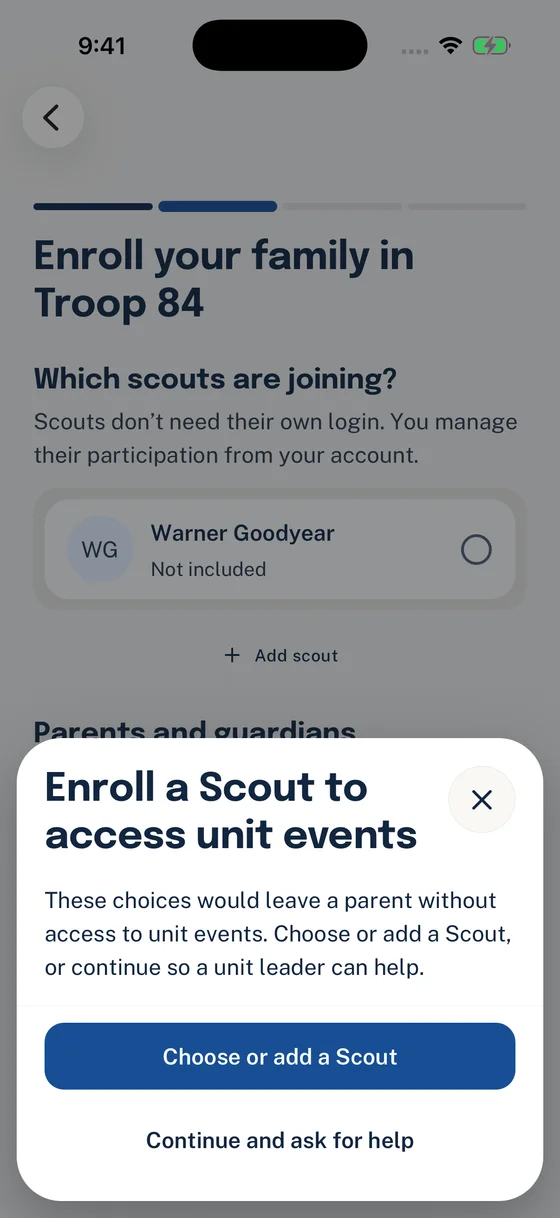
This message appears only when your family still needs a Scout enrolled in this Unit. Choose your next step before sending the request.
Check Current participation before adding someone who is already active. They can stay Not included in this request and keep their current participation. Remove from request only removes the requested change; it does not remove the person from your family or Unit.
Registration answers describe official registration. Woggle does not register anyone with a Scouting organization or verify training.
4. Review and send the family request
Section titled “4. Review and send the family request”Select Review 1 person (or the number shown). Check each person’s details and the Unit name. Choose Edit family choices to correct anything.
Select Send family request, or Submit for review when the family-access explanation is shown, once everyone’s details are correct. Request sent means the Unit has received the request. It does not mean everyone has joined.
If Woggle says the request changed elsewhere, reload the latest choices and review them before sending again.
5. Check each person’s result
Section titled “5. Check each person’s result”Open More → Inbox → Pending while the Unit reviews your request, or History for a completed result. Select Check for updates to refresh an open request. If you have not joined a Unit yet, open My requests from Unit selection.
Read each person’s result. Some people may be approved while another is declined or waiting for an account invitation. Follow the next action shown for that person.
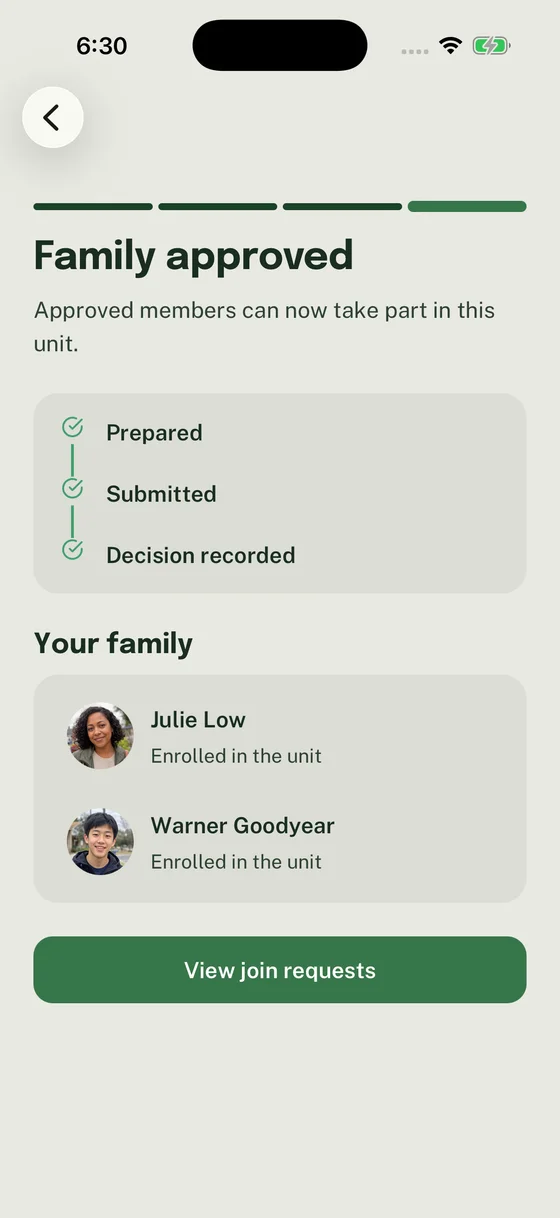
This completed result shows both people enrolled. Other family requests can have different outcomes for each person.
How to track family requests explains saved drafts, account invitations, cancellations, and completed results.
Thanks. Your feedback helps us keep this page useful.