
How to review family participation requests
Review each person in a family request, then confirm the result for the Unit. Saving a decision does not yet change anyone’s access.
1. Open the family request
Section titled “1. Open the family request”Open More → Inbox → Needs action and select Review family request. Check the Unit and family names. You need permission to manage that Unit’s roster, normally held by a Unit Admin.
For a single-person Review membership request, check the role, Groups, and message, then choose Approve request or Reject request. The steps below cover family requests.
2. Review each person
Section titled “2. Review each person”Check the Scouts first. They can join without their own Woggle login, and their participation may give their parents access to Events.
Open a person’s Review sheet:
- Check their current participation, requested role, official registration, and Groups.
- Choose Approve or Decline.
- For approval, select the action offered, such as Add to unit or Reactivate participation. For a decline, enter a Reason.
- Select Save.
Keep registration unknown if you do not have the answer. Woggle does not complete official registration or verify training.
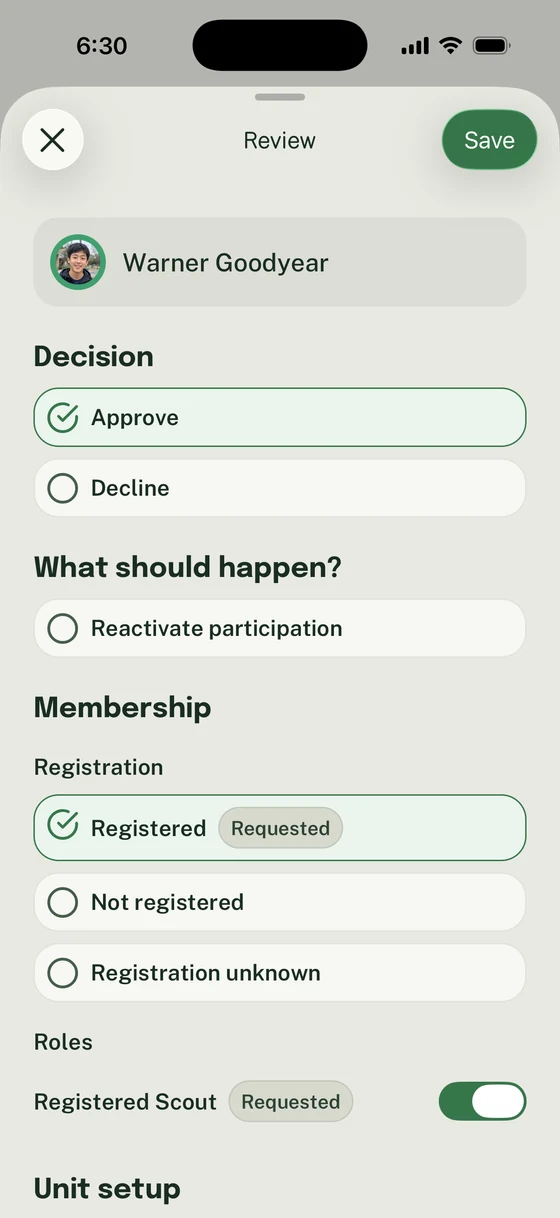
For a removed member, explicitly select Reactivate participation before saving the reviewed choices. Saving does not yet restore access.
3. Check any roster match
Section titled “3. Check any roster match”If Woggle offers an existing roster entry, confirm it is the same person before matching it. Ask the family if you are unsure; a similar name alone is not enough.
If Review together is available, check everyone shown in Review people and select Save review. Anyone needing a roster match or another individual decision still needs their own review.
4. Confirm the decisions
Section titled “4. Confirm the decisions”After saving a decision for everyone, choose Review and approve or Review decisions. Check the full result before selecting Approve request, Confirm and approve, or Confirm decisions, as shown.
If a parent needs a Scout enrolled
Section titled “If a parent needs a Scout enrolled”The warning These parents won’t have access to unit events identifies a gap in the proposed result. Check the Scout’s participation and the adult’s actual responsibilities.
When this warning appears, the app asks you to resolve the gap before approving. Choose Save and finish later to keep your decisions and leave the request open while you help the family enroll their Scout.
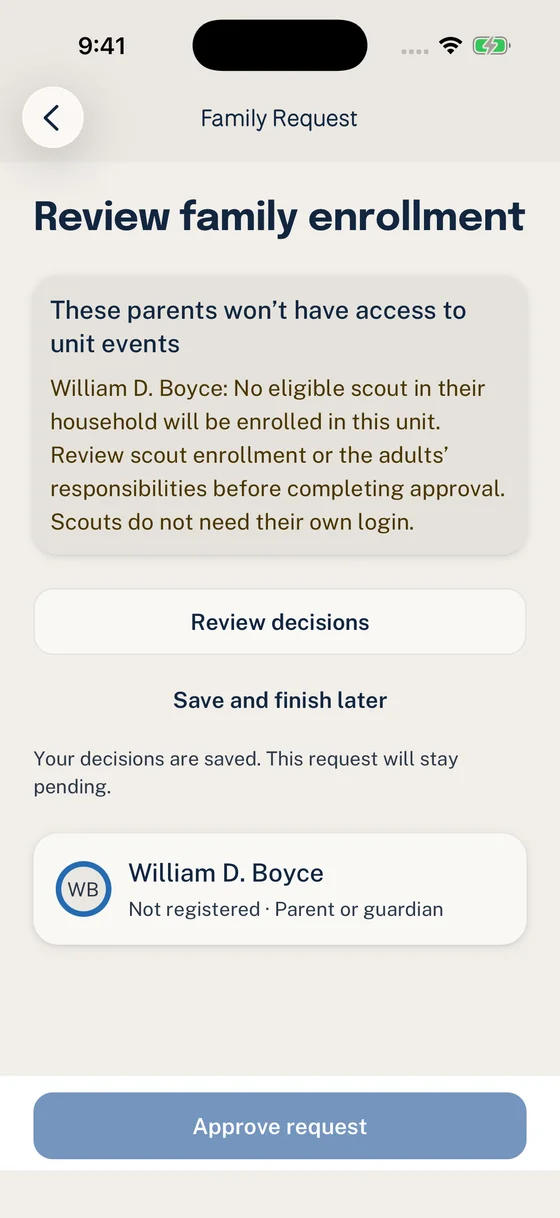
Keep the decisions saved while you help the family enroll their Scout.
When a Scout is leaving, check the warning about affected parents before confirming. The warning does not prevent a Scout from leaving. Keep registration answers and adult roles accurate.
If the request changed elsewhere, reload it and review the latest choices before confirming again.
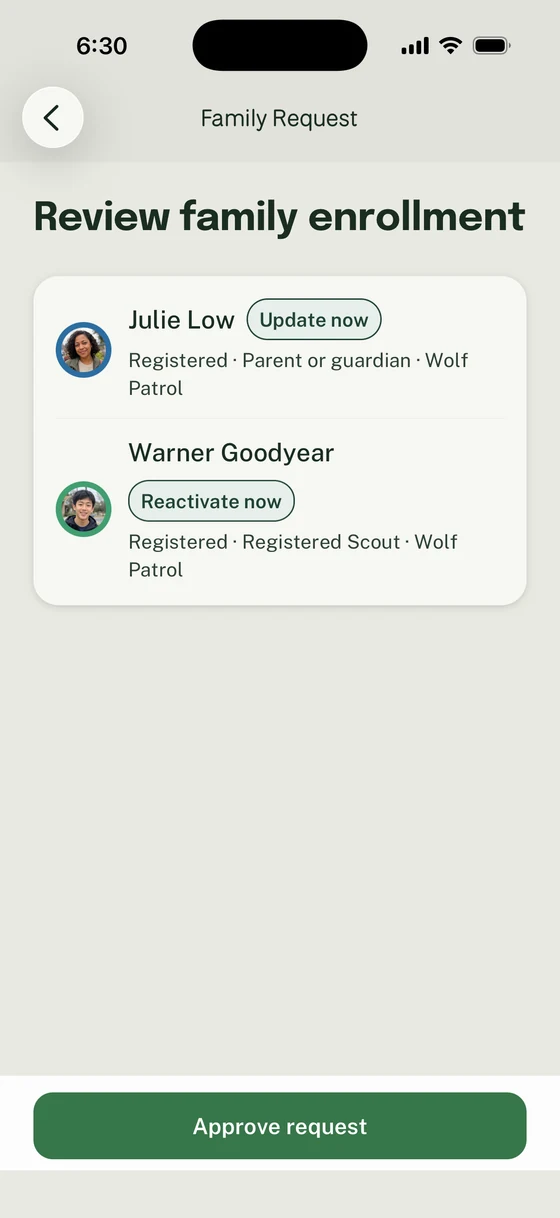
The saved decisions update Julie’s participation and reactivate Warner’s. Check this summary before applying the result with Approve request.
5. Check the result
Section titled “5. Check the result”After approval, Woggle returns to Inbox. Look in Pending if account setup is still needed, or History for a completed request.
Check each person’s result. One family member may be active while another still needs an account invitation or guardian connection. The roster’s Active and Invited tabs show who has joined and who is still waiting.
Families can track their decisions in Inbox. They do not need to acknowledge a completed decision before seeing it.
Thanks. Your feedback helps us keep this page useful.