
Quick start for parents and guardians
Join your pack or troop, check your family, and get ready for the next Event.
1. Join the correct Unit
Section titled “1. Join the correct Unit”Open the Invite from your Unit leader and check the Unit name before signing in. Use your existing Woggle account if you already have one.
For a family invitation, follow How to join as a family. For an invitation addressed to one person, follow How to join a Unit with an Invite.
After sending a request, check each person’s result. The Unit may still need to approve participation before you can open its content.
2. Add your Scout and check participation
Section titled “2. Add your Scout and check participation”Open More → Household and check that your Scout is listed. Scouts do not need their own login, but they do need to be enrolled in your Unit.
If you joined without your Scout
Section titled “If you joined without your Scout”On Home or Events, select Add or enroll your scout. Create your Scout’s Household profile.
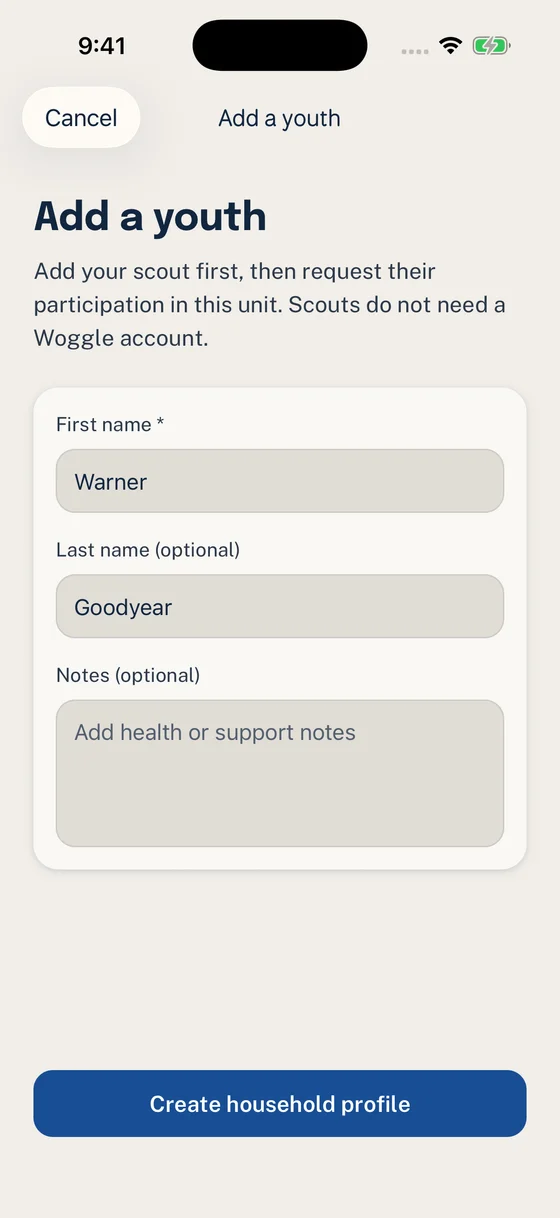
Start with your Scout’s name. You do not need to create an account for them.
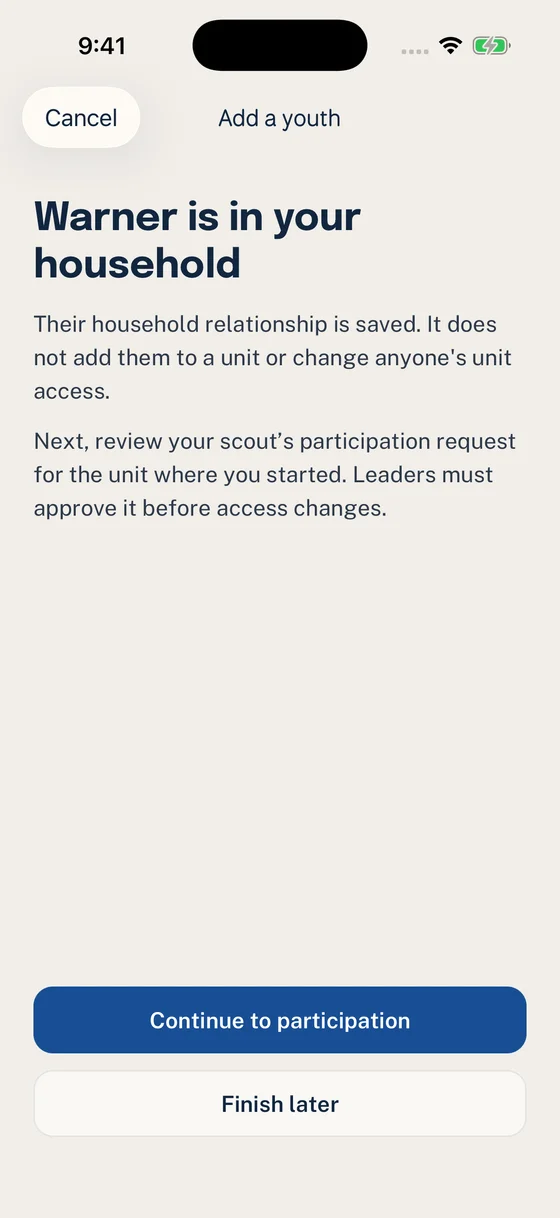
Select Continue to participation after the profile is saved.
Review the request and select Send request. Wait for the Unit to approve your Scout. You do not need to join again as a parent.
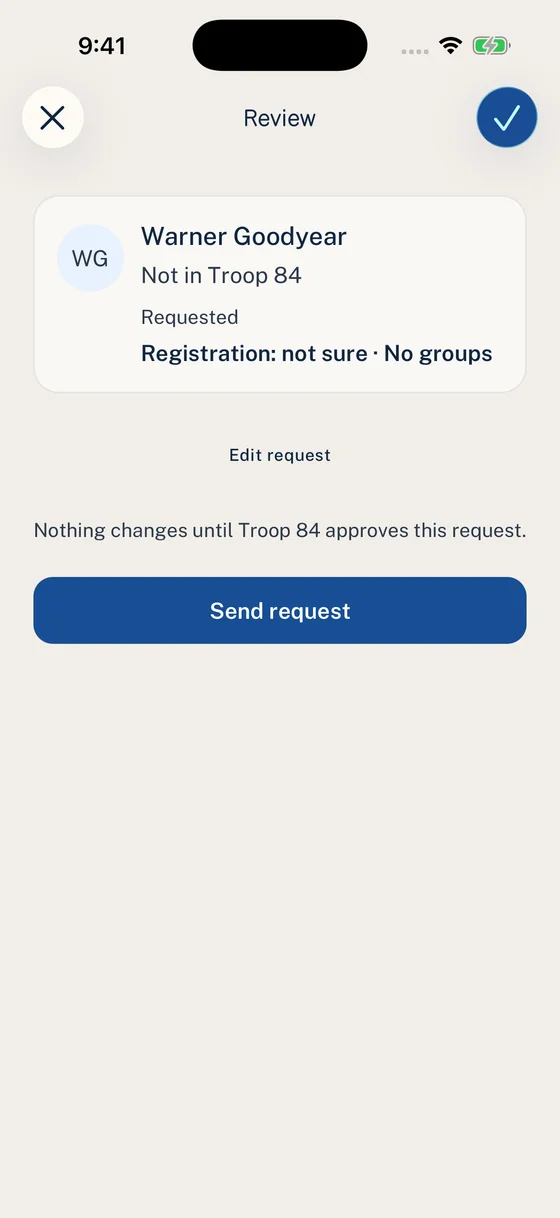
Check the Scout and Unit before sending the request for approval.
If the Scout already has a profile, use that profile’s Request participation action. If a request is pending, check its progress rather than creating another profile.
Use Household management for other family changes. Ask your Unit Admin for help if the Scout already appears elsewhere in the roster.
3. Answer the next Event when RSVP is enabled
Section titled “3. Answer the next Event when RSVP is enabled”Open Events and choose your next activity. Check the date, location, RSVP deadline, and what to bring. If My RSVP is shown, respond for your family. If it is absent, the Event does not ask for an RSVP.
Choose Going or Not Going for each person shown. Both answers help leaders plan.
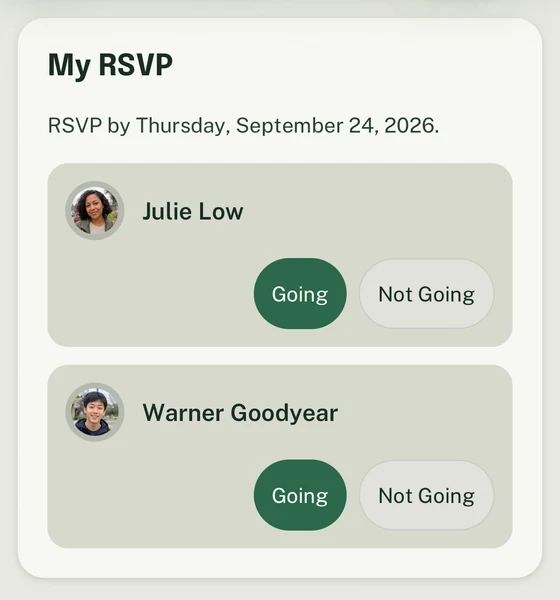
Julie and Warner each have their own response controls. Check every person who should attend.
Return to My RSVP if plans change. The Event deadline or state can lock edits; contact the organizer when the controls are unavailable. How to complete a family RSVP explains response states, deadlines, and corrections.
4. Read current Announcements
Section titled “4. Read current Announcements”Open Announcements. Use Unread for new updates or Ack Required for items that still need your confirmation.
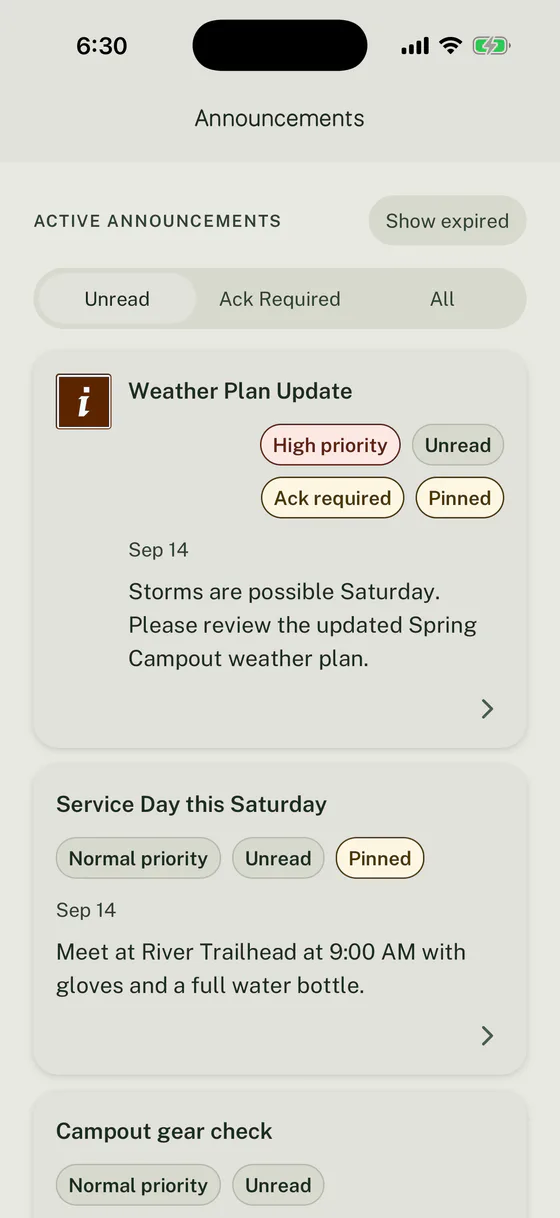
Priority, acknowledgement, and pin labels help important updates stand out from routine Announcements.
Read the full Announcement. If it asks for acknowledgement, select Acknowledge. When it changes an Event, open the Event to check the current details.
See How to send an Announcement for how Woggle uses audiences, priority, acknowledgement, pins, and visibility.
5. Claim a volunteer role when one fits
Section titled “5. Claim a volunteer role when one fits”On the Event, find Volunteer. Check the role name, notes, number of open spots, and whether it is adults-only. Select I can help, then select Confirm to claim an open role.
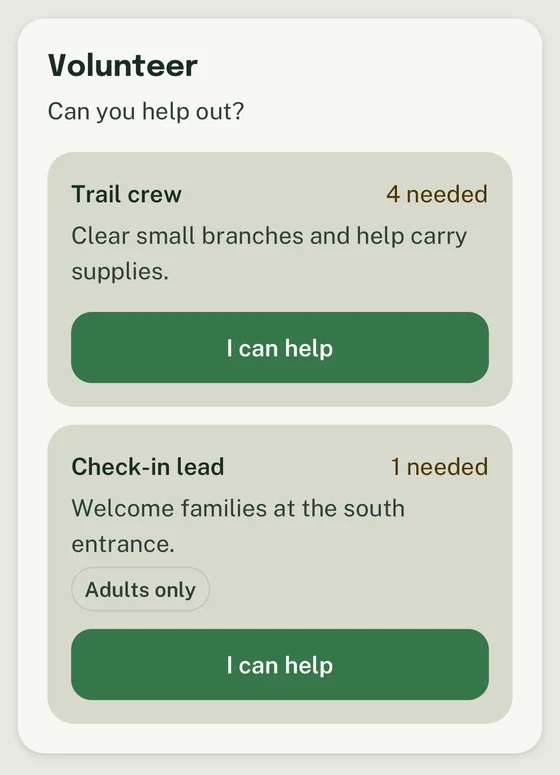
Trail crew needs four people. Check-in lead needs one adult. Choose I can help for a role you can cover.
If your plans change, select Release spot, then Confirm. Volunteer changes are unavailable for canceled, past, or view-only Events. See volunteer roles for help.
Fix a first-day problem
Section titled “Fix a first-day problem”- The Invite is wrong or expired: Ask the sender for a corrected Invite, then follow the Invite troubleshooting steps.
- A Household member is wrong or missing: Leave uncertain or private details unchanged and ask a Household Guardian or Unit leader which record needs correction.
- An RSVP does not save: Check the deadline and Event state, then use the RSVP troubleshooting steps.
- No Announcement notification arrived: Open Announcements directly and check notification troubleshooting.
- A volunteer action is unavailable: Check whether the role is full or adults-only and whether the Event is still open for changes.
Thanks. Your feedback helps us keep this page useful.