
How to send an Announcement
Use an Announcement to share an important update with your Unit or selected Groups. Follow the steps below to send a trail closure update to Troop 84.
Choose the right place for the update
Section titled “Choose the right place for the update”| Use | For |
|---|---|
| Event | The current date, place, RSVP, or volunteer plan |
| Announcement | An important update families may need to find again |
| Channel | Questions, answers, and back-and-forth conversation |
1. Start a new Announcement
Section titled “1. Start a new Announcement”Open Announcements and select New Announcement. Add a title that names the change, then tell families what to do.
For the trail closure, enter:
Title
Trail Update
Message
The north trail is closed after storm damage. Use the south entrance for our service day. Bring work gloves and meet the leaders at 9:00 a.m.
Choose a pictograph if it will help families spot the update on Home.
2. Choose the audience
Section titled “2. Choose the audience”Choose the whole Unit when every family is affected. Choose one or more Groups when the update is only for a den, patrol, committee, or other part of the Unit.
For this trail closure, choose Entire unit because the service day affects the Unit. For Specific groups, select the intended Groups and use Done to apply them. Canceling the selector keeps the preceding choices.
3. Set the priority
Section titled “3. Set the priority”- Low: The update appears in Woggle without sending a notification.
- Normal: Woggle follows each member’s preferences and schedule.
- High: Woggle sends an immediate notification to members who allow Announcement notifications.
Select High for this trail closure so Woggle treats the route change as urgent. Members still control whether Announcement notifications are enabled.
4. Set acknowledgement and visibility
Section titled “4. Set acknowledgement and visibility”Turn on Require acknowledgement when you want members to confirm they have read the update. Turn on Pin announcement to keep it at the top of Home while it is current.
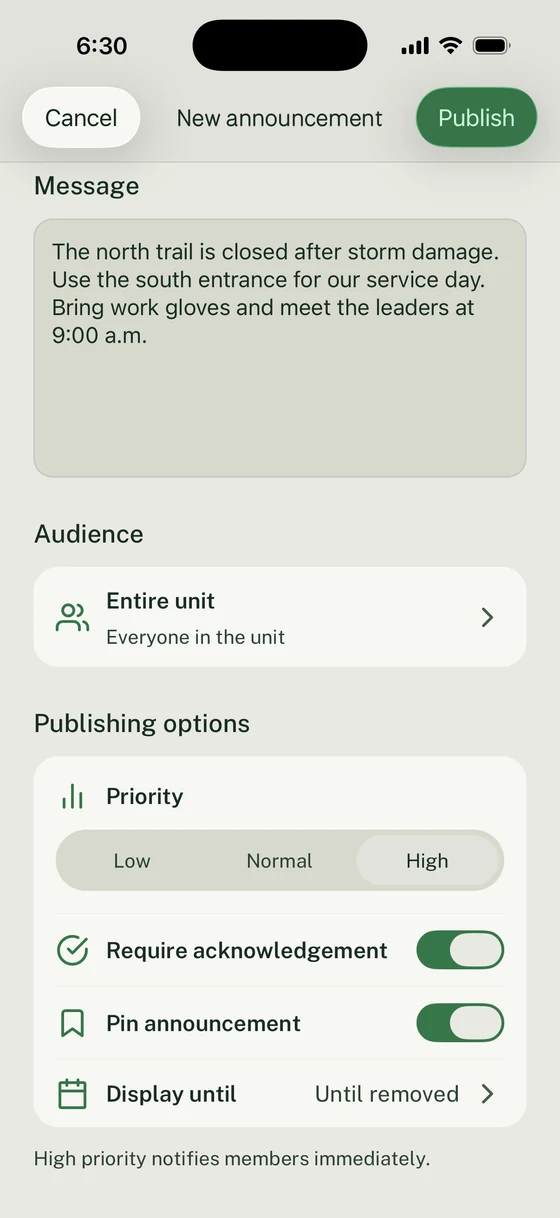
The trail closure uses High priority, requires acknowledgement, and stays pinned while the detour is active.
Use Display until to choose when the update leaves the main Announcement list. The Announcement publishes immediately and remains available from a direct link after that date.
5. Publish and check the result
Section titled “5. Publish and check the result”Review the title, message, audience, priority, acknowledgement setting, pin, and display-until date. Select Publish, then open the Announcement from Home.
Use Delivery to check Seen and Not seen. When acknowledgement is required, Confirmed shows members who acknowledged; Seen shows those who have opened it but still need to acknowledge. These are in-app responses, not confirmation that a push notification arrived. You can also edit or remove an Announcement when the plan changes.
Correct or follow up on an Announcement
Section titled “Correct or follow up on an Announcement”Publication failed. If Unable to publish appears, the editor keeps your title, message, audience, and options. Correct the issue or use Retry, then wait for the result before trying again.
The wrong audience received it. Edit the Announcement and select the whole Unit or the correct Groups.
No notification arrived. Check the member’s Announcement notification preference as well as the priority. Low does not send a notification, Normal follows the member’s schedule, and High sends one right away when Announcement notifications are enabled.
The update is no longer current. Remove the pin, change the display-until date, edit the message, or remove the Announcement.
Families have questions. Keep the confirmed update in the Announcement and continue the conversation in the relevant Channel.
If the change affects an Event, update the Event details first. The Announcement can then direct families to the current time, place, RSVP, and volunteer plan.
Thanks. Your feedback helps us keep this page useful.