
How do I track my family’s requests?
Use Inbox to return to family requests and see what happened to each person. A request can finish with different outcomes for different family members.
1. Open Inbox
Section titled “1. Open Inbox”In a Unit, open More → Inbox. Choose Needs action for invitations and requests you can act on, Pending for open requests, or History for completed results.
Your submissions appear under Sent by you. If you also review requests for a Unit, its waiting and completed requests appear in separate Unit sections.
If you have not joined a Unit yet, open My requests from the Unit selection screen. You can return to a saved family request without starting another one. Sign back in with the account that owns the request if you return after closing the app. If Woggle cannot load a private result, retry or sign in as the correct person before relying on it.
2. Continue a draft or check a pending request
Section titled “2. Continue a draft or check a pending request”Open Pending, then select the family request. A saved draft returns you to your family choices. A submitted request opens its current result. From the standalone My requests screen, use View family request.
| State | What it means |
|---|---|
| Draft | Your choices are saved but have not been sent for review. |
| Request sent or in review | Unit leaders are reviewing the family; participation has not changed yet. |
| Waiting for account | An approved adult needs to connect their account, or a youth is waiting for a guardian to do so. |
Drafts expire 30 days after their last saved change. Submitted requests do not expire just because the review takes longer. If Woggle reports an expired invitation, ask the Unit for a new one.
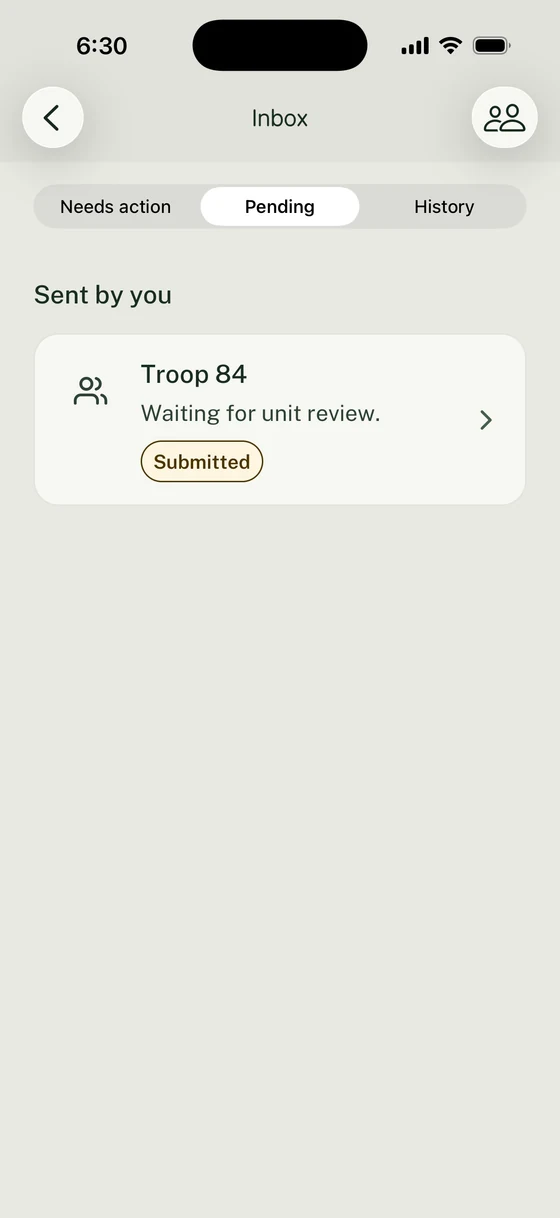
Open the pending family request to see its latest state and next action.
3. Follow the next action for each person
Section titled “3. Follow the next action for each person”Read the sentence under each person’s name. An approval decision and being able to take part can be separate steps when an account invitation is still outstanding.
Use Send account invite when Woggle offers it, enter the Email address, then select Send invite. Resend account invite uses the existing address. Check that address before resending. The invited adult accepts with their own account.
Use Check for updates to reload the latest result. If the request cannot load, try again before treating an older result as current.
4. Find completed results in History
Section titled “4. Find completed results in History”Select History even when Pending is empty. Open the relevant family result to see approvals, declined requests, and participation changes available to your account.
A mixed result does not require another acknowledgement from the family. Follow any next action shown for a person who still needs help. Where offered, Review a new request for that person starts a separate request to review before sending.
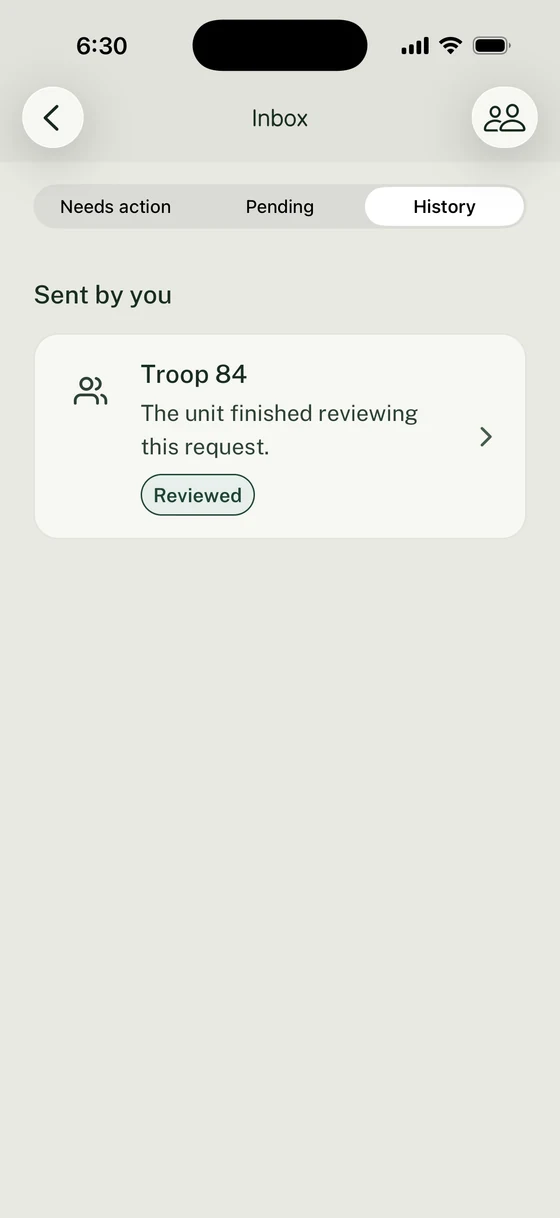
History keeps completed results available after a request leaves Pending.
5. Cancel or try again when needed
Section titled “5. Cancel or try again when needed”Use Cancel family request when the pending request should stop, then confirm. Canceling the request does not remove people already in your Household.
For a declined or canceled request, use Review and try again when available. This starts a new request with previous choices to review. Check the Unit and every person before sending again. Previously selected Groups remain choices when still available; remove any Group Woggle identifies as unavailable.
A retry does not restore removed Unit access. A reviewer must approve the person’s return. Canceling a request leaves existing Household profiles and current participation in place.
If a different family request is already open, follow View the current family request. Avoid submitting duplicate requests for the same family.
Thanks. Your feedback helps us keep this page useful.