
How Woggle works
Woggle gives a Scout unit one shared place for the current coordination plan. This tour explains how Woggle works and where its core features belong before you choose a first task. The Unit, Household, Groups and Channels, Events, RSVPs, volunteer roles, and Announcements each answer a different practical question.
The Unit is the shared context
Section titled “The Unit is the shared context”A Unit is the top-level Woggle coordination space for a pack, troop, or other Scout unit. Unit Admins and Leaders organize the shared context; parents, guardians, volunteers, and members use the parts relevant to them.
First action: Open Home, confirm the Unit name, and use Next Up to open the next real activity. Leaders can create an Event when the Unit needs a useful first plan.
The Household holds family context
Section titled “The Household holds family context”A Household holds family profiles across Units. Guardians can manage those profiles, while each person’s participation, registration status, roles, and Groups belong to a particular Unit. Adding a person to the Household does not automatically give them Unit access.
First action: Review your Household and the selected Unit’s participation before answering an Event. If your family is joining together, use the family joining guide, then track each person’s request outcome.
Registration status in Woggle records what the Unit knows about official registration. It does not complete registration in the organization’s official system.
Inbox keeps next steps together
Section titled “Inbox keeps next steps together”Open More → Inbox. Needs action holds invitations and reviews you can act on; Pending holds open requests; History keeps completed results available. Your submissions appear under Sent by you. Authorized reviewers also see waiting and completed requests grouped by Unit.
Use the Household corrections icon in the Inbox header for the agreements and results of adult Household connection changes.
Use request tracking for family outcomes and Household corrections for an adult’s proposed family connection.
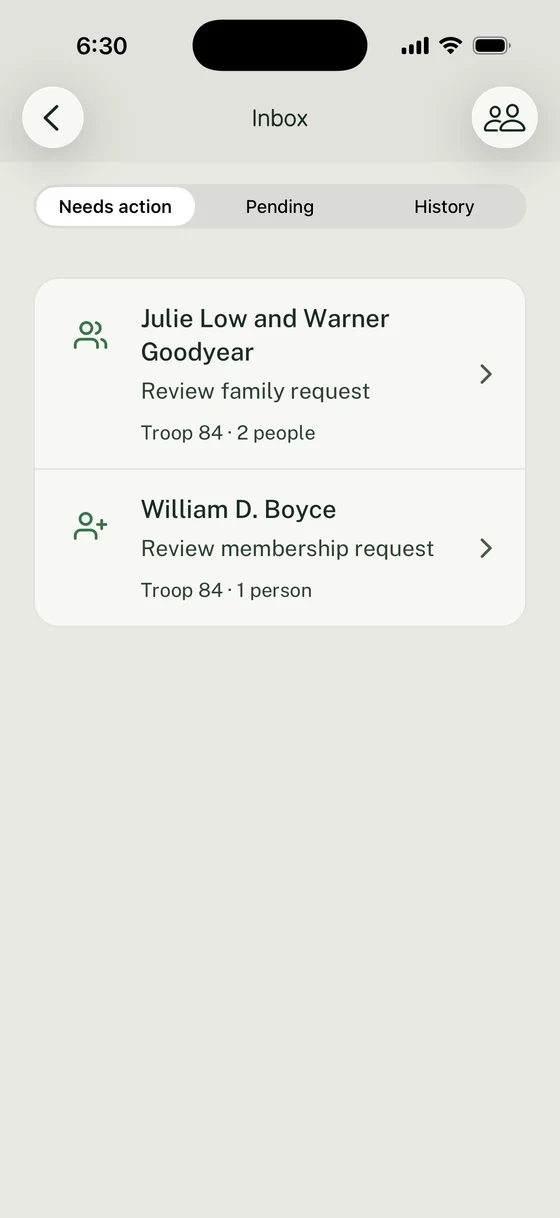
This administrator has a family request to review. Your Inbox shows the actions available to your account.
More brings Unit, account, and help links together
Section titled “More brings Unit, account, and help links together”The More tab opens Unit & Account. Your profile, roles, active Unit, and Switch unit are at the top. People holds Household and Inbox, plus Unit roster when your permissions allow it. Administration controls appear according to your Unit permissions.
Use Settings for Appearance and Notifications. Under Help, Help center opens these guides and Send feedback lets you report a problem or suggest an improvement. Unit administrators with settings access can also connect a Scoutbook calendar from Calendar sources in Admin. Legal and account actions are further down the screen.
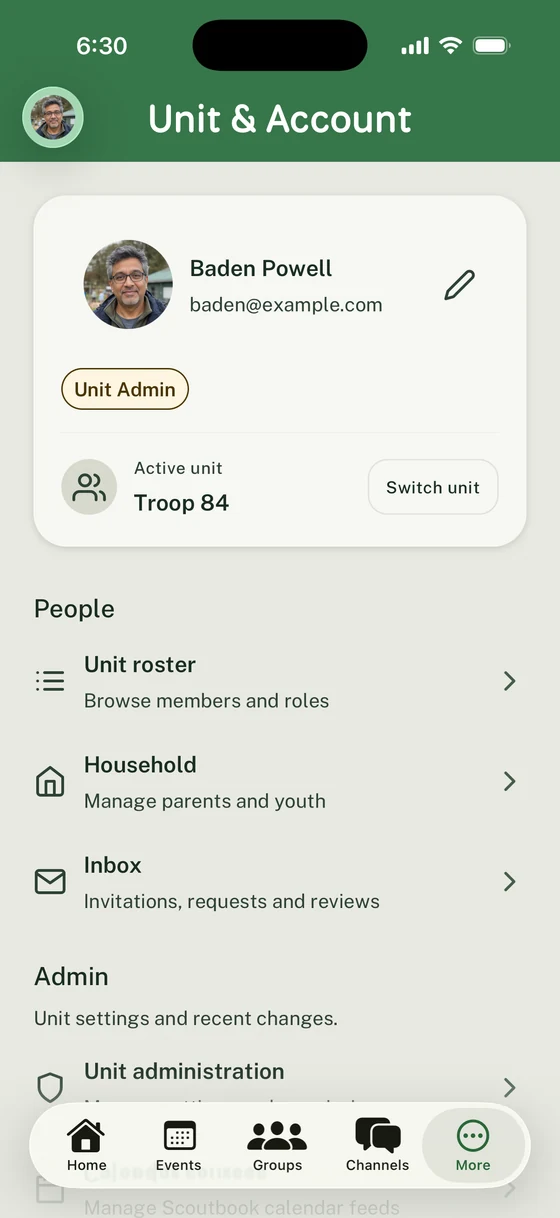
Check your active Unit before opening its people or administration controls.
Groups and Channels organize audiences
Section titled “Groups and Channels organize audiences”A Group is a durable subset of a Unit, such as a den, patrol, committee, or leader team. A Channel is a conversation space for its Unit or Group context. Leaders organize the structure; members use the Channel that matches the audience and topic.
First action: Open Channels and choose the Unit or Group conversation that fits the update. When an important update should stay findable, send an Announcement instead of repeating it across conversations.
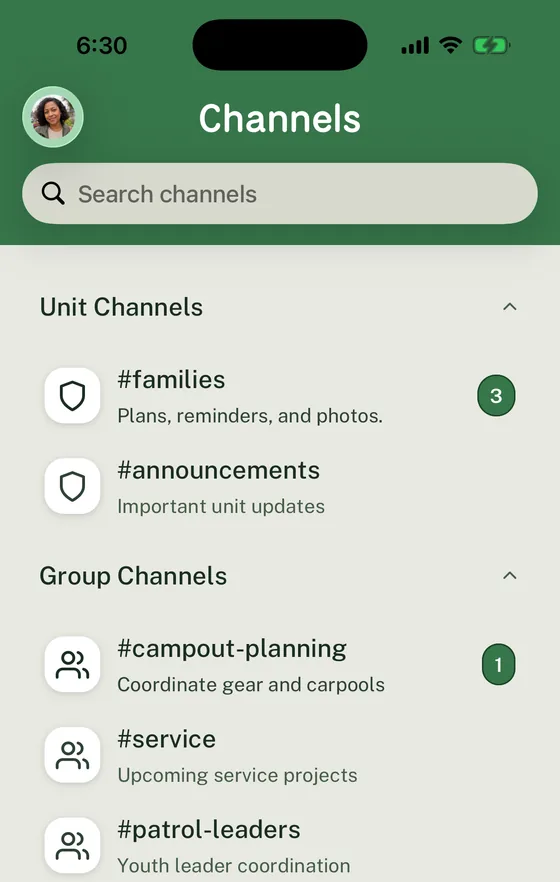
Unit and Group sections make the audience visible before a member opens a conversation.
Events hold the current activity plan
Section titled “Events hold the current activity plan”An Event holds the current date, time, place, audience, description, RSVP settings, and volunteer needs for an activity. Leaders and Event organizers create or update the plan; invited members open it to see what is current.
First action: Open the next Event and check its timing, organizer, details, RSVP, and volunteer callout. When the activity is not in Woggle yet, create the Event.
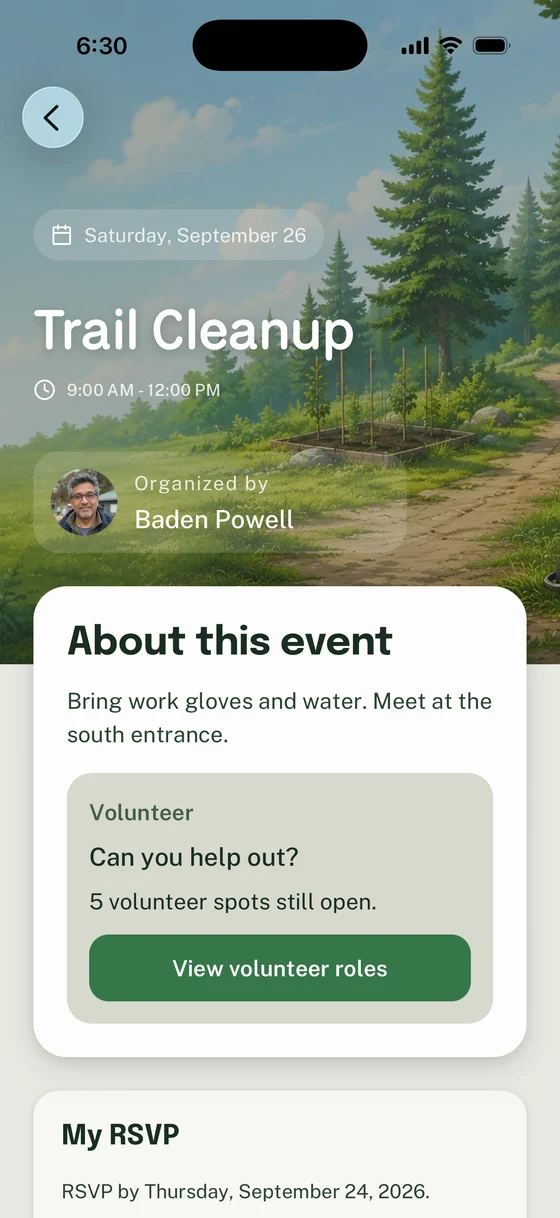
The Event keeps the plan, volunteer need, and RSVP entry in the same context.
RSVP records the Household response
Section titled “RSVP records the Household response”An RSVP records whether the relevant Household members are Going or Not Going. Parents and guardians usually answer for their Household; Leaders and Event organizers use the response status for the current plan.
First action: Open the Event and mark the response for each relevant Household member. When setting up the activity, enable RSVP and state the deadline.
Volunteer roles make Event jobs claimable
Section titled “Volunteer roles make Event jobs claimable”A volunteer role is a specific job attached to an Event. Event creators name the role and its requirements; eligible adults can claim an open spot or release a role they already claimed.
First action: Open the Event’s volunteer section and review what is open before claiming a role. Leaders can add focused volunteer roles to an Event.
Announcements keep important updates findable
Section titled “Announcements keep important updates findable”An Announcement is a targeted update for a Unit or selected Groups. Unit Admins and Leaders publish it; audience members read it and acknowledge it when acknowledgement is required.
First action: Open an Announcement that needs attention, read the complete update, and acknowledge it when asked. Leaders can send an Announcement when an update should remain easy to find.
Thanks. Your feedback helps us keep this page useful.