
How to set up Groups and Channels
Use Groups for parts of your Unit that meet or work together repeatedly, such as a den, patrol, committee, or leader team. Add a Channel when that audience also needs an ongoing conversation.
Choose the right Woggle structure
Section titled “Choose the right Woggle structure”| Use | For |
|---|---|
| Unit | The complete pack, troop, crew, ship, or post |
| Group | A durable subset such as a den, patrol, committee, or leader team |
| Channel | An ongoing conversation for the Unit, selected Groups, or members |
| No new space | One Event, one Announcement, or a targeted update to an existing Group |
1. Check the current Groups
Section titled “1. Check the current Groups”Open Groups and review My and Discover. Search before adding anything. An existing Parents, Committee, den, or patrol Group may already match the people you need.
Create a Group only when the audience has an ongoing purpose:
- A pack might use dens, Committee, and Leaders.
- A troop might use patrols, Committee, and Leaders.
- A recurring service or planning team can use a Custom Group.
These are examples. Keep the structure small enough that a new family can understand it without a private explanation.
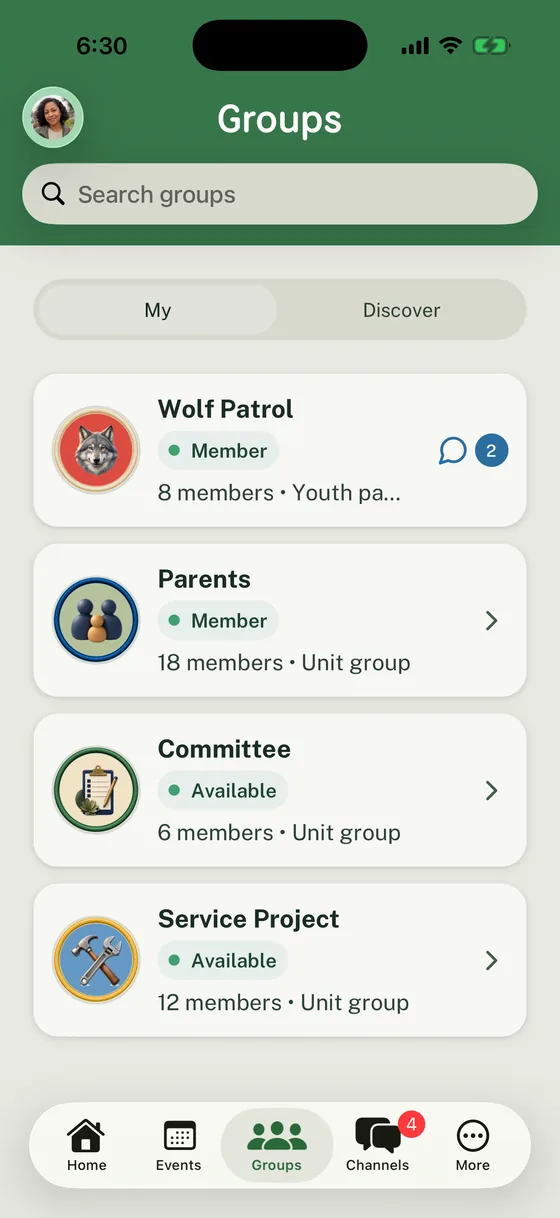
Wolf Patrol and Parents are joined Groups. Committee and Service Project are available without adding another duplicate space.
2. Create the durable Group
Section titled “2. Create the durable Group”Select Add group. Enter the name families will recognize, then choose the Group type:
- Den
- Patrol
- Committee
- Leaders
- Custom
The Group type labels the Group. It does not add members by itself. Choose a Group Patch, then decide whether to leave Create chat channel on.
Leave Create chat channel on when this Group needs ongoing conversation. The new Channel uses the Group as its audience, and its audience follows the Group roster. Turn it off when the Group is only needed for Event or Announcement targeting. You can add a Channel later.
Select Create.
3. Confirm the Group result
Section titled “3. Confirm the Group result”Open the new Group. Check the name, type, member count, and the destinations shown under Shortcuts. If you created a chat Channel, Chat should point to that Group conversation.
Scroll to Group Roster. Use Edit roster when your permissions allow it, then select Add in the header or Add members in an empty roster. Use Search roster and the All, Adults, or Youth filter to find active Unit participants. People already in the Group are excluded from the add list; invited and removed people are not eligible active members.
Select the people, then Add. Cancel or Back before adding leaves the Group roster unchanged. Reopen the Group and check the member count and people before targeting an update. If the roster fails to load, retry before concluding someone is missing. An archived Group’s membership controls are locked.
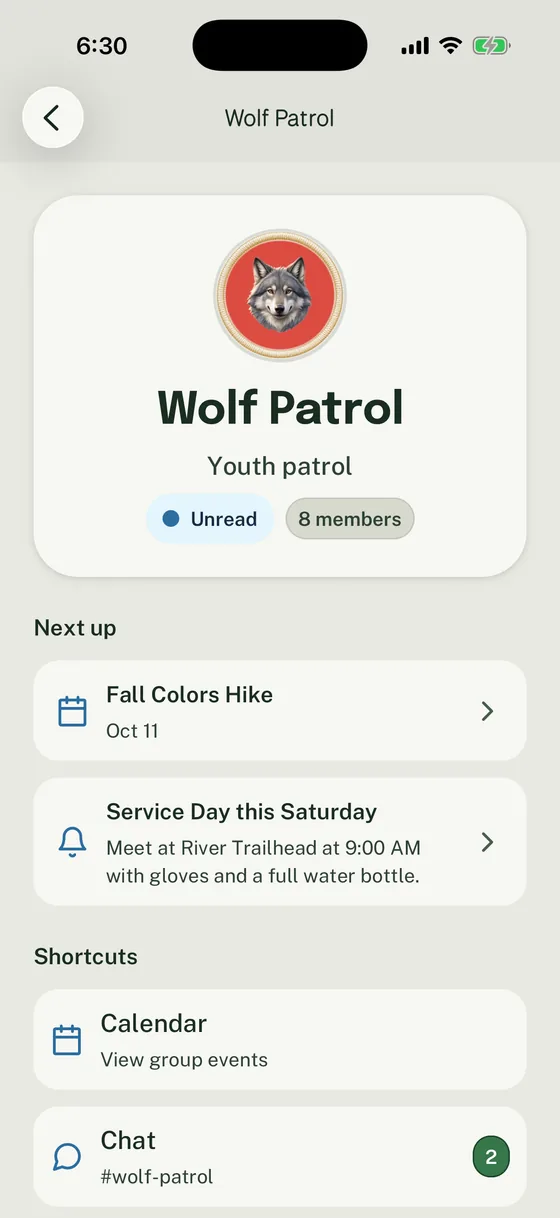
Wolf Patrol has eight members and a linked Chat destination for recurring patrol conversation.
4. Choose the Channel audience
Section titled “4. Choose the Channel audience”To add a separate Channel, open Channels, select Add channel, and complete the name and description. On Audience, choose the narrowest audience that should participate.
Use How to choose a Channel audience for the whole-Unit, Group, and Custom member choices, privacy result, and youth-visibility check. Group Channels follow Group membership, so update the Group roster instead of maintaining a second Channel member list.
5. Assign Groups during an Invite
Section titled “5. Assign Groups during an Invite”In the roster invitation form, choose Youth member or Adult leader, then enter the name and the appropriate email. Open Groups under Groups (optional) and choose the recurring spaces the person should join. The direct Parent/Guardian invitation form uses Add to groups (optional). How to invite members explains which form and roles your permissions allow.
Use Done to apply Group choices to the invitation; canceling that selector leaves the previous choices in place. The invited person appears under Invited until the required acceptance or review completes. Review the Group selection after the person accepts the Invite or completes any required Unit approval. Committee and Leaders Groups always require approval.
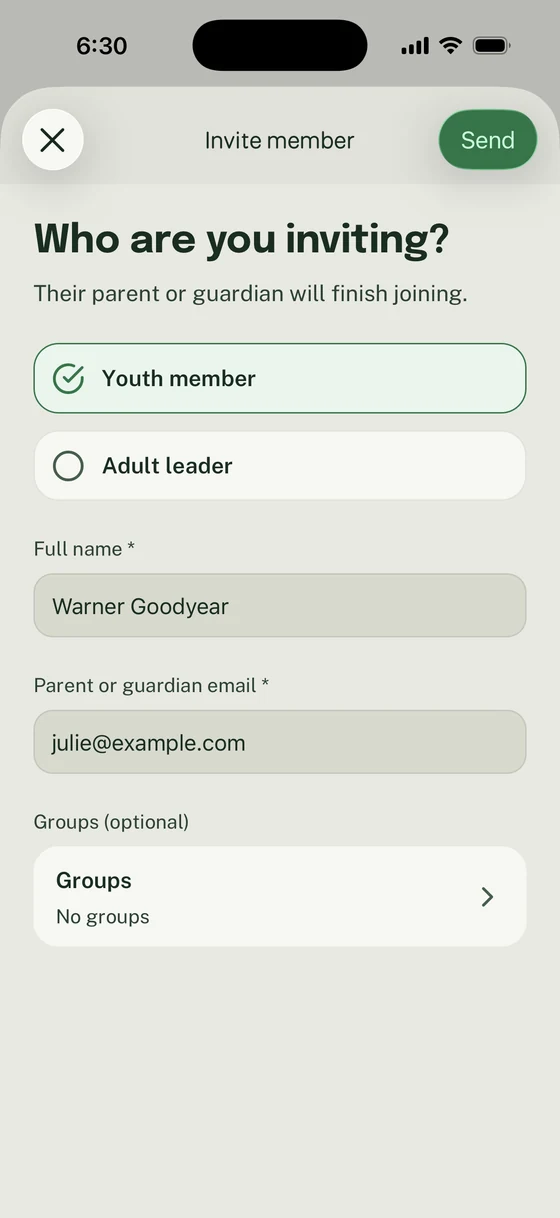
Select the optional Groups before sending. The youth invitation goes to their parent or guardian.
6. Review youth-facing participation
Section titled “6. Review youth-facing participation”Before youth participate in a Channel, confirm the audience, Group roster, Channel Leaders, and whether youth can post. Youth access follows the Channel audience. Guardians receive read-only visibility into private Channels that include their Youth, but that visibility does not allow the Guardian to post.
Use Woggle’s Youth Suitability and Child Safety pages alongside your organization’s communication and youth-protection requirements.
Correct or simplify the setup
Section titled “Correct or simplify the setup”A Group exists only for one activity. Move the activity to an Event and archive the Group when its recurring work is finished.
The update needs no conversation. Send a targeted Announcement to the existing Group.
The wrong people can access a Group Channel. Correct the Group roster. Group Channel access follows Group membership.
The wrong people can access a Custom Channel. Open the Channel settings and correct its Leaders or members.
For advice on choosing communication surfaces across a Unit, read the Scout communication channel guide.
Thanks. Your feedback helps us keep this page useful.