
How to choose a Channel audience
Choose the narrowest Channel audience that matches the conversation’s ongoing purpose. Woggle updates the Channel’s privacy from that choice.
1. Match the audience to the conversation
Section titled “1. Match the audience to the conversation”| Audience | Who can join | Privacy |
|---|---|---|
| Whole unit | Active members of the Unit | Public |
| Specific groups | Members of the selected dens, patrols, committees, or Groups | Private |
| Custom members | Selected adults or Households | Private |
Use an existing Group when its roster already matches the conversation. Use Custom members only when the audience does not belong together as a durable Group.
2. Open the audience controls
Section titled “2. Open the audience controls”For a new Channel, open Channels, select Add channel, enter the Channel details, and open Audience.
For an existing Channel you manage, open its settings and select Privacy. An archived Channel is read-only, and some privacy changes may be locked.
3. Choose the audience
Section titled “3. Choose the audience”Select one option:
- Choose Whole unit when every active Unit member should be able to find and join the Channel.
- Choose Specific groups, then select one or more Groups. At least one Group is required.
- Choose Custom members when you need selected adults or Households. Woggle asks you to choose Channel leaders before the remaining members.
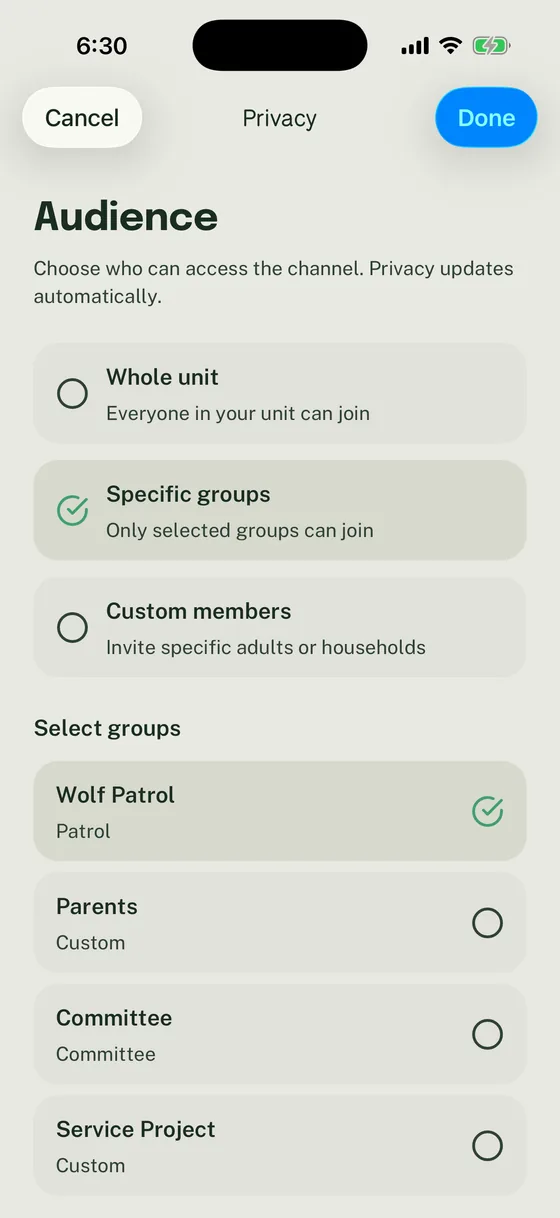
Specific groups keeps the Channel private and ties access to the selected Group roster.
For a Custom audience, use Search adults to find eligible active adults for Channel leadership. Select Done to keep the leader choices, then use Search members to find adults or Households for the audience. These lists include the eligible Unit roster, not just the first people shown. Invited or removed people are not active audience members. If the roster cannot load, retry before treating the list as complete.
In the creation flow, Done applies the choices from the audience, leader, or member screen to the Channel draft. Back without Done keeps the previously saved choices.
4. Review leaders, members, and privacy
Section titled “4. Review leaders, members, and privacy”Confirm that the selected Groups or Custom members match the intended conversation. A Custom Channel needs at least one Channel leader.
Group Channels follow Group membership. Update the Group roster when a person’s ongoing Group access changes instead of maintaining a second list in the Channel.
Only active Groups can be added to a new audience. When editing existing Channel privacy, a saved archived Group can appear as Archived · Existing audience. Review it deliberately; an unrelated edit does not require clearing the existing audience, and other archived Groups are not offered as new choices.
5. Save and confirm access
Section titled “5. Save and confirm access”Select Done while creating the Channel, then review the audience and privacy before selecting Create channel.
When changing an existing Channel, select Save, review the privacy update, and select Confirm. Changing a public Channel to private may remove access for some members. Changing a private Channel to public makes it visible to more people in the Unit.
Open the saved Channel and confirm its audience before posting. If the wrong people can enter a Group Channel, correct the Group roster. If the wrong people can enter a Custom Channel, correct its leaders or members.
Thanks. Your feedback helps us keep this page useful.