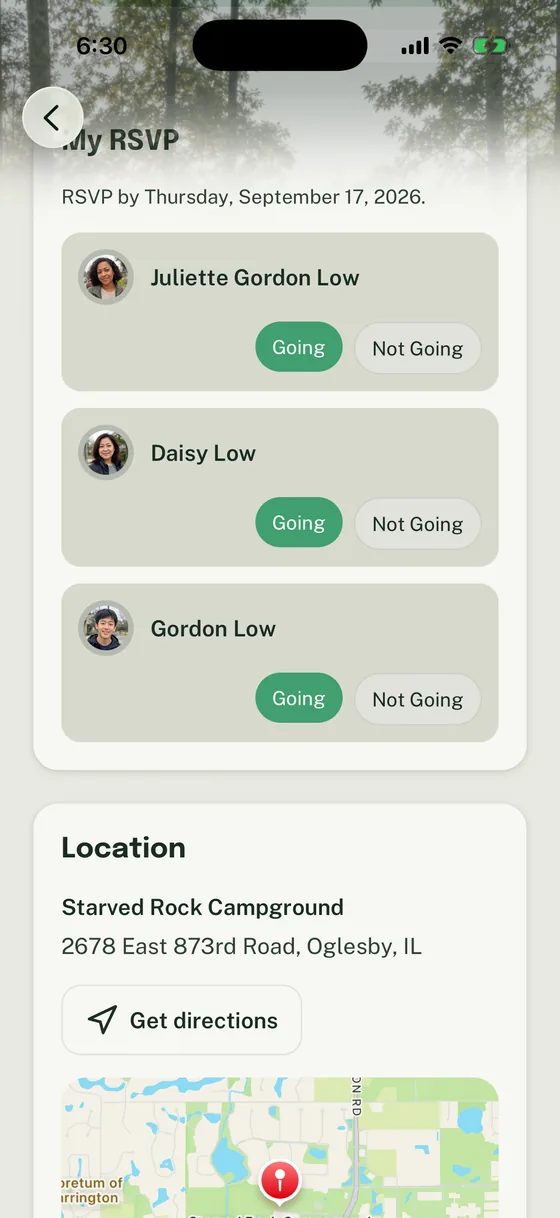
Use this guide when your unit is ready to set up a campout in Woggle and needs more than a date on a calendar. A campout usually depends on attendance, adults, drivers, food, gear, forms, weather, and volunteer coverage, so the Event should give families enough context to answer without a side thread.
If your unit has not built an Event in Woggle yet, start with Run Your First Event End to End. Then return here to add the attendance, transportation, gear, forms, weather, and volunteer details a campout needs.
What You Will Do
- create one campout Event with the details families need
- set a Household-aware RSVP deadline
- make adult attendance, driver, sibling, and guest expectations clear
- add volunteer roles for the jobs leaders would otherwise chase in chat
- send reminder Announcements that point back to the Event
- check the final headcount before the shopping, forms, and departure plan are locked
Before You Start
Gather the campout plan before opening the Event form:
| Detail | Why it matters |
|---|---|
| Destination and address | Families need to know where they are committing to go |
| Arrival and return times | Parents can decide whether the schedule works |
| RSVP deadline | Leaders need a date when the headcount becomes usable |
| Cost and payment notes | Families know what is expected before they answer |
| Forms or health-record process | Leaders can keep official requirements in the approved place |
| Adult and driver needs | The Event can separate attendance from volunteer coverage |
| Meal and gear plan | Families know what to bring and what the unit provides |
| Weather or cancellation owner | Updates have one clear source |
Woggle can coordinate the campout plan, RSVP, volunteer asks, and reminders. Keep official records, health forms, permission slips, Youth Protection requirements, transportation rules, and council or unit policy checks in the systems your unit is required to use.
For the exact Event form, audience, RSVP, and publish steps, follow How to create an Event.
Step 1: Name and Frame the Campout
Choose a title families will recognize quickly:
- Troop 48 Spring Campout
- Pack 312 Family Campout
- Webelos Woods Overnight
- Patrol Campout Planning and Departure
Avoid vague titles like “May Outdoor Event” or “Camping.” Families should be able to tell whether this is the outing they have been hearing about. If the campout has a departure meeting point and a different campsite address, include both in the plan so families do not guess.
Step 2: Write the Campout Details
Campouts create more questions than a normal meeting. Write the description for the parent who opens Woggle between work, dinner, and packing.
Include:
- destination, arrival window, pickup or return time
- departure meeting point, parking notes, and campsite notes
- who should attend: Scouts, adults, siblings, guests, or specific Groups
- cost, payment deadline, and what the fee covers
- meal plan and allergy note process
- what families should bring and what the unit provides
- permission slip, health form, or registration reminders
- weather plan and where updates will be posted
- adult coverage, driver, or volunteer expectations
- the leader responsible for Event questions
Campout Event Description Template
Campout:Dates:Departure/arrival time:Return/pickup time:Destination:Meeting point:
Who should attend:Adult attendance expectation:Sibling or guest policy:RSVP deadline:
Cost:Payment deadline:Meals:Food/allergy notes:Gear list:Forms or health records:
Driver needs:Volunteer roles:Weather or cancellation plan:Primary contact:Where updates will be posted:
For a broader planning checklist, use How to Plan a Cub Scout Campout Without Losing Track of Everything.
Step 3: Ask for the Right RSVP
A campout RSVP should answer more than “yes.” Leaders usually need to know which Scouts are attending, which adults are staying, whether siblings or guests are included, who can drive, and which families still have no response.
Ask families to respond by Household:
- mark each attending Scout as Going
- mark adults who are staying or driving as Going when they appear in the Household RSVP
- mark Not Going when the family cannot attend
- update the response if the plan changes before the deadline
- use the Event details for the final plan instead of replying only in chat
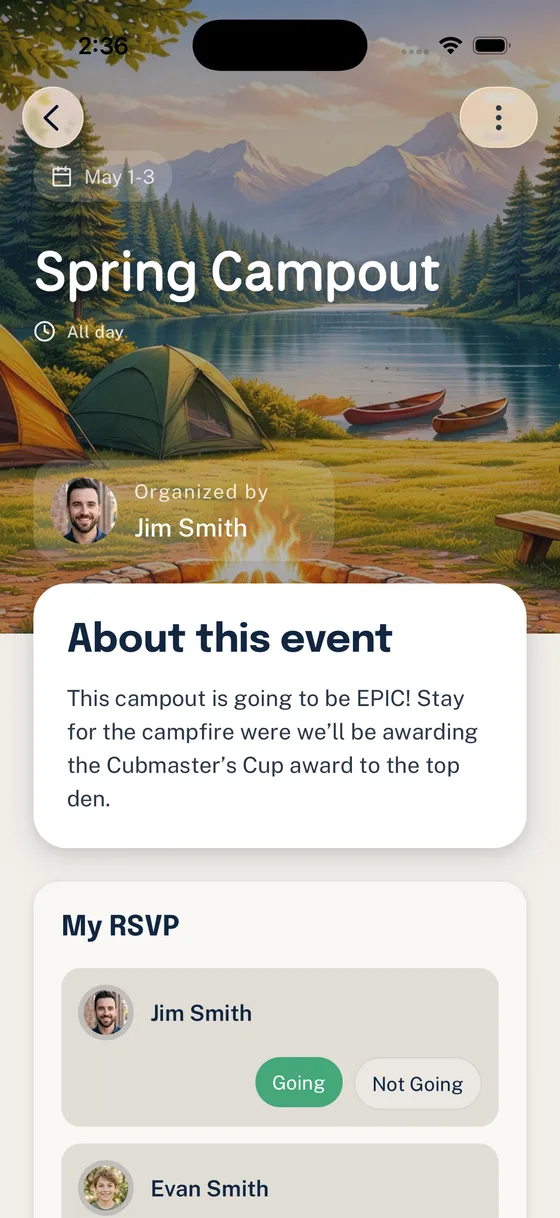
If you need to explain the model to parents or leaders, share How Household-Aware RSVPs Work in Woggle.
Step 4: Add Volunteer Roles
Use volunteer roles for jobs that need visible ownership. Keep them specific enough that a parent knows what they are claiming.
Good campout roles:
| Role | Clear expectation |
|---|---|
| Driver with seats | Confirm available seats and departure plan by Thursday |
| Meal lead | Own menu, shopping list, and food handoff |
| Gear lead | Confirm unit gear, trailer, or shared supplies |
| Check-in lead | Verify arrivals against the final list |
| Forms lead | Track required forms in the approved unit process |
| Campsite setup lead | Coordinate arrival setup and tent area |
| Cleanup lead | Own final sweep and trash plan |
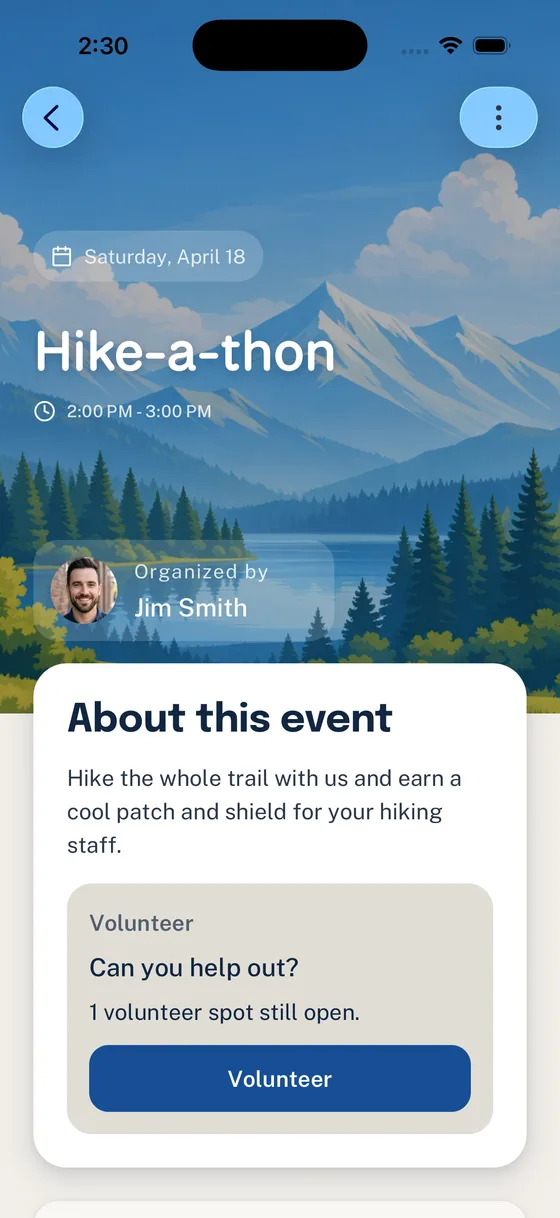
Do not use Woggle volunteer roles as the official record for required training, medical details, permissions, or transportation approvals. Use them to make the coordination work visible and then verify policy-sensitive items through your unit’s required process.
Step 5: Send Reminder Announcements
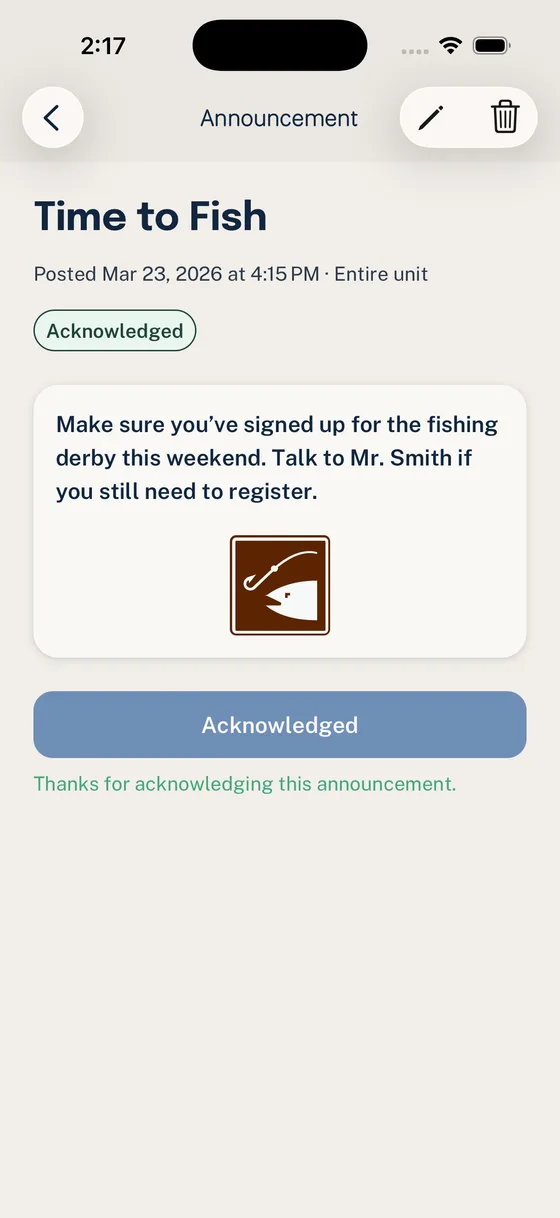
Use Announcements to move families back to the Event instead of rewriting the campout plan in every message.
Helpful reminder timing:
| When | What to send |
|---|---|
| When the Event is published | “Please open the Event and RSVP by the deadline.” |
| One week before the deadline | “Check the gear, cost, and adult notes before answering.” |
| After the deadline | “We are following up with families that have not answered.” |
| Week of the campout | “Final details are in the Event: arrival, gear, weather, and reminders.” |
Copy/Paste Parent Reminder
Final Headcount Checklist
Before the campout plan is locked, confirm:
- the Event has the current destination, timing, and weather notes
- every attending Scout, adult, sibling, or guest expectation is clear
- the Going, Not Going, and No Response lists have been reviewed
- adult coverage and driver needs have named owners
- meal counts, allergies, and shopping responsibilities are confirmed
- required forms, health records, permission slips, or payments are tracked in the approved process
- gear and shared equipment owners are visible
- final reminders are aimed at attending families, missing responses, or specific volunteers instead of everyone
Common Mistakes
Using a calendar title as the whole plan
“Campout” is not enough. Families need the real details before they can answer honestly.
Asking for one family yes
A Household may include one Scout, two Scouts, an adult driver, and a sibling. Ask for the people who are actually attending.
Mixing policy tracking with coordination
Use Woggle to coordinate the Event, reminders, RSVPs, and volunteer ownership. Keep official records and policy-sensitive approvals in the official systems your unit uses.
Sending every reminder to everyone
After the first broad reminder, narrow the follow-up. Families who already answered do not need the same message as families with missing forms, missing RSVPs, or open volunteer jobs.
Next Step
Use Woggle for one real campout before trying to rebuild every unit workflow. Publish the Event, ask for the Household RSVP, add only the volunteer roles that matter, and make each reminder point back to the same Event.