
Use this guide when your unit is ready to create its first real Event in Woggle. Pick something families already care about, such as a pack hike, troop service project, campout, den meeting, or court of honor.
The goal is not to configure every future workflow on day one. The goal is to publish one Event that gives families a clear place to check the plan, RSVP, and claim a simple volunteer role.
What You Will Do
- choose a real upcoming Scout activity
- write the details families usually ask for
- publish the Event to the right Unit or Group audience
- set clear RSVP expectations
- add practical volunteer roles when they help the plan
- send one Announcement that points families back to the Event
Before You Start
Gather the Event details before opening the form:
| Detail | Why it matters |
|---|---|
| Event title | Families recognize the activity quickly |
| Date, start, and end | Parents can make the calendar decision |
| Location and arrival | Families know where to go and where to park |
| RSVP deadline | Leaders know when the count becomes useful |
| Who should attend | Scouts, parents, siblings, guests, or specific dens |
| Cost, forms, and gear | Families know what to bring or complete |
| Volunteer needs | Jobs stay attached to the Event |
| Update owner | One leader owns changes and follow-up |
If the Event depends on official permission slips, medical forms, transportation rules, or council guidance, keep those requirements in the approved system your unit uses. Woggle can help coordinate the plan and reminders, but it does not replace official records or policy checks.
Step 1: Start With the Event Families Already Know
Create the first Event around an activity that already has attention. A campout, service project, pack meeting, or hike works better than a vague “test event” because families immediately understand why they should respond.
Use a title parents would recognize in a reminder:
- Pack 312 Spring Hike
- Troop 48 Service Project
- Bear Den Museum Visit
- Court of Honor Setup and Ceremony
Avoid internal shorthand for the first Event. If a new family opens Woggle and sees only “May Outing,” they may still need to ask which activity it means.
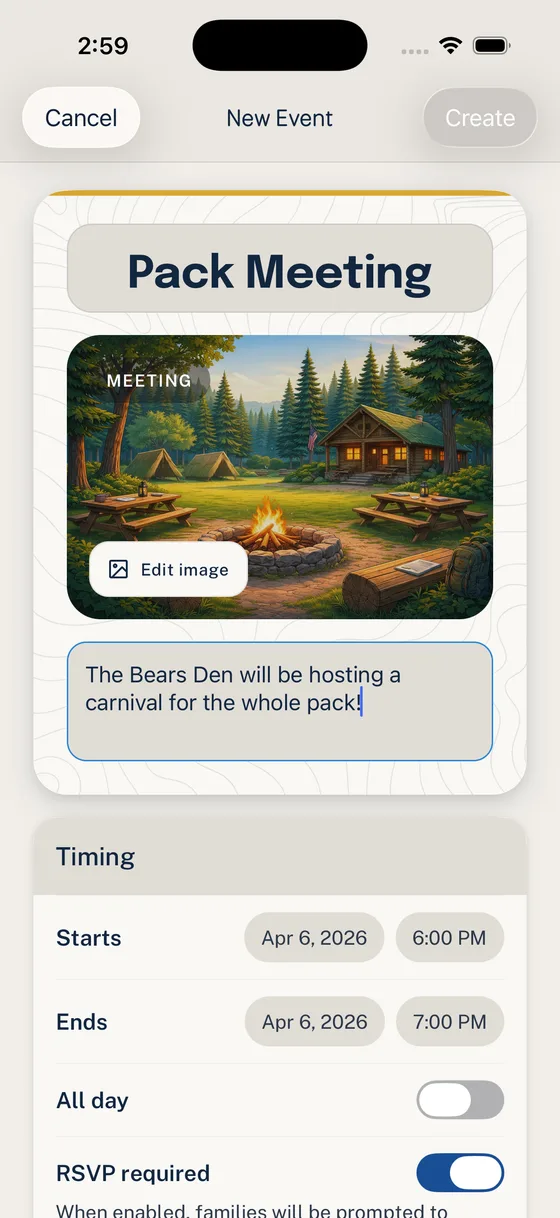
Step 2: Write the Details Parents Need
The Event description should answer the questions that usually create extra texts.
Include:
- who is invited
- where to arrive and where to park
- what time to arrive and when pickup or dismissal happens
- what Scouts should wear or bring
- whether an adult should stay
- whether siblings or guests are included
- cost, form, permission slip, or payment notes
- the RSVP deadline
- who to contact with Event-specific questions
For a deeper writing guide, use How to Write Better Scout Event Descriptions Parents Will Actually Read.
Copy/paste Event description template
Event:
Date:
Arrival time:
Pickup/end time:
Location:
Parking or entrance notes:

Who should attend:
Adult attendance expectation:
Sibling or guest policy:
Cost:
RSVP deadline:

What to bring:
Uniform or clothing:
Food plan:
Forms or permission slips:
Weather or cancellation plan:

Volunteer needs:
Primary contact:
Where updates will be posted:
Trim the template for simple meetings. Fill it out more completely for campouts, service projects, travel activities, or events where headcount affects food, transportation, supervision, or materials.
Step 3: Choose the Audience
Before publishing, choose who should see the Event. Send broad unit Events to the whole Unit. Send den, patrol, committee, or working-group Events only to the Group that needs them.
Use this quick check:
- If every family needs to decide or prepare, use the Unit audience.
- If only one den, patrol, or committee needs action, use that Group.
- If leaders are planning before families need the details, keep the audience narrow until the family-facing Event is ready.
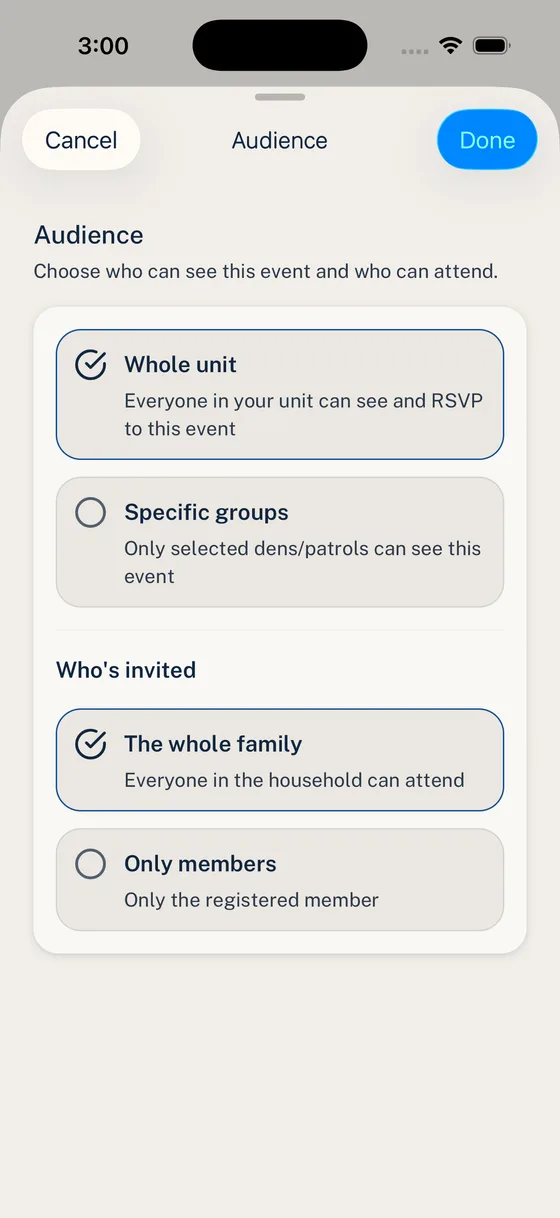
This is one place Woggle should reduce noise. A parent is more likely to trust the new tool if the first Event they receive is relevant.
Step 4: Set the RSVP Expectation
Turn on RSVP when leaders need a count, a family decision, or a follow-up list. A Scout Event usually needs more than a casual “sounds good” in chat.
Make the RSVP request specific:
- “Please RSVP by Tuesday night.”
- “Mark each Household member who is attending.”
- “Include adults if they are staying for the activity.”
- “Reply Not Going if your family cannot attend so we can close the count.”
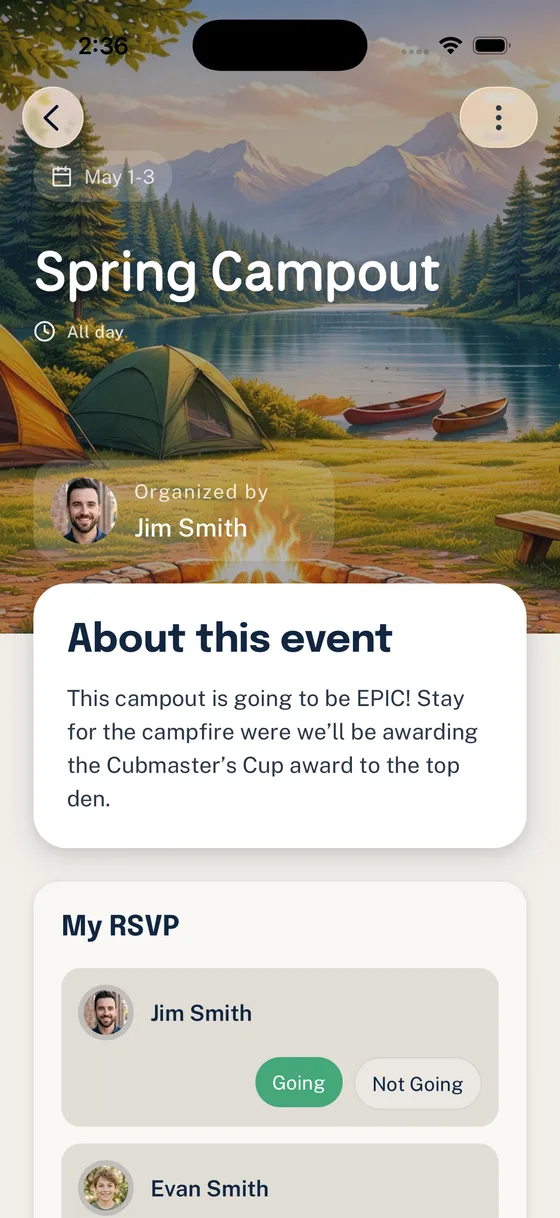
For the full RSVP model, read How Household-Aware RSVPs Work in Woggle.
Step 5: Add Volunteer Roles
Add volunteer roles when the Event needs visible ownership. Do not create vague jobs just to fill the page. Start with one or two roles that would otherwise be chased in chat.
Good first roles:
| Role | Clear expectation |
|---|---|
| Check-in table | Arrive 15 minutes early with roster |
| Snack coordinator | Bring 24 nut-free snacks |
| Setup helper | Set up chairs before opening ceremony |
| Driver with seats | Confirm number of open seats by Friday |
| Cleanup lead | Stay 20 minutes after the activity ends |
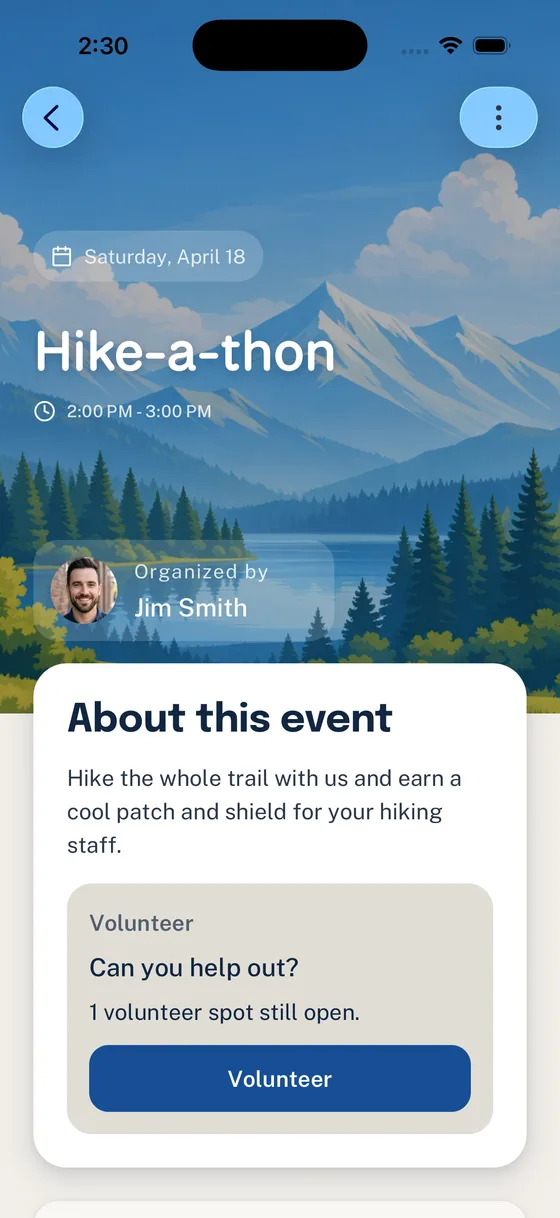
If a role depends on training, youth protection rules, transportation expectations, or unit policy, say that plainly and verify the requirement through your official unit or council process.
Step 6: Announce the Event
After the Event is ready, send one short Announcement that points families back to it. Do not copy the whole Event into chat and create a second source of truth.
Use this pattern:
The Announcement is the nudge. The Event page is the plan.
Before You Publish
Check the Event before families see it:
- The title is recognizable without unit shorthand.
- Date, start time, end time, and location are current.
- The description says who should attend and what to bring.
- Cost, forms, gear, food, or weather notes are included when relevant.
- The audience is the right Unit or Group.
- RSVP is enabled if a count or decision is needed.
- The RSVP deadline is tied to a real planning need.
- Volunteer roles are specific enough that a parent knows what they are claiming.
- One leader owns updates if details change.
- The launch Announcement points back to the Event instead of duplicating it.
Common Mistakes
Publishing a title instead of a plan
“Spring Campout” is not enough. Families still need arrival time, location, food, gear, forms, cost, RSVP expectations, and update location.
Sending the Event to everyone by default
The whole Unit does not need every den, patrol, committee, or planning Event. Use the smallest audience that matches the action.
Treating volunteer roles as RSVP notes
Attendance and ownership are different. A family can attend without owning a job, and a parent may claim a role that has its own expectations.
Rebuilding the Event in chat
Short reminders are useful. Long duplicate messages create drift. Point families back to the current Event so the plan has one durable home.
Next Step
Publish one real Event and use it for the first Woggle habit: every reminder points back to the Event page. Once families have used Woggle for one RSVP, add the next Event or follow Woggle Quick Start for Unit Admins to expand the rollout.


