

Use this quick start to get a Scout unit ready for its first useful Woggle action: one real Event, one clear RSVP, and one Announcement that points families to the right place.
What You Will Set Up
In your first setup session, aim for only the pieces families need right away:
- the Unit name families recognize
- a small set of starter Groups
- a clean invite plan for Households
- one upcoming Event with RSVP turned on
- one Announcement that sends families to that Event
That is enough for a first rollout. You can add more Groups, leaders, and recurring routines after families have used Woggle for one concrete task.
Before You Start
Gather the details you will need before opening Woggle:
| Prepare this | Use it for |
|---|---|
| Public unit name | Naming the Unit clearly |
| Active family roster | Planning Household invites |
| First event details | Building the adoption anchor |
| RSVP deadline | Giving leaders a usable count |
| Volunteer needs | Adding one or two practical roles |
| Current parent channel | Sending the launch Announcement |
If the roster is imperfect, start with active families for the first Event. Do not let old data cleanup delay a useful rollout.
Step 1: Name the Unit Plainly
Create the Unit using the name parents already know:
- Pack 312
- Troop 48
- Girl Scout Troop 7412
- Pack 312 Committee
Avoid internal nicknames or clever rollout labels. Families should know they are joining the right Unit without asking a leader.
Keep admin access narrow at first. Add the people who will actually help with setup, then expand later once the first Event and invites are working.
Step 2: Create Starter Groups
Groups should match how your unit needs to communicate this month, not every future edge case.
For a Cub Scout pack, start with:
- Use the whole Unit audience for pack-wide updates
- current dens
- Committee
For a troop, start with:
- Use the whole Unit audience for troop-wide updates
- active patrols, if your unit is ready to use them
- adult leaders
- Committee
Use this test: will this Group receive a different Event, Announcement, or volunteer ask in the next month? If not, wait.
Follow Groups and Channels to create the Group, then use Edit roster → Add to choose active Unit participants. Check the member list before using the Group as an audience.
Step 3: Plan Household Invites
Scout coordination usually happens at the Household level. One adult may RSVP, another may drive, and another guardian may need visibility.
Before inviting families, decide:
- which adult receives the first Invite
- whether a second parent or guardian should be added now
- how siblings in the same Household should be represented
- who will fix invite or Household mistakes during rollout
This matters because event headcounts depend on family context. A Household with two Scouts and one parent attending should not turn into three unrelated guesses.
Share a Join Code when a family should request participation together. Use Invite by email for a known person, or the invitation attached to an existing Invited roster record. Assign a Unit Admin to review family requests in More → Inbox → Needs action and help with remaining account-link steps. Check Invited separately from Active in the roster. A returning removed person needs an explicit approved reactivation, and a sent invitation alone does not grant participation. Share How to join as a family with parents.
For a deeper event workflow, read How to Run Scout RSVPs Without Chasing Every Family by Text.
Step 4: Build One Real Event
Choose an Event families already care about: a campout, service project, pack meeting, court of honor, hike, fundraiser, or den outing.
Add the details parents usually ask for:
- date and time
- location and arrival instructions
- RSVP deadline
- who should attend
- what to bring
- cost, food, gear, or form notes
- leader contact for event questions
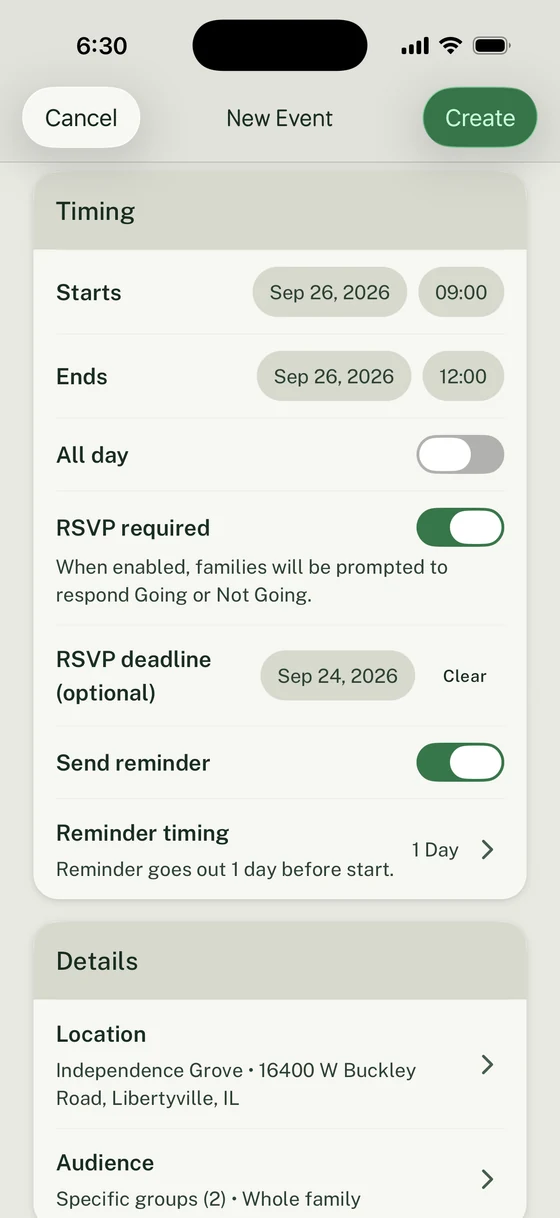
Turn on RSVP if the Event needs a headcount. Confirm the audience, then select Create. Done applies audience choices to the draft; Cancel or Back preserves the previous choices. Follow Create an Event for the complete workflow.
An unfinished Event draft can be reopened with the same account and Unit. If Unable to load draft appears, retry before choosing Start over, which discards it. For Scoutbook schedules and source-owned fields, follow Connect a Scoutbook calendar.
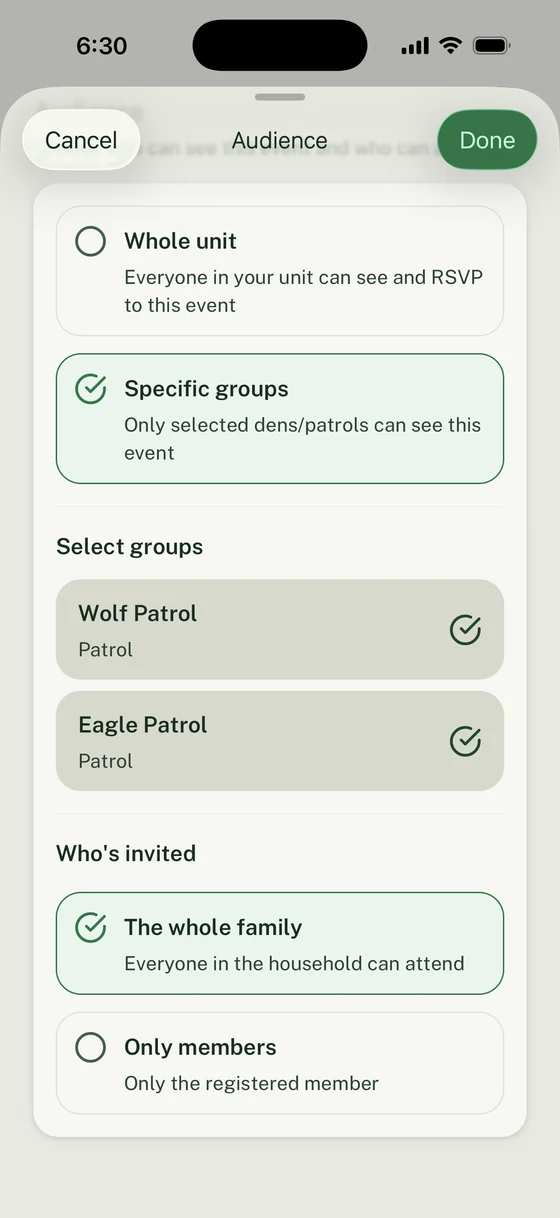
If a parent opens the Event and still has to search chat for the address, deadline, or gear note, the Event is not ready yet.
Step 5: Add One Small Volunteer Ask
Do not wait for a perfect rollout before adding volunteer roles. A small role teaches families that Woggle is for follow-through, not just announcements.
Use specific jobs:
| Instead of | Write |
|---|---|
| Help needed | Check-in table, 6:15-6:45 p.m. |
| Snacks | Bring 24 nut-free snacks |
| Setup | Set up chairs before flags |
| Driver | Driver with 3 open seats |
For more on volunteer structure, see Scout Volunteer Signup Sheets: What Actually Works for Units.
Step 6: Send the Launch Announcement
The first Announcement should point families to one action. Do not introduce every Woggle feature at once.
Use this copy:
After publishing, use Delivery to check Seen and Not seen, plus Confirmed when acknowledgement is required. If publishing fails, the editor keeps your work; use Retry after checking the error. See Send an Announcement for notification and visibility controls.
The 30-Minute Setup Checklist
Pick the Anchor
- Name the first Event you will use for adoption.
- Pick one setup owner.
- Confirm which leader will answer family questions.
- Decide what old channel will carry the launch reminder.
Create the Unit
- Use the public unit name families recognize.
- Add only the admins needed for setup.
- Confirm basic leader contact information.
Add Starter Groups
- Use the whole Unit audience when everyone should receive an update.
- Add only the dens, patrols, committees, or leader Groups you need this month.
- Skip future-event Groups unless they have an immediate job.
Prepare Households and Invites
- Review the active family roster.
- Identify duplicate or unclear households.
- Decide who gets the first Invite.
- Keep a short list of families likely to need help.
Build the First Event
- Add date, time, location, and arrival notes.
- Set the RSVP deadline.
- Include the gear, cost, form, or food details families need.
- Add two or three volunteer roles.
Send the Launch Announcement
- Tell families the one action to take.
- Link directly to the Invite or Event.
- Explain which channel remains for quick questions.
- Ask leaders to point repeat questions back to the Event.
Check Your Setup
Before sending the Announcement, confirm:
- the Unit name is recognizable
- starter Groups are simple enough to explain
- the invite plan names who is getting the first Invite
- the Event has date, time, location, RSVP deadline, and family instructions
- volunteer roles are specific enough to claim
- the Announcement links families to Woggle instead of duplicating every detail
Common Day-One Mistakes
Avoid these traps:
- Do not build every possible Group before families join.
- Do not import stale roster data without a cleanup path.
- Do not launch with a generic “please download this app” message.
- Do not make every old channel a full duplicate source of truth.
- Do not start with a low-value test event families can ignore.
- Do not promise Woggle replaces Scoutbook or official Scouting systems.
Make request review ownership explicit. A Unit Admin checks each person’s requested registration status, roles, and Groups. A decision may still need an account link or another follow-up before Unit participation is active. Registration status does not complete official Scouting registration.
Woggle is a coordination layer for Scout units. Scoutbook and other official systems still have their place for advancement, records, and workflows your council or unit expects. Woggle’s job is the practical operating layer around families, events, RSVPs, announcements, reminders, Groups, and volunteer follow-through.
For a broader tool-boundary guide, read What Belongs in Scoutbook, What Belongs in Chat, and What Belongs Somewhere Else.
Next Step
After the first Event closes, review what happened:
- Which families joined without help?
- Which households were confusing?
- Did leaders trust the RSVP count?
- Did volunteer roles get claimed earlier?
- Did parents ask fewer repeat questions?
- Did leaders link back to the Event instead of rewriting details?
Then improve one thing before the next Event. Add one Group, clean up a few Households, write a better event description, or invite the second parent in each Household.
Start with one useful Event, one clear Announcement, and one action families need to complete. The rest of the unit workflow can grow from there.
Continue the rollout without adding noise
- Copy a message from the seven rollout email templates instead of writing a product launch speech.
- Download the Scout Unit Coordination Toolkit when leaders need printable planning sheets, calendars, or manifests.
- Follow the audience-specific path for a Cub Scout pack or Scouts BSA troop.
- Give hesitant leaders the Woggle product tour and the new-unit FAQ before asking them to configure anything.
- Review roles and permissions before inviting Groups with different responsibilities.
- If one volunteer is still routing everything, use the committee-chair coordination guide to distribute ownership.


