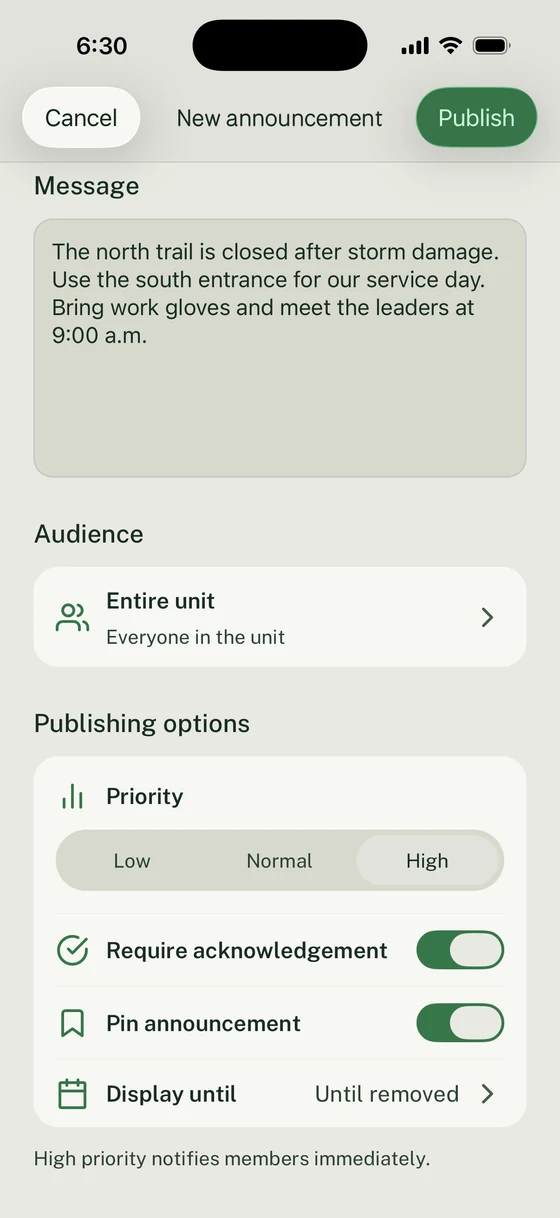
Use this guide when your unit has a real service project coming up and needs one place for the plan: who is attending, what families should bring, which adults are covering which jobs, where updates will appear, and what happens if weather changes.
What You Will Do
- Create one service project Event
- Add clear project details before asking families to respond
- Ask for Household RSVPs so the headcount is usable
- Add volunteer roles for adult coverage, supplies, and work areas
- Send Announcements that point families back to the Event
- Check the final plan before the project starts
Before You Start
Gather the service project basics before opening Woggle:
| Detail | Why it matters |
|---|---|
| Project location | Families need the exact arrival point, parking notes, and pickup plan |
| Service partner or beneficiary | Leaders need a shared understanding of the project context |
| Start and end times | Parents can decide whether the commitment works |
| Work areas | Families know whether the project fits their Scout’s age and ability |
| Supplies and clothing | Gloves, water, closed-toe shoes, tools, or uniforms should be clear |
| Adult coverage | Leaders can see whether supervision and transportation plans are complete |
| RSVP deadline | The project lead can confirm headcount before supplies are purchased |
| Weather plan | Families know where to look for changes or cancellation notes |
Woggle can coordinate the Event, RSVPs, volunteer asks, reminders, and follow-up. Keep official approvals, service-hour records, Youth Protection requirements, transportation rules, medical information, and council or unit policy checks in the systems your unit is required to use.
For the exact Event form, audience, RSVP, and publish steps, follow How to create an Event.
Step 1: Frame the Service Project
Choose a title families will recognize quickly:
- Troop 48 Park Cleanup Service Project
- Pack 312 Food Pantry Sorting Day
- Eagle Project Work Day
- Troop 9 Cemetery Flag Placement
If families should meet at a staging area before walking to the project site, include both places in the plan. Make the service project visible as a real commitment, not just another reminder in chat.
Step 2: Write the Project Plan
Write the description for the parent who wants to know three things quickly: where to go, what their Scout will do, and what the family needs to bring.
Include:
- Project purpose and service partner
- Arrival point, parking, check-in, and pickup notes
- Who should attend: Scouts, adults, siblings, guests, or specific Groups
- Clothing, water, snacks, gloves, tools, sunscreen, or weather gear
- Work areas and age-appropriate expectations
- Adult coverage, driver, or supply needs
- RSVP deadline and what leaders will do with the count
- Weather, cancellation, or relocation plan
- Leader responsible for project questions
Service Project Event Template
Project:Service partner or beneficiary:Date and time:Location:Arrival/check-in point:Pickup plan:
Who should attend:What Scouts will do:Adult coverage needed:Supplies or clothing:Tools or materials:RSVP deadline:
Volunteer roles:Weather plan:Follow-up or service-hour note:Primary contact:Where updates will be posted:
Keep the template practical. Families do not need a long essay, but they do need enough detail to answer without starting a separate thread.
Step 3: Ask for Household RSVPs
Ask families to respond by Household so the project lead can see which Scouts and adults are actually coming.
For a service project, the RSVP should help you answer:
- How many Scouts are attending
- Which adults are staying to help
- Whether siblings or guests are expected
- Which families have not answered yet
- Whether the work plan, supplies, or transportation need to change
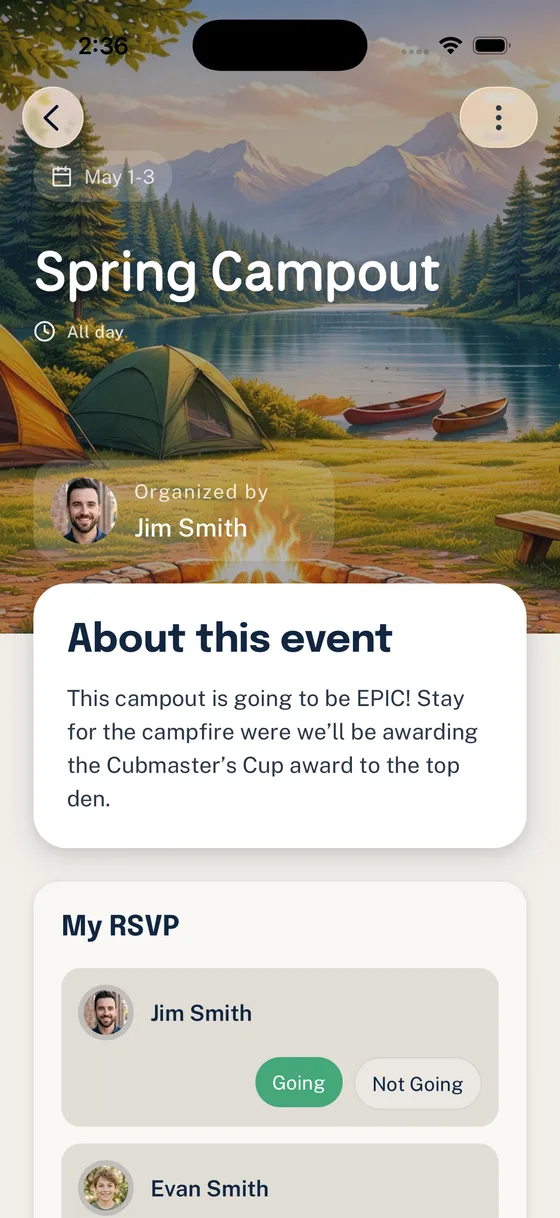
For the deeper RSVP model, share How Household-Aware RSVPs Work in Woggle.
Step 4: Add Volunteer Roles
Use volunteer roles for jobs that need visible ownership. Service projects often fail quietly when every adult assumes someone else is bringing supplies, opening the site, or handling check-in.
Good service project roles:
| Role | Clear expectation |
|---|---|
| Project check-in lead | Arrive 15 minutes early and compare arrivals to the RSVP list |
| Tool coordinator | Bring labeled tools and confirm they return at pickup |
| Water and snack lead | Bring water, cups, and simple snacks for the work period |
| Work area lead | Own one station or cleanup zone during the project |
| Transportation lead | Confirm driver plan through the unit’s approved process |
| Photo or recap lead | Capture approved post-project notes or photos for the unit |
| Cleanup sweep lead | Check the site before families leave |
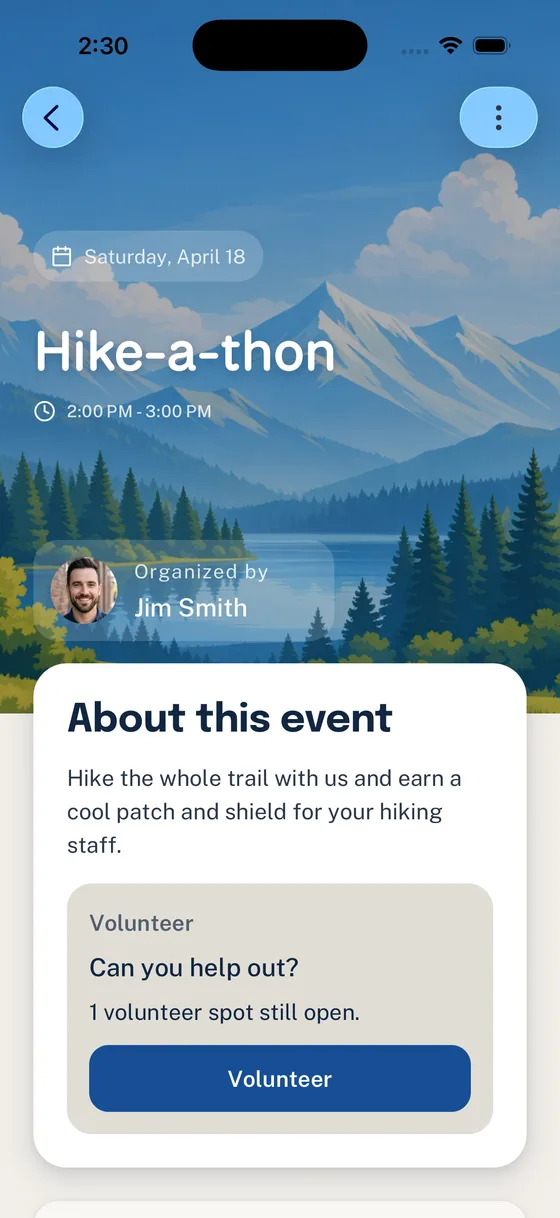
If a role depends on training, registration, driving approval, tool safety, money handling, or youth-serving policy, say that plainly and follow your official process.
Step 5: Send Reminders and Updates
Use Announcements for updates families should be able to find again. The Announcement should point back to the Event rather than becoming a second version of the project plan.
Helpful timing:
| When | What to send |
|---|---|
| When the Event is published | Ask families to open the Event and RSVP by the deadline |
| A few days before the deadline | Remind missing responses and open volunteer roles |
| The day before the project | Confirm location, clothing, supplies, weather, and arrival time |
| If weather changes | Send the change and keep the updated plan on the Event |
| After the project | Thank families and explain any approved follow-up process |

Copy/Paste Parent Reminder
Final Service Project Check
Before the project starts, confirm:
- The Event has the current location, timing, and weather notes
- Expectations for every Scout, adult, sibling, or guest are clear
- Going, Not Going, and No Response lists have been reviewed
- Adult coverage and work area ownership are visible
- Tool, supply, water, snack, and cleanup needs have owners
- Transportation, training, permission, service-hour, or official-record requirements are handled through the approved process
- Reminders are aimed at the right families instead of everyone
- A leader knows how follow-up notes will be shared after the project

Common Mistakes
Treating the project like a normal meeting
Service projects usually need supplies, work areas, adult coverage, weather notes, and follow-up. Put those details in the Event before asking families to respond.
Asking for volunteers without naming the work
“We need help” is easy to ignore. “One adult for check-in” or “Two adults for tool return” is easier to claim.
Mixing service-hour records with coordination
Use Woggle to coordinate attendance and reminders. Keep official service-hour tracking, approvals, and records wherever your unit or organization requires them.
Next Step
Create the Event for one real service project. Add only the details and roles families need to act, then make each reminder point back to that same Event.