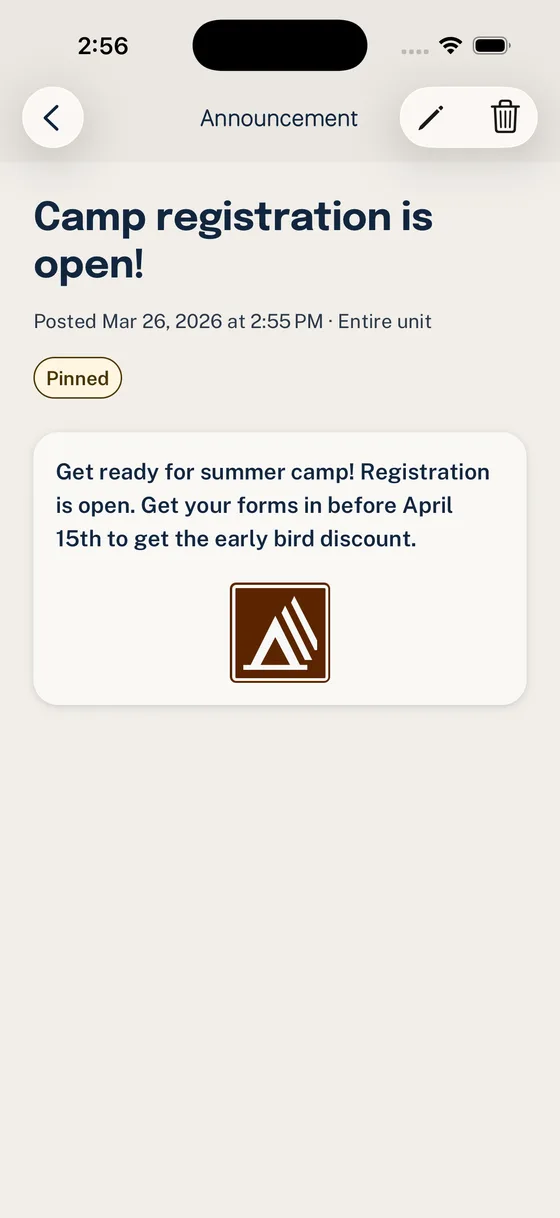
Use Announcements when a Scout update needs to stay visible: a schedule change, deadline, uniform note, RSVP reminder, permission slip reminder, or committee update.
Chat is useful for quick conversation. Announcements are better when families need to find the message later and act on it.
What You Will Do
- Find the Announcement surface
- Write a short title and message
- Choose the right Unit or Group audience
- Set priority deliberately
- Publish the Announcement
- Confirm families can find it again
Step 1: Start With One Action
Before opening the form, decide what the Announcement should make families do.
Good Announcement jobs:
- RSVP by Friday
- bring Class A uniforms tonight
- turn in permission slips at the meeting
- check the Event page for updated arrival details
- claim one volunteer role
- note that a committee meeting moved
If the update has no action, deadline, or durable reference, it may belong in a channel conversation instead.
Step 2: Compose the Message
Open Announcements → New Announcement. Write a title that names the update and a short message that tells families what to do. The Announcement guide covers the complete current controls.
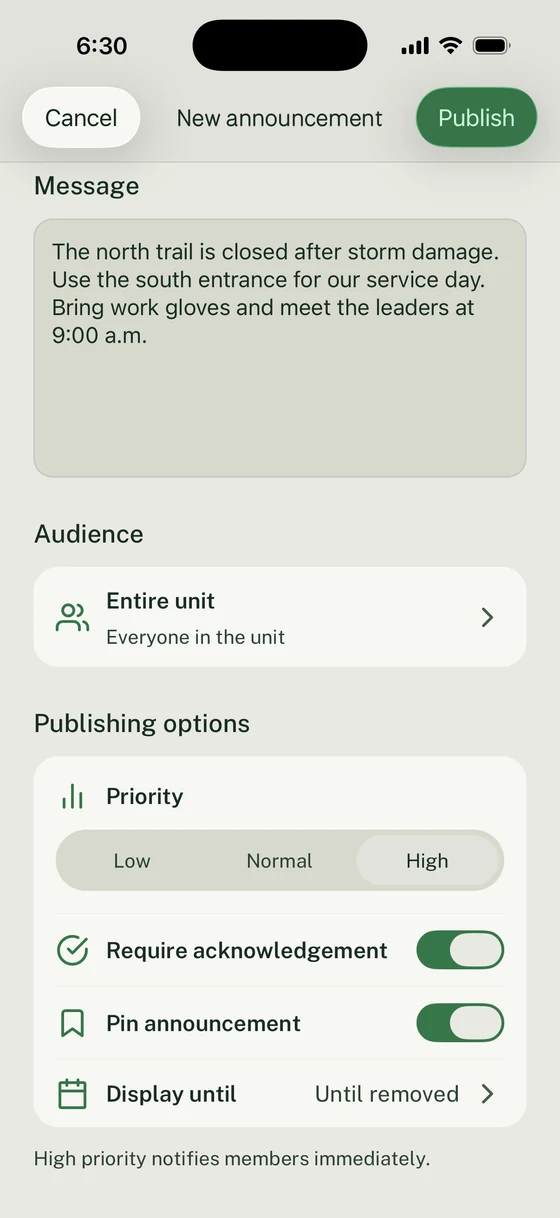
Use this shape:
- what happened
- who it affects
- what families should do
- where the source of truth lives
- when the action is due
Avoid copying a full Event plan into the Announcement. If the update is about an Event, point families back to the Event so details do not split across two places.
Step 3: Choose the Audience
Choose the smallest audience that matches the action.
Use the whole Unit when every family should see the update. Use specific Groups for den, patrol, committee, or working-team updates. For Specific groups, select Done to apply the Group choices; canceling that selector keeps the prior choices.
Use priority carefully:
| Priority | Use for |
|---|---|
| Low | An in-app update without a notification. |
| Normal | A reminder that follows members’ notification preferences and schedule. |
| High | An immediate notification for members who allow Announcement notifications. |
Do not make every Announcement urgent. Families learn the signal by how consistently leaders use it.
Step 4: Publish and Confirm
Set Require acknowledgement when families should confirm reading, and Pin announcement when the update should remain at the top of Home. Display until controls when it leaves the main list; it does not schedule publication.
Review the message and options, then select Publish. If Unable to publish appears, your editing stays available. Correct the issue or use Retry, then wait for the result before trying again.
Open the detail screen and check that the title, message, and action are clear. Use Delivery for Seen and Not seen. When acknowledgement is required, Confirmed identifies those who acknowledged; Seen identifies those who opened it but still need to acknowledge. These in-app responses do not confirm push or email receipt.
Announcement Examples
Pack meeting tonight
RSVP deadline
Permission slips due
Committee meeting moved
Announcement Template
Title:
What changed or what needs attention:
Who this affects:
Action needed:
Deadline:
Where to check details:
Leader contact for questions:
Trim this for small updates. Keep it complete for deadlines, travel details, payment reminders, form reminders, or event changes.
Common Mistakes
Broadcasting every update to everyone
Use Group targeting when only one den, patrol, committee, or team needs the message.
Writing the whole Event again
The Announcement should point to the Event, not become a second version of the Event.
Marking normal reminders as urgent
Urgent should mean families need to notice now. If everything is urgent, nothing is.
Next Step
Send one Announcement tied to a real action: an RSVP deadline, Event update, form reminder, or volunteer need. Then check the home and Announcement detail screens to confirm families can find it again.