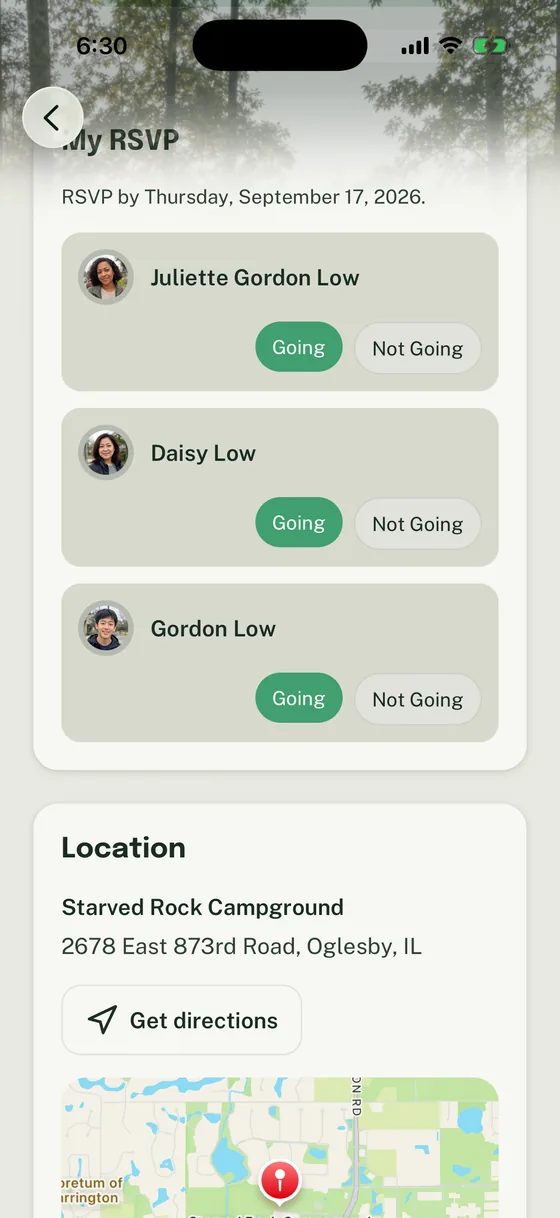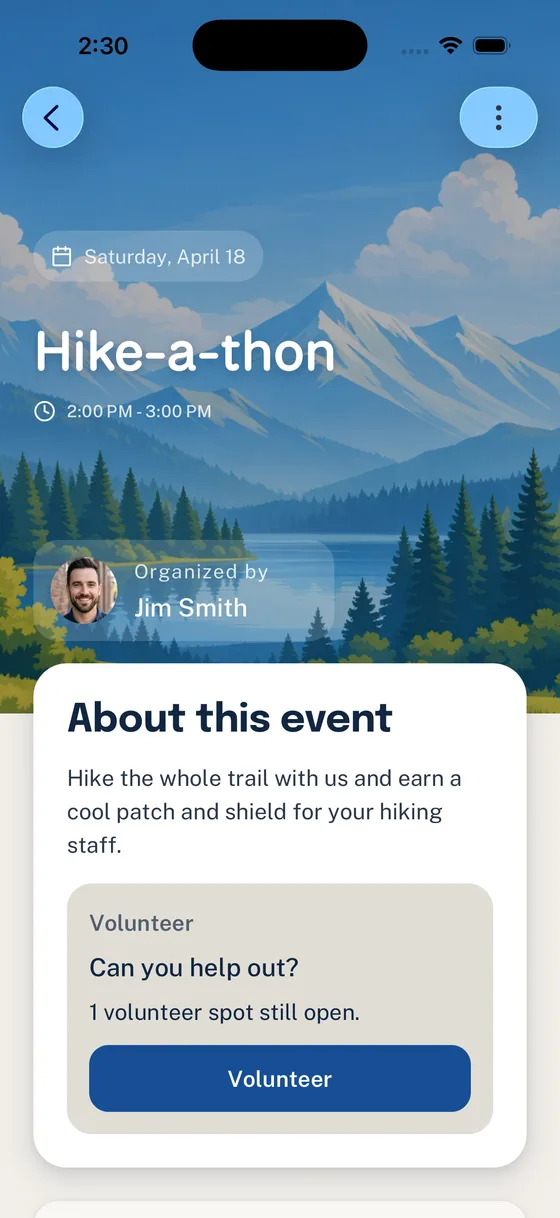
Use this guide when a troop outing needs more than “Who can drive?” in a text thread. The goal is to make the Event the working home for the trip plan, attendance, driver roles, seat counts, and reminders.
What You Will Do
- Create one Woggle Event for the outing
- Ask families for Household RSVPs by a real deadline
- Add driver volunteer roles with seat-count expectations
- Keep departure, return, permission, and form notes in the Event description
- Send short Announcements that point families back to the Event
- Check attendance, open driver roles, and policy-sensitive transportation items before the plan locks
Before You Start
Gather the transportation plan before opening Woggle.
| Detail | Why it matters |
|---|---|
| Destination and meeting point | Families need to know where the outing starts and ends |
| Departure and return times | Drivers need a concrete commitment |
| RSVP deadline | Leaders need a date when the headcount becomes usable |
| Seat-count goal | Leaders need to know whether there are enough seats for attending Scouts |
| Driver requirements | Your unit may have adult, training, form, insurance, or approval rules |
| Weather or cancellation owner | Updates need one source |
Woggle can coordinate the outing details, Household RSVPs, volunteer roles, and reminders. It does not replace Scoutbook, official records, permission slips, medical forms, Youth Protection training, transportation rules, council guidance, or unit policy.
For the exact Event form, audience, RSVP, and publish steps, follow How to create an Event.
Step 1: Define the Outing Plan
Start with a title families will recognize quickly:
- Troop 48 Service Project Outing
- Patrol Hike and Trailhead Pickup
- Museum Day Trip
- Camporee Departure and Return
Then shape the plan around the practical questions parents and drivers need answered: arrival place, destination, return time, who should attend, what to bring, which official forms or approvals happen outside Woggle, how many drivers or seats are needed, and where weather updates will appear. Confirm whether the outing applies to the whole Unit or only a specific patrol, committee, or working Group.
Step 2: Ask for the Right RSVP
For a driver plan, the RSVP needs to answer more than “yes.” Ask families to mark who is attending, then make the driver ask clear in the Event description or volunteer roles.
- “Please RSVP by Wednesday night so we can confirm seats.”
- “Mark each Scout who is attending.”
- “Mark adults who are attending or driving when they appear in your Household RSVP.”
- “If you can drive, claim a driver role and share your seat count as directed by the outing leader.”
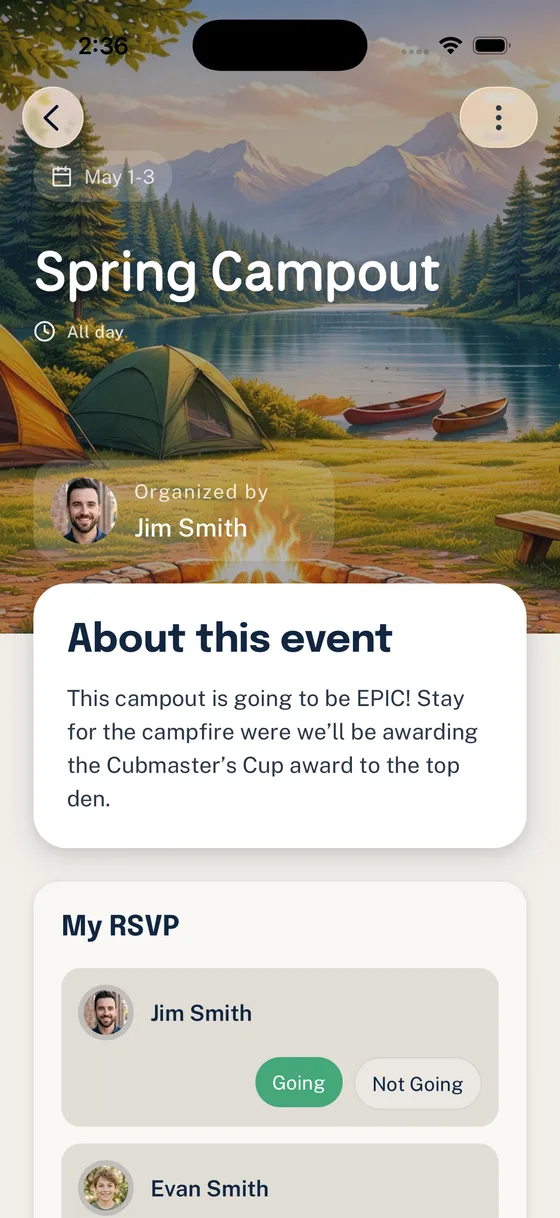
For families with more than one Scout or adult connected to the Household, ask for the people who are actually attending.
Step 3: Add Driver Roles
Use volunteer roles for the driver jobs that need visible ownership. Keep the roles specific enough that an adult knows what they are agreeing to do.
Good driver role patterns:
| Role | Useful expectation |
|---|---|
| Driver with 3 seats | Arrive at 7:30 a.m.; confirm open seats with the outing leader |
| Return driver | Available for the return trip only; confirm pickup window |
| Gear driver | Transport shared gear; coordinate loading before departure |
| Backup driver | Available if another driver drops or weather changes timing |

For a detailed walkthrough of role setup, use Add Volunteer Roles to an Event in Woggle.
Step 4: Send Driver Reminders
Use Announcements for reminders that should stay findable: RSVP deadline, open driver roles, departure details, weather notes, gear loading, or final pickup instructions. Keep each Announcement short and point back to the Event for the full plan.

Helpful timing: publish the Event with the RSVP and driver ask, send one deadline reminder before the count closes, follow up on No Response families or open roles after the deadline, then send one final arrival and weather note the day before.
Copy/Paste Parent Reminder
Step 5: Check the Final Count
Before the transportation plan locks, review the Event from the outing leader’s point of view:
- Scouts and adults marked Going
- Families still in No Response
- Open driver roles
- Claimed driver roles that still need seat-count confirmation
- Forms, permissions, training, or transportation checks that belong in the official unit process

If open roles remain, send a specific ask. “We need one return driver with three seats” is easier to answer than “Please help.”
Driver and Headcount Checklist
Use this before the outing plan is final:
- The Event title, meeting point, destination, departure, and return details are current.
- The RSVP deadline is early enough to confirm transportation.
- The Event says whether adults, siblings, or guests should be included in the RSVP.
- Driver roles are specific: outbound, return, gear, backup, or another real job.
- Seat-count expectations are written plainly.
- Attendance and driver coverage are checked together before the final reminder.
- Official forms, permissions, training, insurance, and transportation rules are verified outside Woggle through your unit’s approved process.
Common Mistakes
- Treating “I can drive” as a complete plan. A useful answer includes timing, seats, and any limits the outing leader needs to know.
- Counting family replies instead of people. One family reply may cover multiple Scouts, an adult driver, or a pickup-only parent.
- Hiding the driver ask in a chat thread. Chat can nudge people, but the durable ask should stay attached to the Event.
- Treating Woggle as the official transportation record. Follow your unit, council, chartered organization, and Scouting requirements for approvals, driver eligibility, forms, insurance, and safety rules.
Next Step
Use Woggle for one real outing first. Publish the Event, ask families to RSVP by Household, add only the driver roles that matter, and send reminders that point back to the same Event instead of rebuilding the transportation plan in every thread.