Use this guide when an event chair is responsible for making a Scout activity actually work: the plan, the count, the volunteers, the reminders, and the last-minute follow-up.
The goal is not to make Woggle another place to copy the same reminder. The goal is to make the Event the working home for the activity, so families know where to check and leaders can see what still needs attention.
What You Will Do
- Build one Event with the details families need before they answer
- Choose the right Unit or Group audience
- Ask for Household RSVPs with a clear deadline
- Add volunteer roles for jobs that need visible ownership
- Send short reminder Announcements that point back to the Event
- Check the final headcount, open roles, and follow-up needs before event day
Woggle can coordinate Scout event logistics, RSVPs, volunteer signups, reminders, and family visibility. It does not replace Scoutbook, official records, advancement tracking, permission slips, medical forms, Youth Protection training, council guidance, transportation rules, or unit policy.
Before You Start
Gather the event plan before opening the Event form.
| Prepare this | Use it for |
|---|---|
| Event title and purpose | Helping families recognize the activity quickly |
| Date, time, location, and arrival notes | Reducing repeat questions |
| Audience | Deciding whether this is for the whole Unit or a specific Group |
| RSVP deadline | Knowing when the count becomes usable |
| What the count affects | Food, supplies, seats, supervision, forms, or fees |
| Volunteer jobs | Turning vague help requests into claimable roles |
| Reminder cadence | Avoiding a last-minute burst of scattered messages |
| Event-day owner | Giving families one contact for practical questions |
If the Event depends on official forms, approvals, health records, training, or council requirements, keep those requirements in the approved process your unit already uses. Woggle should make the coordination easier to see, not move official obligations into the wrong place.
For the exact Event form, audience, RSVP, and publish steps, follow How to create an Event.
Step 1: Build the Event Plan
Build one plan that gives families enough context to decide, RSVP, and prepare without asking the event chair to rebuild it in chat.
Use a title families will recognize:
- Pack 312 Pinewood Derby
- Troop 48 Service Project
- Bear Den Museum Visit
- Court of Honor Setup and Ceremony
- Spring Campout Departure Meeting
Include the details that usually create follow-up:
- Who should attend
- Arrival, start, end, pickup, or return times
- Location, parking, entrance, or meeting-point notes
- Uniform, gear, food, cost, or form reminders
- RSVP deadline
- Adult attendance, driver, or sibling expectations
- Where updates will be posted
- Event-chair contact for questions
Confirm whether the activity is for the whole Unit or a specific den, patrol, committee, or working Group before publishing it.
For a step-by-step first Event walkthrough, use Run Your First Event End to End. For outdoor overnight planning, use Create a Campout Event in Woggle.
For activity-specific examples, use the Pinewood Derby guide, Blue and Gold banquet guide, or service project guide.
Step 2: Ask for the RSVP You Need
An event chair usually needs a usable count, not a loose stream of “we might come” replies. Say exactly what the RSVP should answer.
For a simple meeting, you may only need to know whether each Household is attending. For a campout, service project, banquet, derby, or court of honor, you may need more context: Scouts attending, adults staying, siblings or guests included, food counts, driver availability, or who still has not answered.
Use clear language:
- “Please RSVP by Thursday night.”
- “Mark each Household member who is attending.”
- “Include adults if they are staying for the activity.”
- “Reply Not Going if your family cannot attend so we can close the count.”
- “If your RSVP affects food, seats, or forms, check the Event details before answering.”
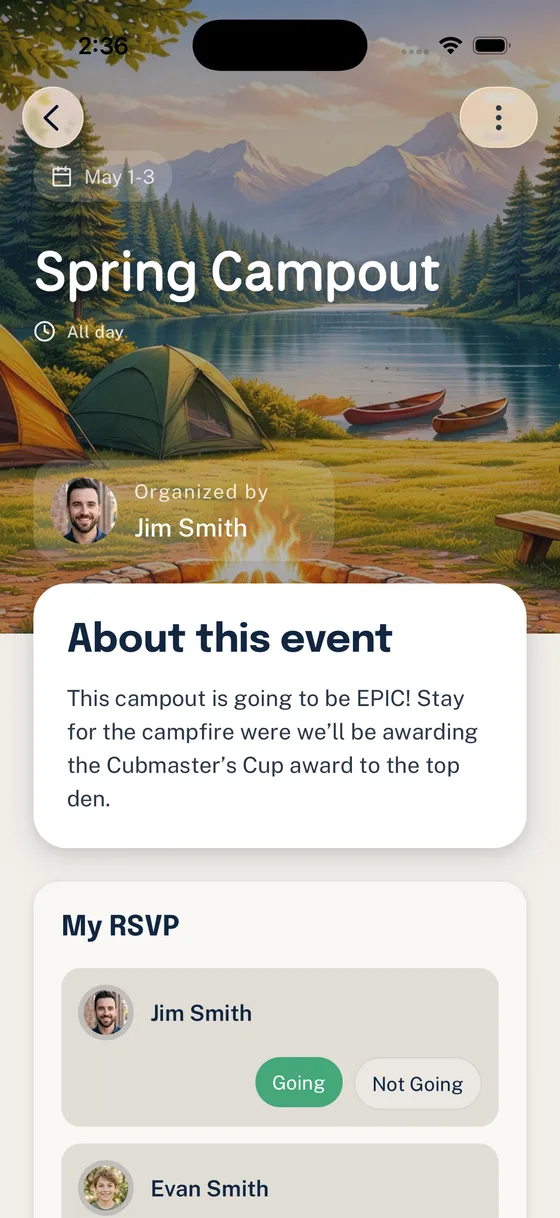
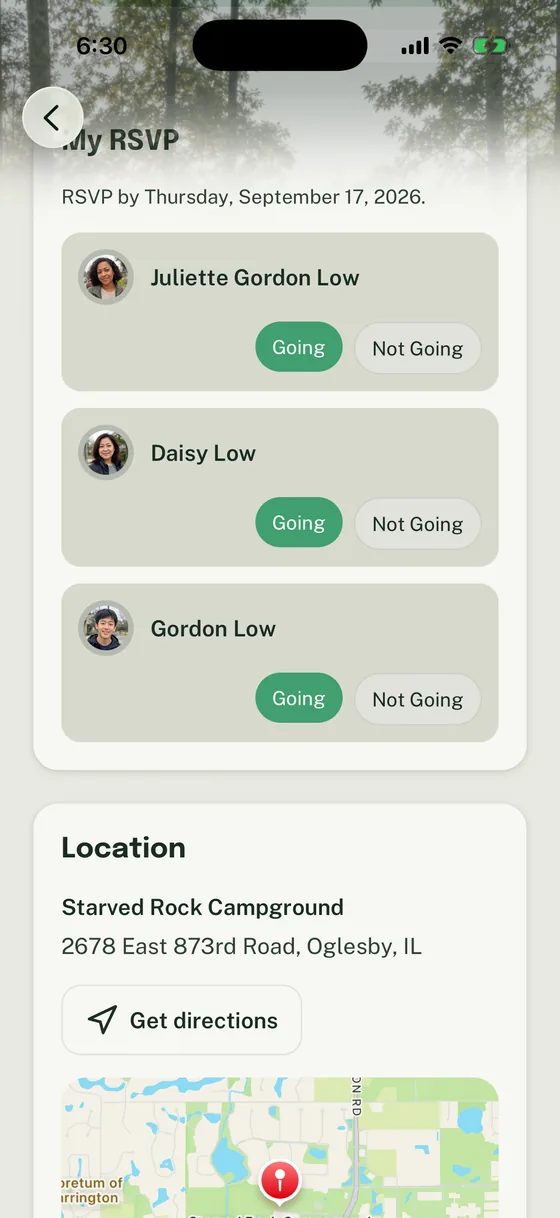
Woggle’s Household RSVP pattern is useful because one family may include Scouts, parents, guardians, and siblings. Spell out which Household members should be included for this Event.

For the full RSVP model, use How Household-Aware RSVPs Work in Woggle.
Step 3: Add Volunteer Roles
Volunteer gaps get easier to solve when the job is specific and attached to the Event that needs it. Instead of “Can someone help?”, create roles families can understand quickly.
Good event-chair roles include:
- Check-in table
- Setup helper
- Cleanup lead
- Snack or refreshment coordinator
- Driver or transportation coordinator
- Permission slip collector
- Activity station lead
- Equipment or supplies owner

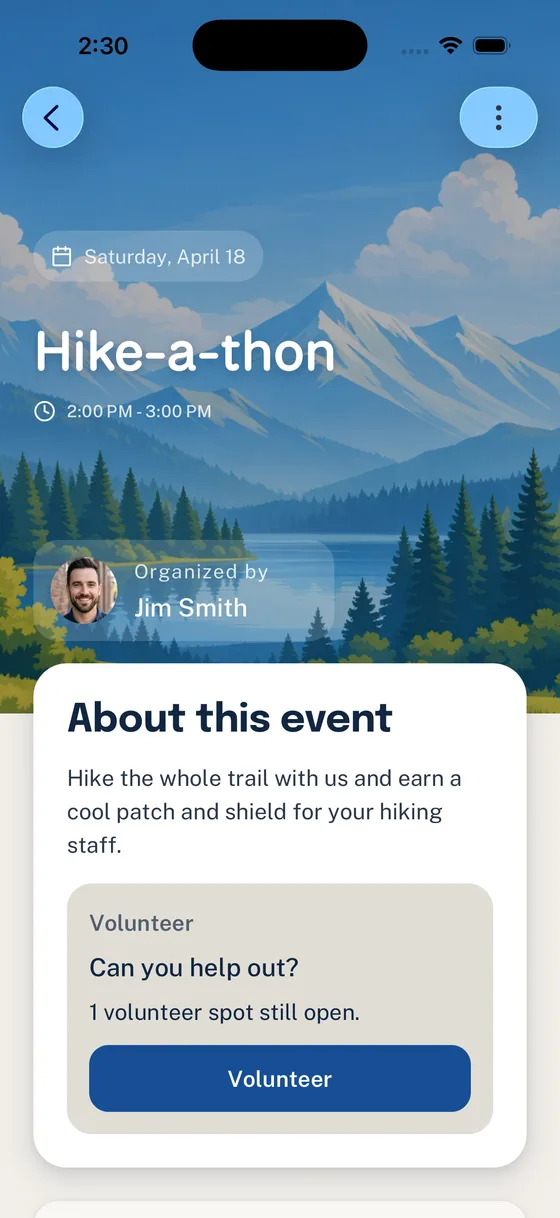
Open roles should be visible on the Event detail screen so families can claim a job while they are already looking at the Event.

If a role has adult-only, training, driving, money-handling, tools, or policy requirements, state the expectation plainly and follow your unit’s official process. For the detailed role setup flow, use Add Volunteer Roles to an Event in Woggle.
Step 4: Send Reminder Announcements
Use Announcements for reminders that should stay findable after the first notification: RSVP deadlines, location changes, what to bring, form reminders, volunteer gaps, weather updates, or final arrival instructions.
The Announcement should be short and should point back to the Event for the full plan.

Choose the smallest audience that matches the action. A whole-unit Event may need a whole-unit reminder. A den event, volunteer work party, or committee setup shift may only need a Group reminder.

Reminder cadence
Use a simple rhythm:
| Timing | Reminder job |
|---|---|
| When the Event is published | Tell families what action is needed |
| A few days before the RSVP deadline | Close the count before planning locks |
| After the RSVP deadline | Follow up on missing answers or open roles |
| One day before | Send final arrival, gear, form, or weather notes |
| Event day, if needed | Post practical changes only |
Do not make every reminder urgent. Families learn the signal from how consistently leaders use it.
Step 5: Check the Final Headcount
Before the event plan locks, check the Event from the event chair’s point of view.
Look for:
- Who is Going, Not Going, or still missing a response
- Whether adults, siblings, or guests were included correctly
- Food, supply, seat, or material counts affected by the RSVP
- Volunteer roles still open
- Families that may need a direct follow-up
- Last details that need one final Announcement

If the event has open roles, check them before sending one more general reminder. A specific ask works better than another broad “please help.”

Event Chair Checklist
Use this before the final reminder goes out.
- The Event title is clear to a new family.
- Date, time, location, arrival, pickup, and parking notes are complete.
- The audience is correct for the whole Unit or a specific Group.
- RSVP is enabled when the count matters.
- The RSVP deadline is visible in the Event description or reminder.
- Families know which Household members to include.
- Volunteer roles have names, counts, and expectations.
- Adult-only, driver, training, form, or policy-sensitive roles are described carefully.
- Announcements point back to the Event instead of creating a second plan.
- Open roles and missing RSVPs have a follow-up owner.
- Official records, forms, advancement, safety, and council requirements stay in the approved systems.
Copy/paste Event Chair Reminder
Reminder: please check the Event in Woggle for [event name].
Action needed:- RSVP by [deadline]- Mark each Household member who is attending- Claim an open volunteer role if your family can help
The Event has the current time, location, what to bring, and update notes.Questions: contact [event chair name].
Common Mistakes
Treating the Announcement as the Event
Announcements are reminders. The Event should hold the full plan, RSVP expectation, volunteer roles, and current details.
Asking for a count without saying what to count
“RSVP if you are coming” may not tell families whether adults, siblings, guests, or drivers should be included. Write the expectation into the Event.
Waiting until the night before to ask for volunteers
Add volunteer roles while families are deciding whether they can attend. Open roles are easier to claim when the job is specific and the deadline is not urgent.
Next Step
Pick one upcoming activity and make the Event complete enough that the next reminder can be short. Then point families back to Woggle instead of rebuilding the plan in a new thread.