
How do I follow up on a support request?
Every question you send from Get help stays in one conversation with its replies. Open it again to check where it stands, read the answer, or add something you forgot.
1. Open your requests
Section titled “1. Open your requests”Start where you asked:
- On the web: select Get help at the bottom of the sidebar, then Messages. Your conversations are listed newest first.
- In the app: open More, scroll to Help, and tap Get help. Support Tickets lists your requests.
- In a browser: go to roundtable.woggleapp.com/tickets and select Sign in.
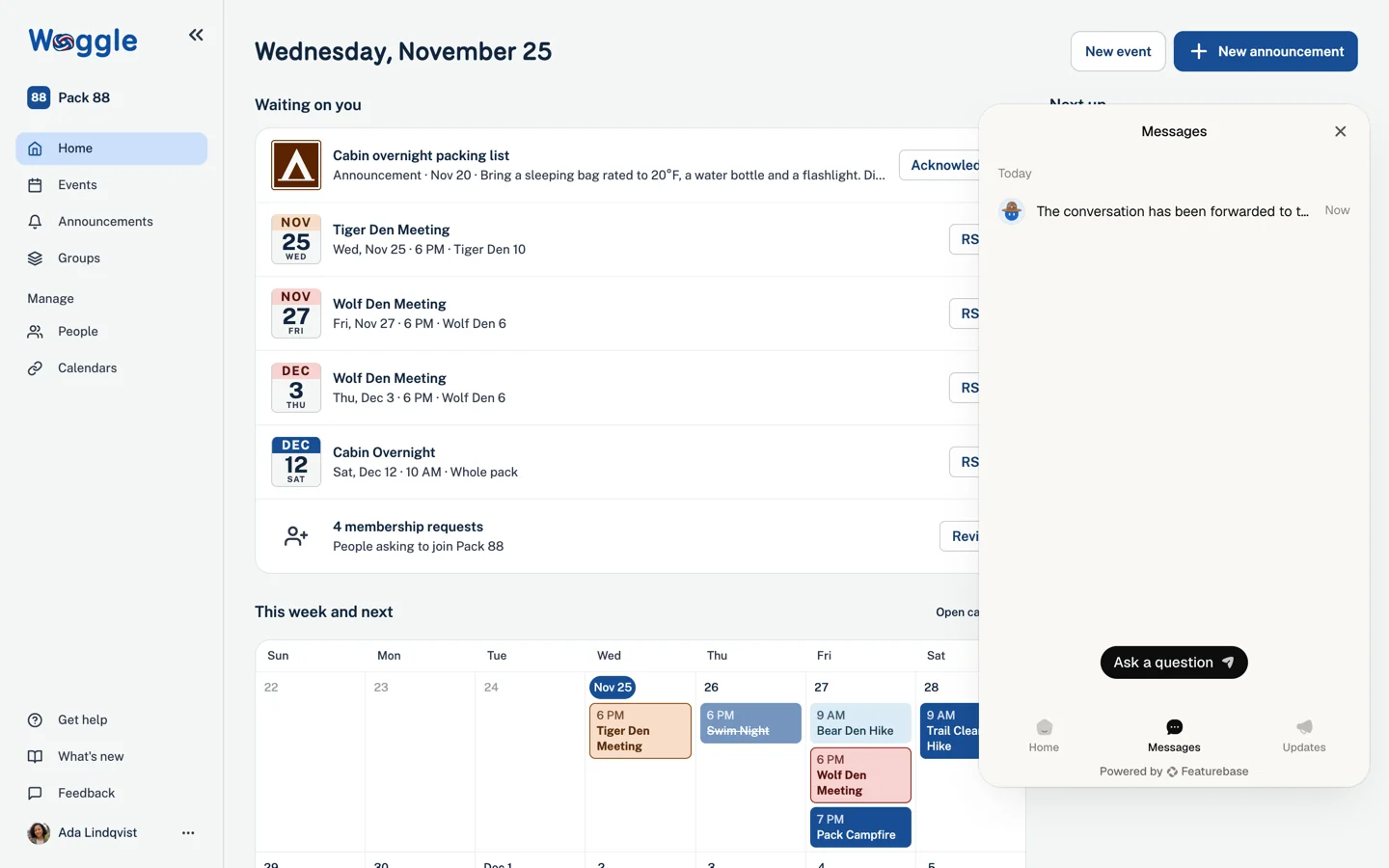
Each row shows the latest message, so you can see a reply without opening it.
2. Open the conversation
Section titled “2. Open the conversation”Select a conversation to read the whole thread, including Powell’s answer and any reply from the Woggle team. Waiting for a teammate means a person has your question and hasn’t replied yet.
3. Add details in the same conversation
Section titled “3. Add details in the same conversation”Reply in the same conversation instead of starting a new one, so the team keeps your history in one place. Select the paperclip to attach a screenshot. Remove personal details and active Invite links or codes first.
4. Start a new request for a different problem
Section titled “4. Start a new request for a different problem”For something unrelated, start fresh. On the web, select Ask a question in Messages. In the app, tap New request.
If you can’t sign in to see your requests, email support@woggleapp.com.
Thanks. Your feedback helps us keep this page useful.