
How do I ask Powell or the Woggle team a question?
Stuck on something in Woggle? Ask Powell, the Woggle assistant, from Get help on the web or from the chat button on these guides and the Woggle Support page. Powell answers from these guides right away. When you need a person, Powell hands the same conversation to the Woggle team. In the phone app, Get help goes straight to the Woggle team.
For a question about your own unit, such as an Event time or who is in a den, ask a Unit Admin or Leader first.
1. Open Get help
Section titled “1. Open Get help”- On the web: select Get help at the bottom of the sidebar. The messenger opens beside the page you were on.
- In the app: open More, scroll to Help, and tap Get help to write to the Woggle team. Powell isn’t in the phone app.
- In these guides or on the Support page at woggleapp.com: select the chat button in the lower-right corner. You aren’t signed in there, so for a question about your own account, use Get help in Woggle.
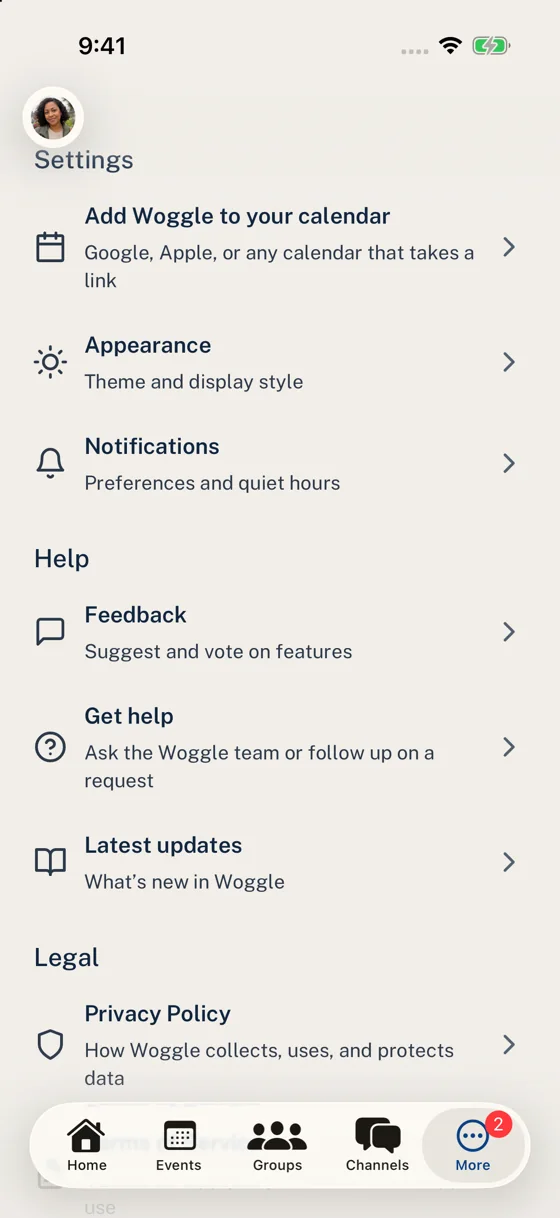
2. Ask Powell
Section titled “2. Ask Powell”On the web, type your question in Ask a question and press Enter. Ask the way you’d ask another leader, such as How do I invite another adult to my Household? Powell answers with steps from the Woggle guides. The small numbers show which guides Powell used.
In the app, Get help opens your support requests. Tap New request to write to the Woggle team.
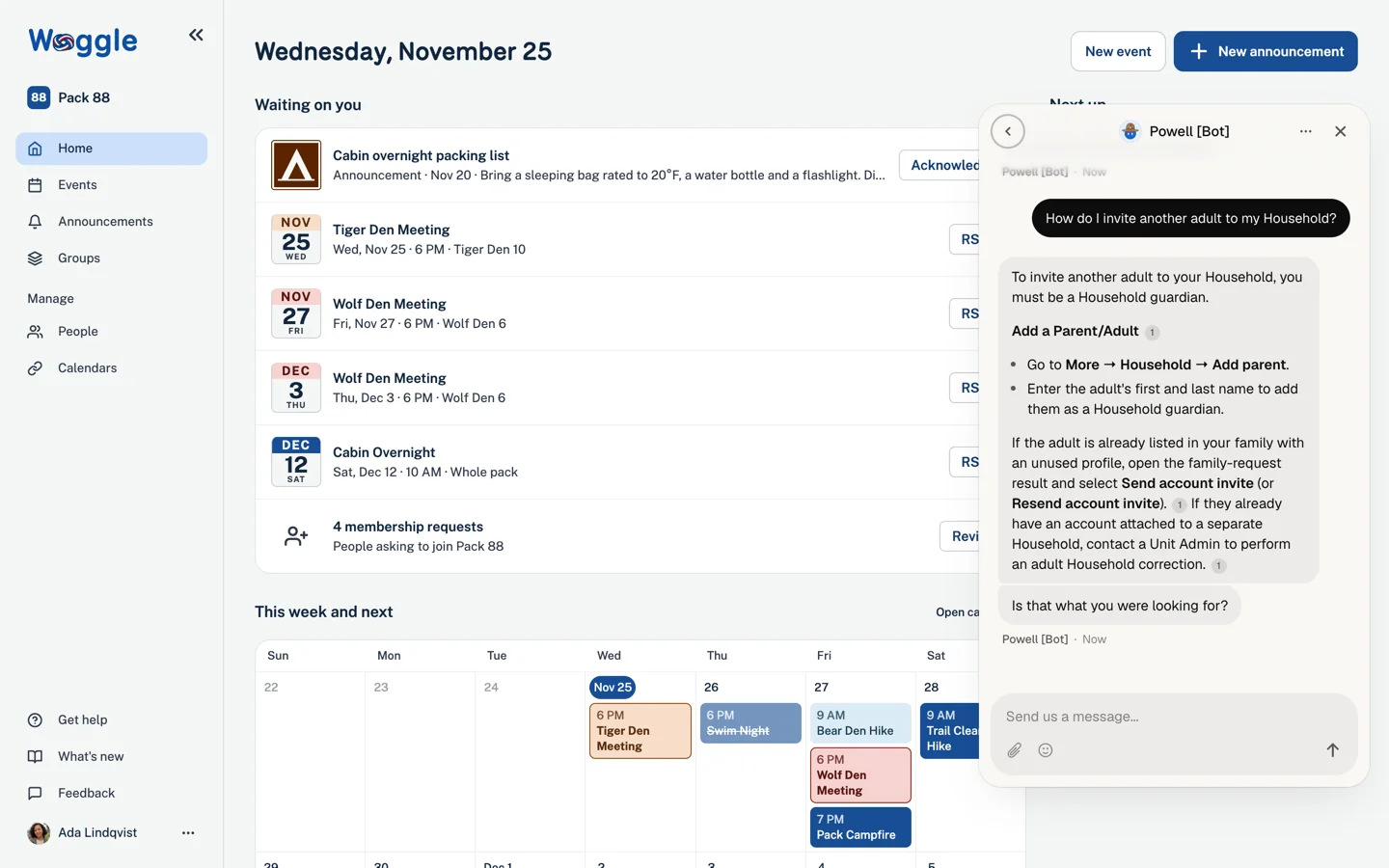
Powell answers next to your work, so you can follow the steps as you read.
3. Ask for a person
Section titled “3. Ask for a person”If the answer doesn’t fit your situation, reply that you’d like to talk to a person. Powell forwards the conversation to the Woggle team, and it shows Waiting for a teammate until someone replies.
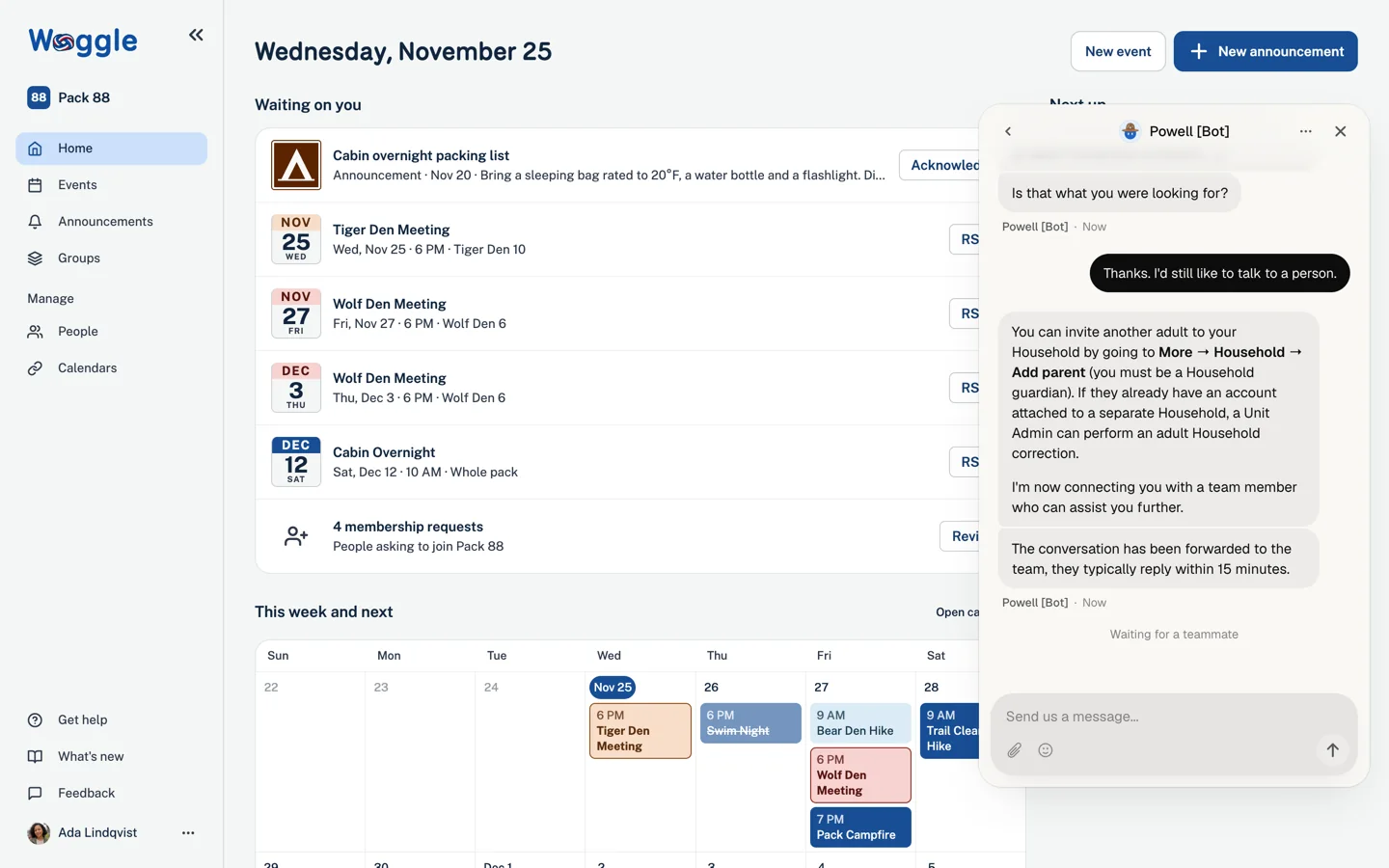
The team picks up the same conversation, so you don’t need to repeat yourself.
4. Give the team what they need
Section titled “4. Give the team what they need”Add the details that help the team answer on the first reply:
- your Unit name
- the device and app version, or your browser if you use Woggle on the web
- the steps you took, what you expected, and what happened instead
- a screenshot, with personal details and active Invite links or codes removed
Leave out passwords and personal details about a child.
5. Check for the reply
Section titled “5. Check for the reply”The reply appears in the same conversation. To find it later, see How do I follow up on a support request?
If you can’t sign in or open Woggle, email support@woggleapp.com.
Thanks. Your feedback helps us keep this page useful.