
Woggle is easiest to understand as a coordination layer for Scout units. It is where the practical plan lives: who an update is for, what event is coming up, which families have answered, where volunteer help is still open, and which communication should remain visible after the chat thread moves on.
This tour walks through the main areas a unit will use. If you are evaluating Woggle, use it to decide what your first rollout should prove. If you are setting up a unit, use it as a map before jumping into the admin quick start.
Start with the Unit
The Unit is the home base. It should use the name families already recognize: Pack 312, Troop 48, Girl Scout Troop 7412, or the committee name your adults use.
Inside that Unit, leaders invite families, organize Groups, publish Events, send Announcements, and keep Household context visible. Do not treat setup as a chance to model every future detail. Start with the structure needed for the next useful action.
Before a broad rollout, decide:
- which adults will administer the Unit
- which families should receive the first Invites
- which Groups are useful right now
- which Event will anchor the launch
- who will help with Invite or Household corrections
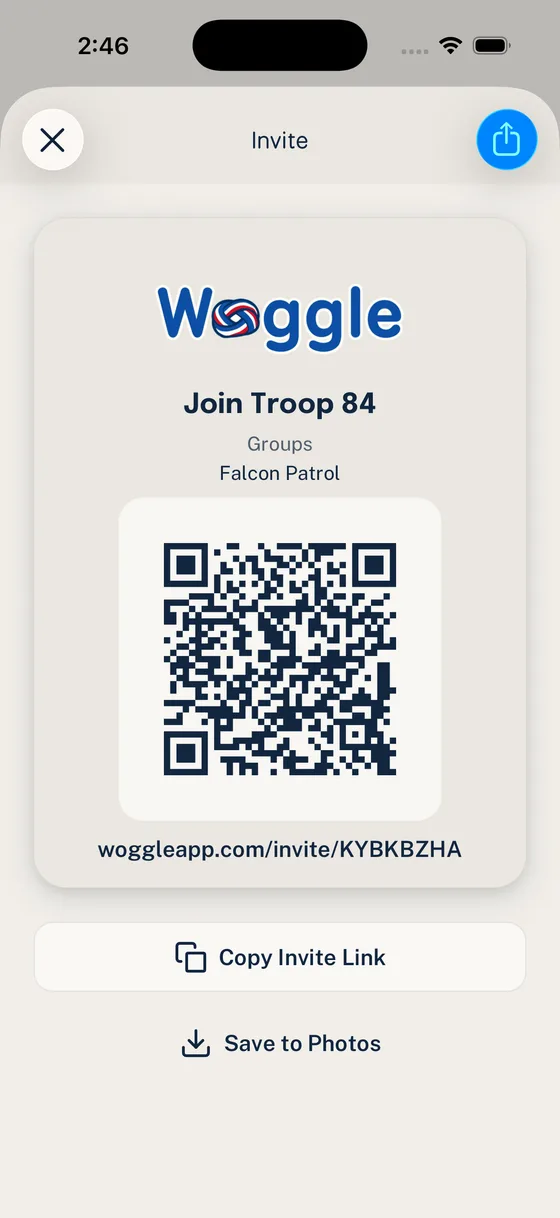
For step-by-step setup, use Woggle Quick Start for Unit Admins.
Groups and Channels
Groups and Channels keep communication tied to the right audience. A Cub Scout pack might start with pack-wide, den, committee, and adult-leader Groups. A Scouts BSA troop might start with troop-wide, patrol, committee, and adult-leader Groups.
The test is practical: will this audience receive different Events, Announcements, or coordination work in the next month? If yes, make the Group. If not, wait.

When you send an Invite, Woggle can also place someone into the Groups they need after they accept.
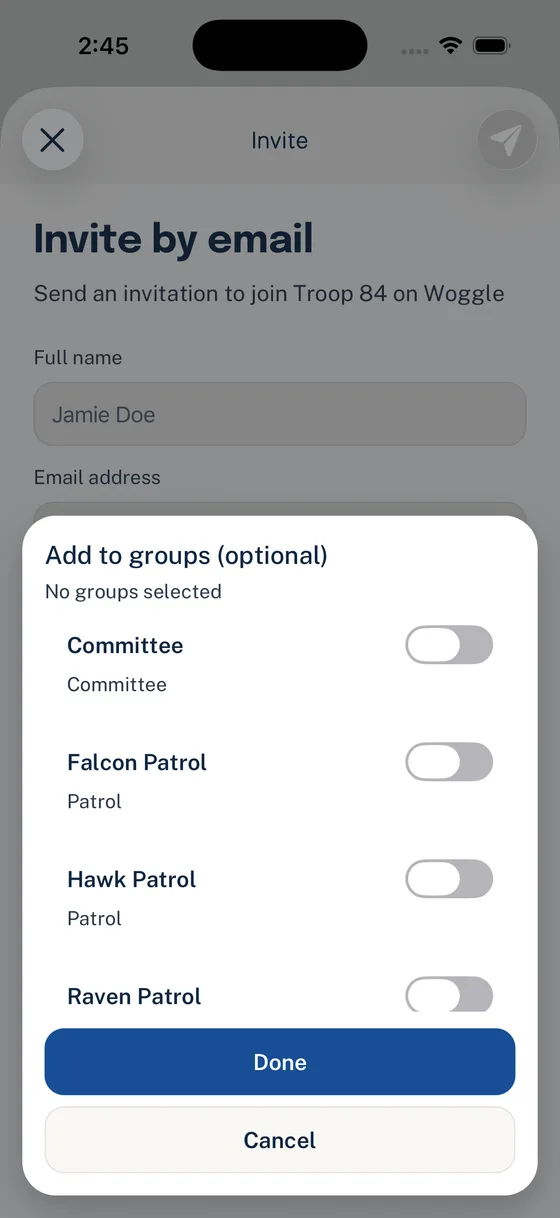
For the deeper setup path, read How to Set Up Dens, Patrols, Committees, and Groups in Woggle.
Events
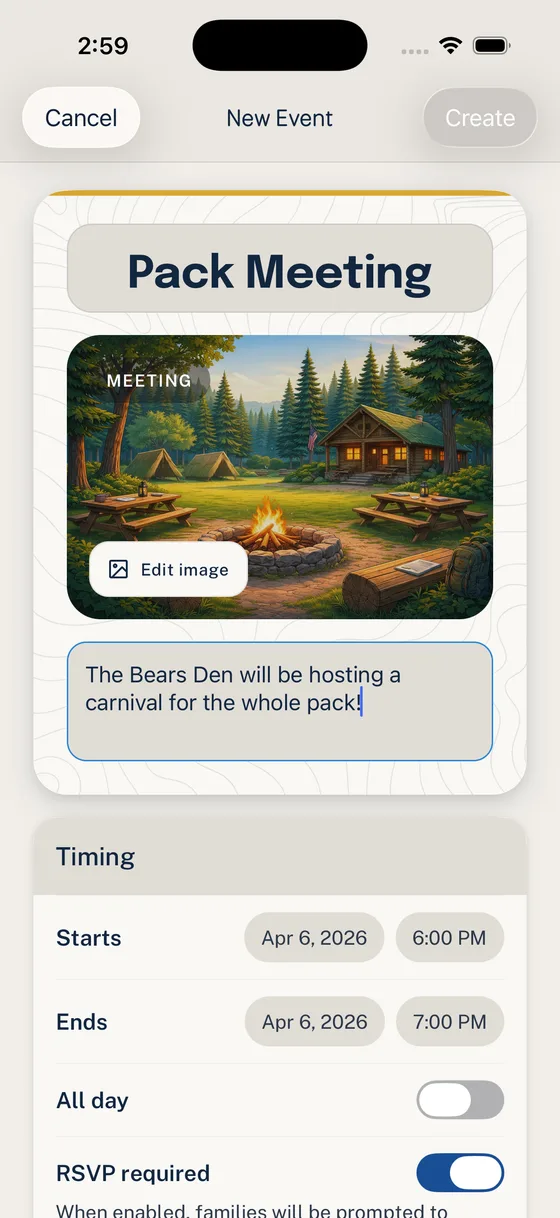
Events are where Woggle should start feeling concrete. A useful Event includes the details parents usually ask for: time, location, who should attend, what to bring, RSVP expectations, and any volunteer help tied to the activity.
If families still need to search chat for the address, deadline, or gear note, the Event is not carrying enough context yet.
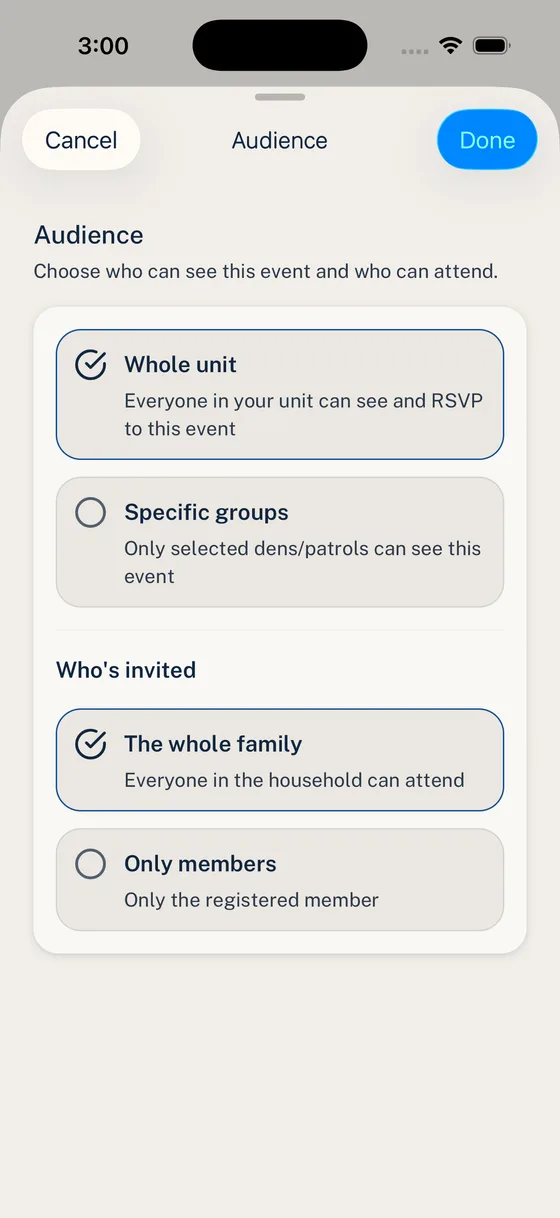
When the Event is ready, confirm the audience. A den outing, troop campout, committee meeting, or pack-wide activity should not all reach the same set of people by default.
To build one from scratch, use Create Your First Scout Event in Woggle.
Household RSVPs
Scout units coordinate families, not disconnected usernames. A Household RSVP helps leaders understand who is coming from a family and what that means for the plan.
That matters for campouts, service projects, pack meetings, courts of honor, cookie booths, hikes, and volunteer-heavy events. A useful RSVP should answer the planning question, not just produce a yes-or-no count.
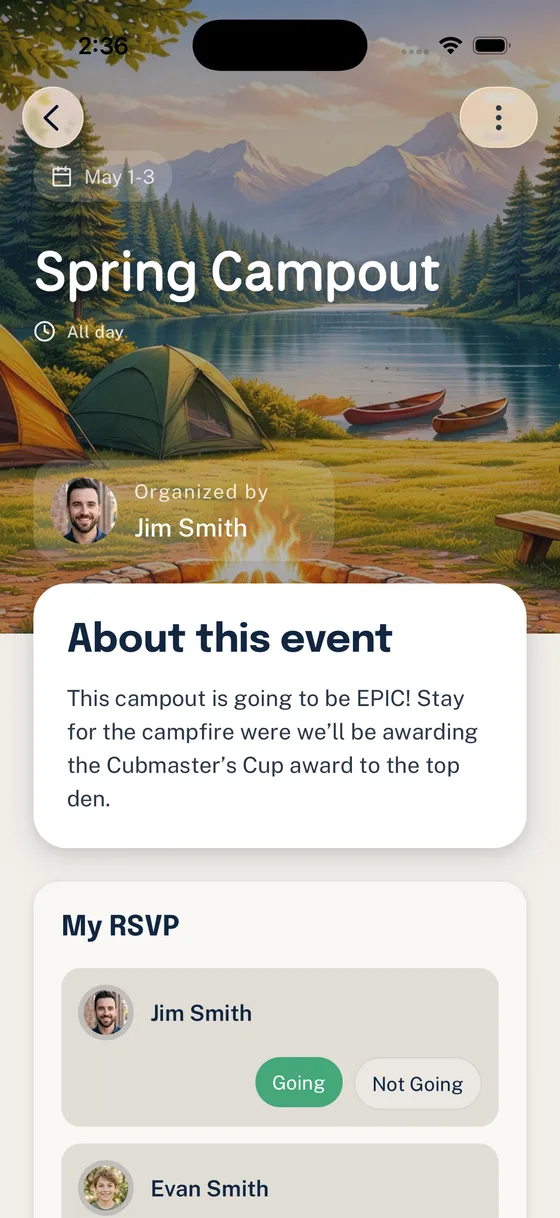
RSVPs are planning context. They do not replace attendance records, medical forms, permission slips, advancement records, or the official systems your unit is expected to maintain.
Volunteer Roles
Volunteer roles work best when the job stays next to the Event that needs help.
Instead of a general “we need volunteers” message, Woggle can show concrete roles such as check-in table, trailer loading, snack pickup, registration help, cleanup crew, or driver with open seats.
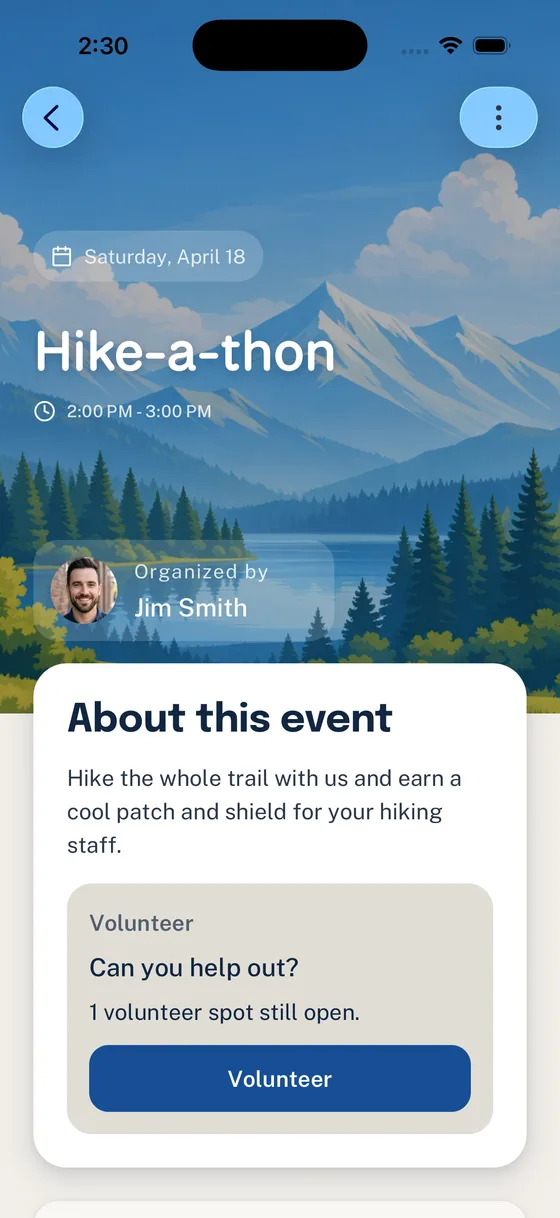
For a focused walkthrough, read Add Volunteer Roles to an Event in Woggle.
Announcements and Reminders
Announcements are for updates families should be able to find later. Use them for the things that should not disappear into a fast-moving chat: a location change, final packing note, event reminder, RSVP deadline, or unit-wide decision.

Pinned Announcements can keep one important update visible when families open Woggle.
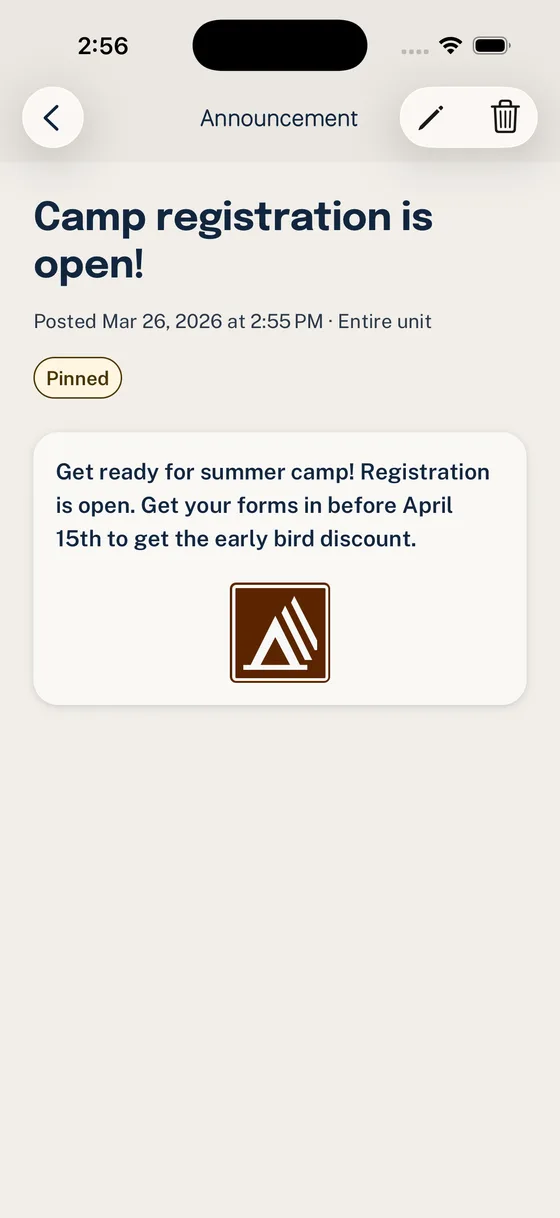
For announcement-specific guidance, use Send an Announcement in Woggle.
Safety and Boundaries
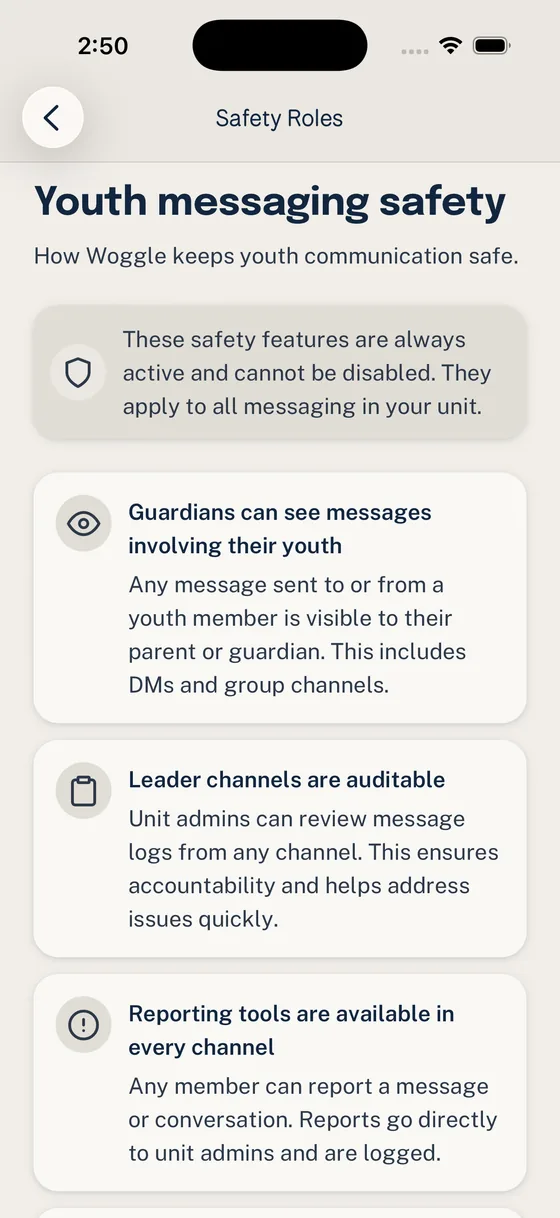
Woggle is built around visible unit contexts: Households, Groups, Events, Announcements, role-aware permissions, and settings leaders can review. That structure can support safer communication habits, especially when units are thoughtful about youth-facing access and guardian visibility.
It does not replace Youth Protection training, mandated reporting duties, official guidance, council or service-unit expectations, chartered-organization policy, or adult judgment.
Woggle also does not replace Scoutbook, Scoutbook Plus, council systems, Girl Scout systems, or other official recordkeeping tools. Use Woggle for coordination; keep official records where your unit is required to keep them.
For the boundary, read What Woggle Does Not Do and Scoutbook vs. Woggle: What Goes Where.
What to Try First
Do not roll out every feature at once. Pick one useful habit and make it work.
Good first Woggle moments are:
- Create one real Event families already care about.
- Turn on RSVP so leaders can plan around Households.
- Add one or two volunteer roles to the same Event.
- Send one Announcement that points families to the Event.
- Help families fix Invite, Household, or Group issues quickly.
That is enough for a first proof. Once families learn that Woggle is where the current plan lives, Groups, Channels, reminders, and volunteer follow-through make more sense.

