

Use this guide when your pack, troop, or group sends you a Woggle Invite. In five minutes, you should be able to join the right unit, find the next Event, RSVP for your Household, read Announcements, and claim a volunteer role if your family can help.
What You Will Do
- Open the Invite your unit sent.
- Confirm you are in the right Unit or Group.
- Check the next Event.
- RSVP for your Household.
- Read the Announcement tied to the Event.
- Sign up for a volunteer role if one fits.
Woggle does not replace Scoutbook, official registration systems, council forms, Youth Protection guidance, or your unit’s adult judgment. It gives families and leaders one calmer place for practical coordination around Events, RSVPs, Announcements, reminders, and volunteer follow-through.
Before You Start
Use the Invite your unit sent by email, text, QR code, or an existing parent channel. The Invite is what connects you to the correct pack, troop, or group.
If you are not sure which email or phone number to use, start with the contact method where you received the Invite. If something looks wrong, stop and ask the leader who sent it. Invite and Household details are easier to fix before the first RSVP.
Step 1: Accept the Invite
Open the Invite from your unit and confirm:
- the Unit or Group name looks right
- your name is recognizable to leaders
- you can get back into Woggle from your phone later
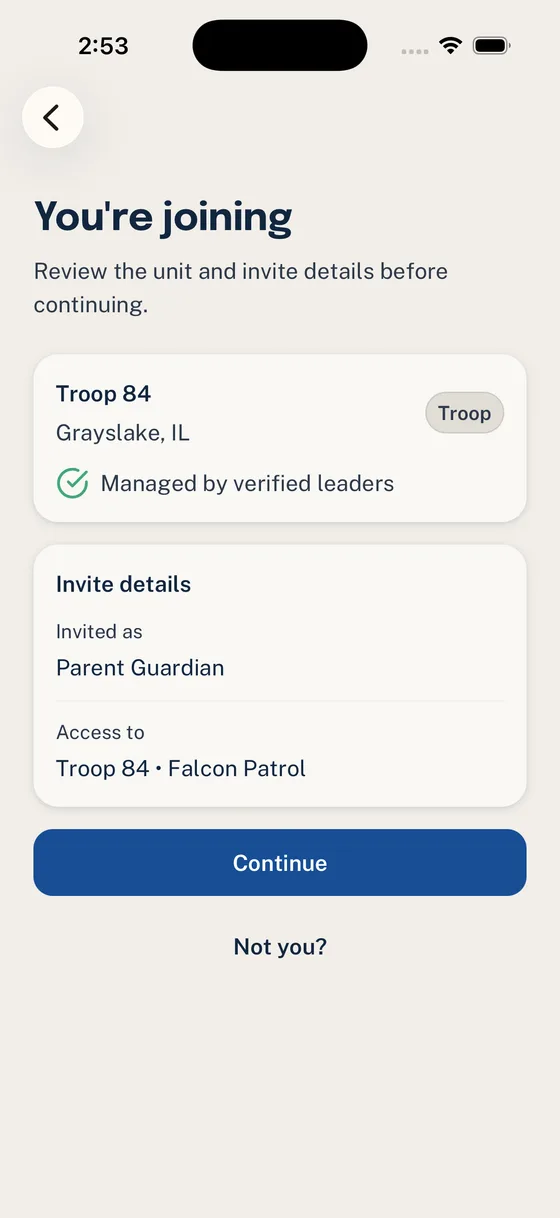
If your unit uses dens, patrols, committees, or other Groups, you may not see every Group on day one. That is normal. Start with the Unit and the next Event your family needs to act on.
Step 2: Check Your Household
Scout units coordinate families, not just individual accounts. A Household may include a Scout, one or more parents or guardians, and the adults who need visibility into logistics.
Check whether the Household context looks right enough for the first Event:
- the right Scout is represented
- the adult who usually responds can see the Event
- another parent or guardian knows how to get access if needed
- leaders will understand which family response belongs to which Scout
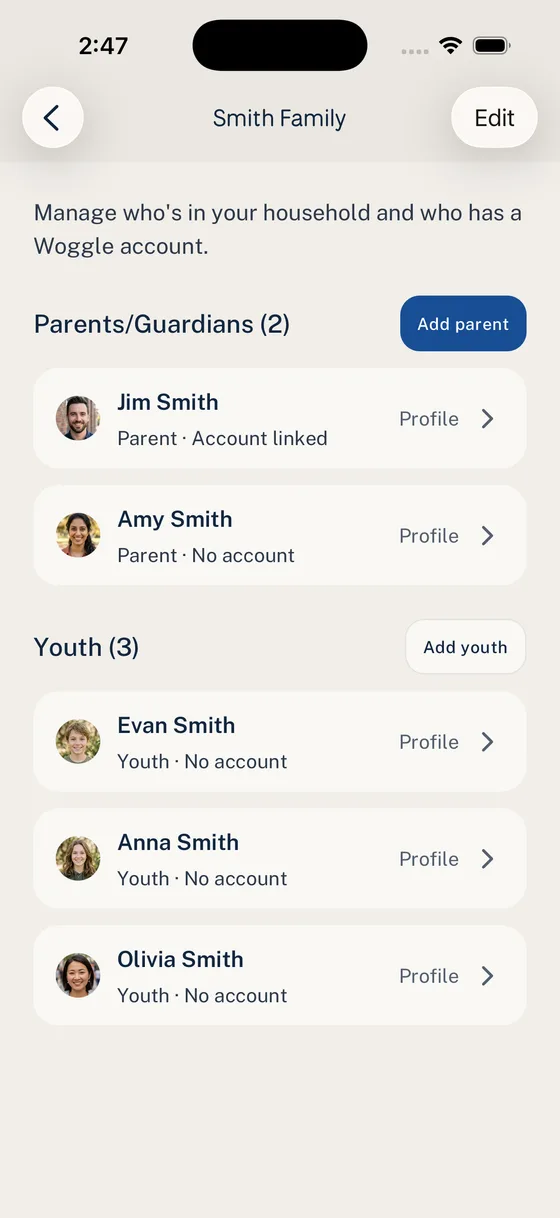
If your family has two households, alternate pickup adults, grandparents who help with transportation, or another arrangement your leaders should understand, ask your unit how they want that handled. Do not put private or sensitive information into an RSVP note unless your unit has told you that is the right place.
For a deeper look at parent visibility, read Family Visibility in Scout Unit Communication Tools.
Step 3: Find the Next Event
Open the Events area and look for the next activity your family needs to act on: a den meeting, troop meeting, campout, service project, court of honor, hike, committee meeting, or special activity.
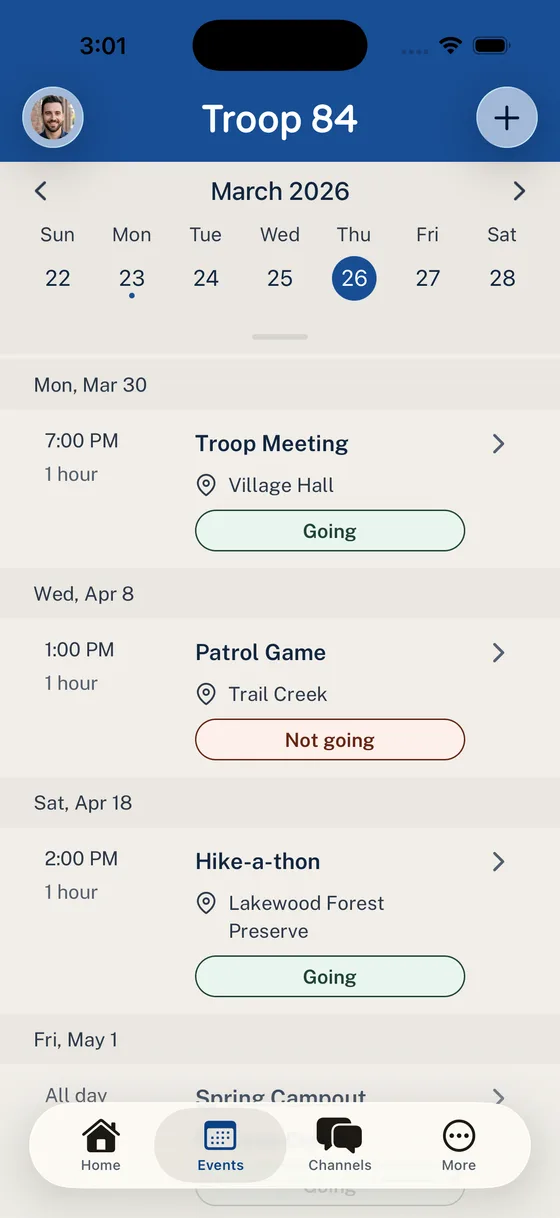
Open the Event and scan for:
| Detail | What to check |
|---|---|
| Date and time | Arrival, pickup, and duration |
| Location | Address, room, shelter, trailhead, or meeting spot |
| Who should attend | Scout only, parent and Scout, siblings, or adults only |
| What to bring | Uniform, water, chair, meal item, form, payment, or gear |
| RSVP deadline | When leaders need the count |
| Volunteer roles | Where parents can help |
If something important is missing, ask through the channel your unit expects for questions. The goal is to keep the answer attached to the Event so the next family can find it too.
Step 4: RSVP for Your Household
When an Event asks for an RSVP, answer even if the answer is no. A clear “Not Going” helps leaders more than silence.
Before you respond, check who the RSVP covers. For many Scout activities, the practical answer is Household-based: which Scout is attending, which parent or guardian is coming, whether siblings count, and whether your family changes the meal, driver, or seat count.
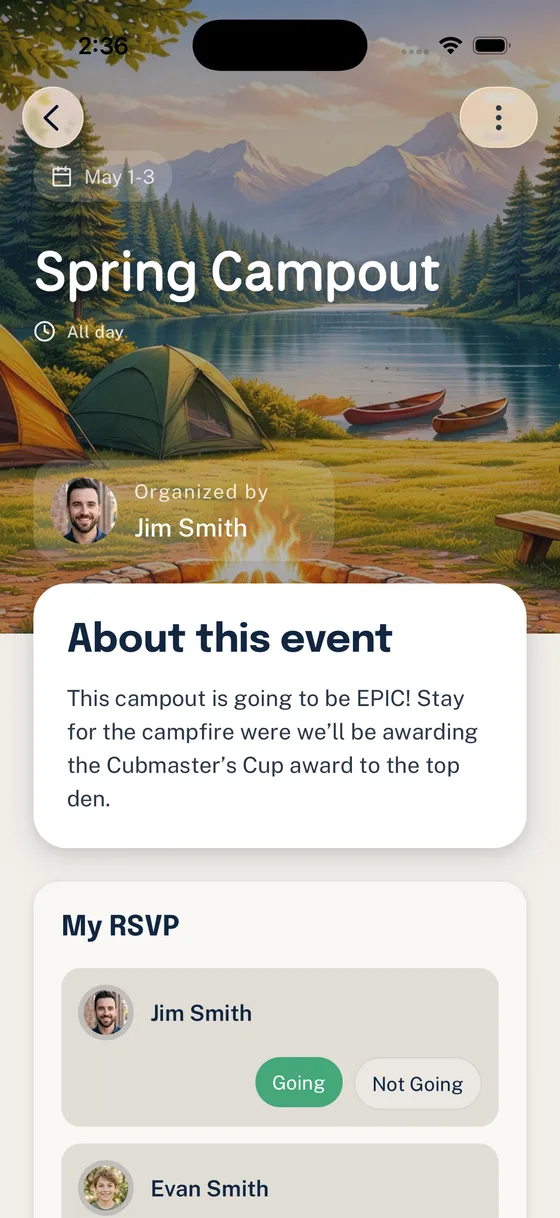
Use notes or response options only for details leaders need, such as:
- one parent attending with one Scout
- family can arrive late
- parent can drive but has limited seats
- a food allergy or access note already shared through the proper channel
Medical forms, permission forms, payments, and personal concerns may belong in official systems or direct leader follow-up. When in doubt, ask your unit.
Step 5: Read Announcements Like Action Items
Announcements are meant to be easier to find than a message buried in group chat. Your unit may use them for schedule changes, packing notes, signup deadlines, or reminders connected to an Event.
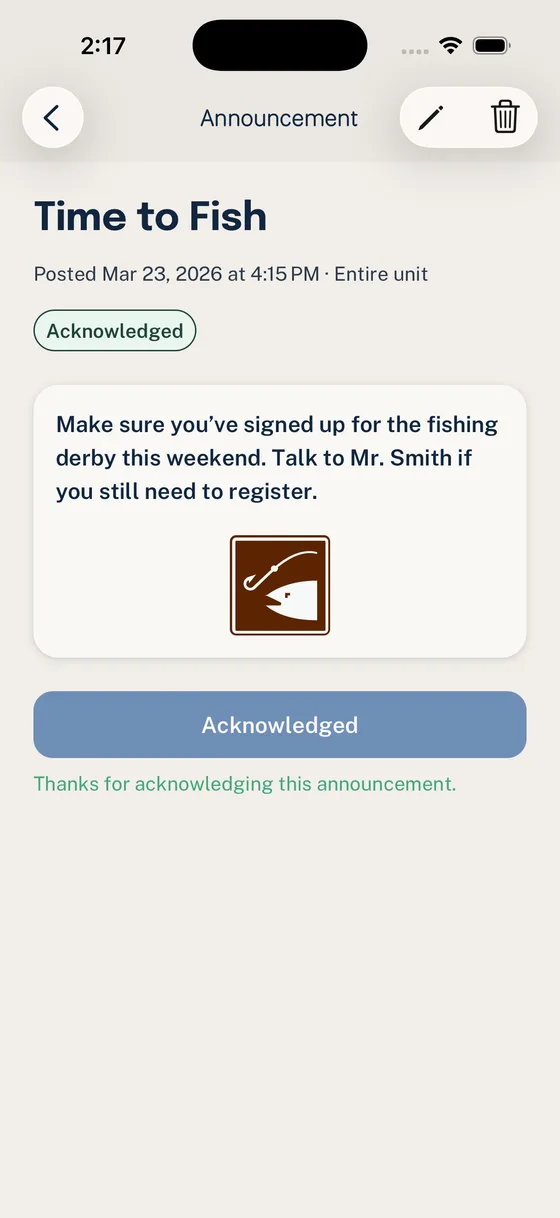
When you read an Announcement, ask:
- Does this apply to my family?
- Is there a deadline?
- Do I need to RSVP, bring something, sign up, or tell someone we cannot attend?
- Is this tied to an Event I should open?
If an Announcement changes Event details, check the Event too. Good units try to keep the Event itself current so families do not have to compare several message threads.
Step 6: Claim a Volunteer Role
Scout units run on small parent helps: snacks, setup, cleanup, driver, check-in table, gear trailer, activity station, or one extra adult on site.
When volunteer roles are attached to an Event, you can see the job in context.
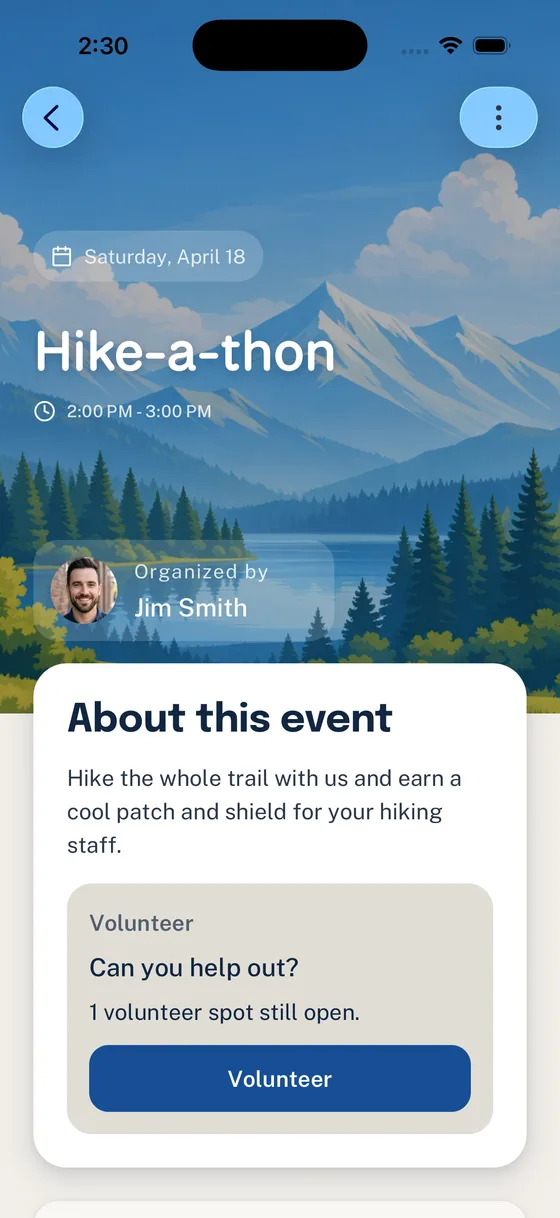
Before claiming a role, check:
- what the job is
- when you need to arrive
- whether supplies are provided
- who you should check in with
- whether the role requires training, registration, or unit approval
If you are new, choose a small role first. Helping for 20 minutes at check-in or cleanup is often better than joining a committee before you understand how the unit works.
If You Missed Something
Start with the Event. Most answers should live there: date, location, RSVP, what to bring, and volunteer needs.
Then check recent Announcements. Leaders often use Announcements for changes and deadlines.
If you still cannot find the answer, ask clearly:
That kind of question helps leaders fix the source of confusion instead of answering one parent privately.
Five-Minute Parent Checklist
Use this the first time your unit invites you to Woggle.
- Open the Invite from your unit.
- Confirm you are connected to the correct Unit or Group.
- Check your Household and ask a leader about anything missing.
- Open the next Event.
- RSVP for your Household, even if the answer is no.
- Read any Announcement connected to that Event.
- Claim one small volunteer role if your family can help.
- Save the place you will use to get back into Woggle.
That is enough for day one. You do not need to understand every feature before your family can participate.
Message Unit Leaders Can Send
If you are a unit leader, you can paste this into email, GroupMe, BAND, Slack, or your current parent channel:
For a broader rollout plan, pair this with How to Get Parents to Actually Use a New Scout App.


