Use this guide when a Cub Scout pack is ready to make Woggle the practical home for family coordination. The goal is not to make every parent learn a complicated system. The goal is to show families where pack details live, how dens are organized, and what action they need to take for the next activity.
What You Will Do
- set up a simple pack structure with dens, leaders, and committee spaces
- publish a first pack Event families already care about
- ask Households to RSVP in the Event instead of replying in chat
- attach volunteer roles to activities that need adult help
- send Announcements that point families back to the right Event or Group
- give new families a clear first week in Woggle
Woggle does not replace Scoutbook, official records, advancement tracking, medical forms, permission slips, Youth Protection training, or council and unit policy. Use Woggle as the coordination layer around pack life: Events, RSVPs, Announcements, Groups, volunteer roles, and family visibility.
Before You Start
Gather enough information to make the first setup recognizable:
| Prepare this | Use it for |
|---|---|
| Pack name and common shorthand | Naming the Unit families will recognize |
| Active den list | Creating only the dens you need now |
| Committee and leader roles | Deciding which adults need a working space |
| Next real pack activity | Anchoring rollout around an Event |
| RSVP deadline | Giving families a clear first action |
| Volunteer needs | Showing how pack jobs attach to activities |
| Current parent channel | Pointing families toward Woggle without duplicating everything |
If your roster or den list is not perfect, start with active families and the next activity. You can clean up the edge cases after the first useful workflow is live.
Step 1: Map Your Pack Structure
Start with the structure parents already hear at meetings:
- whole pack
- Tiger, Wolf, Bear, Webelos, and Arrow of Light dens, as applicable
- committee
- leaders or adult planning team
- short-term event team only when the work will repeat
Do not create a Group for every side conversation. If a reminder applies to one pack meeting, one pinewood derby workday, or one campout, use an Event or targeted Announcement first. Groups should represent durable parts of the pack.
For a deeper setup walkthrough, use How to set up Groups and Channels.
Step 2: Create Dens and Leader Groups
Create Groups with names families can understand without an explanation. Bear Den is better than Den 3. Pack Committee is better than Adults Admin Thread.

After creating Groups, scan the list like a new parent. It should feel like a map of the pack, not a maze of leader shorthand.

Use the Group detail screen to confirm members and the related channel before pointing families there.

Step 3: Publish the First Pack Event
Choose a real activity for the first Event. A pack meeting, hike, campout, Pinewood Derby workshop, Blue and Gold planning meeting, service project, or den outing works better than a test event because families already know why they should open it.
Include the details parents usually ask for:
- who should attend
- date, start time, end time, and location
- arrival, parking, pickup, or dismissal notes
- uniform, gear, food, cost, and form reminders
- whether adults or siblings are expected
- RSVP deadline
- volunteer roles or setup help
- where updates will be posted
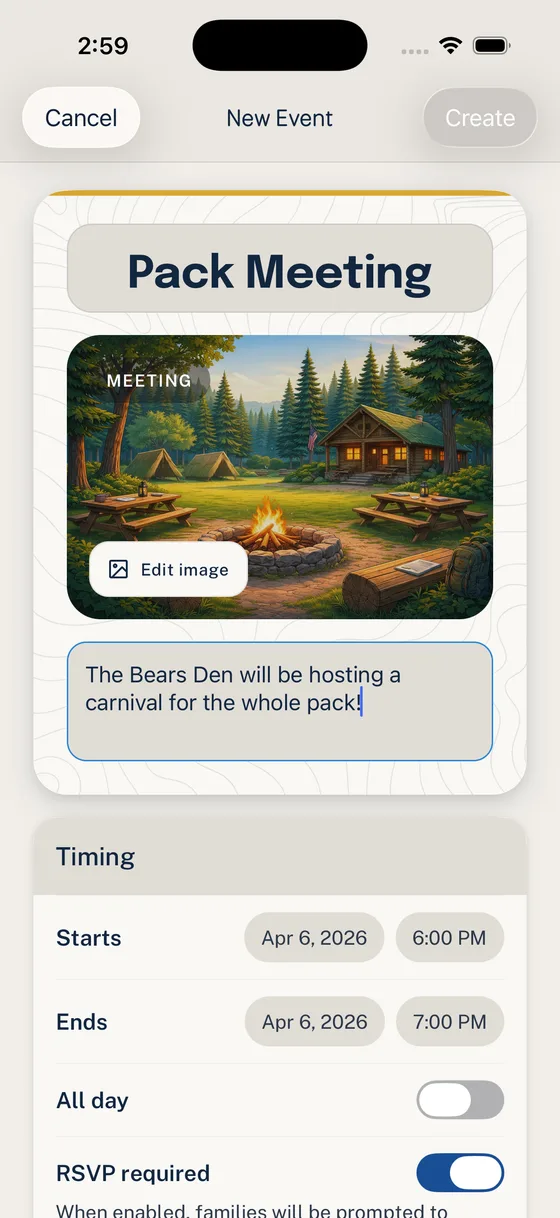
Use the whole Unit audience for pack-wide activities. Use a den Group for den meetings, den outings, or den-specific reminders. For a step-by-step Event workflow, read Run Your First Event End to End.
Step 4: Use Household RSVPs
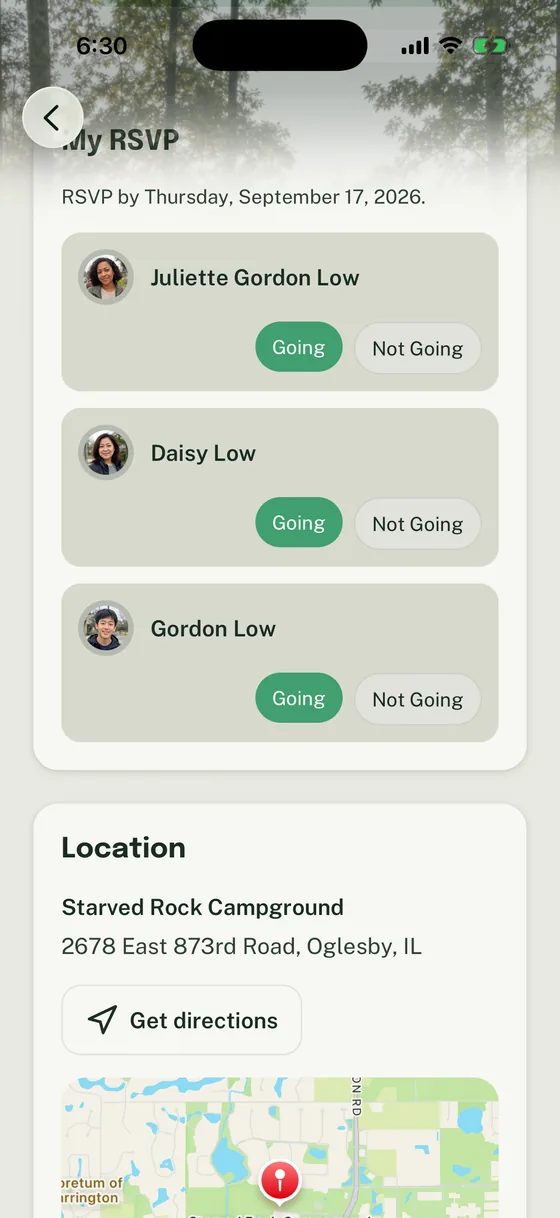
Cub Scout packs often need a family-level answer, not just one adult clicking yes. For a pack hike or family campout, the useful count may include Scouts, parents, guardians, siblings, and sometimes guests. For a den meeting, the leader may only need the Cub Scout count and adult attendance expectation.
Ask families to open the Event and RSVP for the people in their Household who are attending.

For pack events, say plainly whether adults, siblings, and guests should be included in the response. If the count affects food, transportation, supervision, forms, or cost, verify your unit’s official process separately and make the Woggle Event point families to that process.
Step 5: Add Volunteer Roles
Pack activities usually depend on a few adult jobs becoming visible early: setup, cleanup, snack, game station, check-in table, derby track help, campout meal support, or service project supplies.
Attach those jobs to the Event instead of sending a separate “who can help?” thread.

Keep the first ask small. One or two clear roles will teach the habit better than a long list of vague jobs.

Step 6: Send Parent Announcements
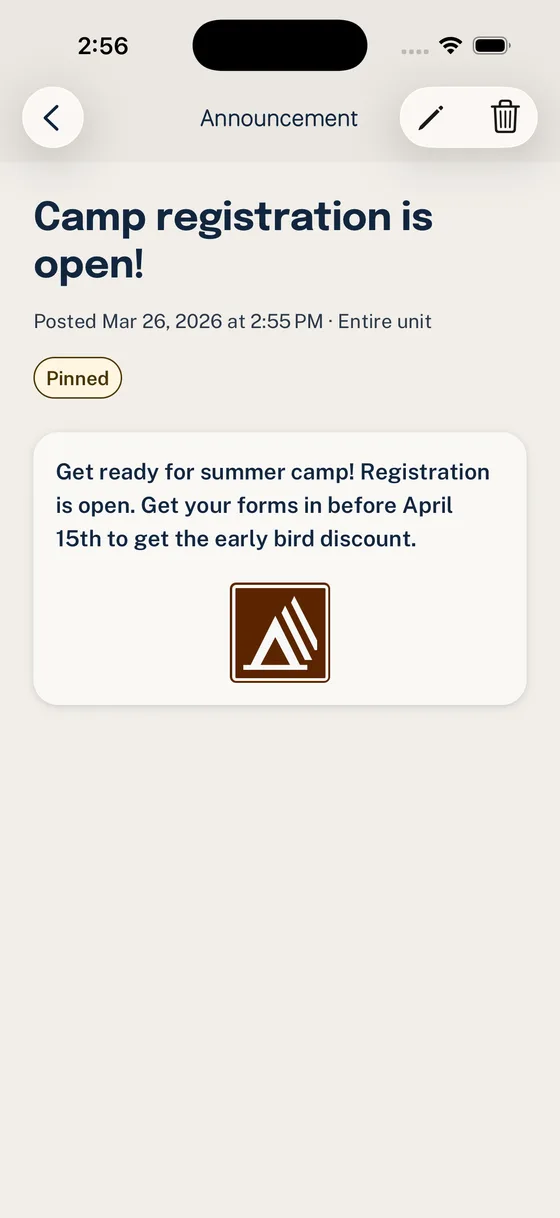
Use Announcements for updates that should remain findable after the first notification: pack meeting changes, RSVP deadlines, uniform reminders, permission slip reminders, derby instructions, or campout weather updates.

Choose the smallest audience that matches the action. A pack meeting reminder may go to the whole Unit. A Bear den museum visit update should go to the Bear Den Group. A committee agenda should stay with committee or leaders.

For the detailed Announcement flow, use Send an Announcement in Woggle.
Parent Rollout Note
Use this in your current parent channel when the pack is ready to start:
Keep the first message practical. Parents do not need a tour of every feature before they complete the first RSVP.
Check Your Pack Setup
Before asking families to rely on Woggle, confirm:
- the Unit name looks like the pack name families recognize
- den Groups use plain-language names
- committee and leader spaces have the right adults
- the first Event uses the correct Unit or Group audience
- the Event has the date, time, location, RSVP deadline, and parent notes
- Household RSVP instructions say whether adults and siblings should be included
- volunteer roles are specific and attached to the Event
- Announcements point back to the Event instead of copying the whole plan
- one leader owns questions during the first week
- official records, advancement, forms, and policy requirements stay in the approved systems
Common Mistakes
Creating too many den-adjacent Groups
If the Group will not have repeated communication, skip it. A targeted Announcement or Event is usually cleaner for one-time needs.
Treating Woggle like a second Scoutbook
Keep advancement, official records, and required Scouting workflows in the official systems your pack uses. Woggle should make coordination clearer, not create a shadow record.
Duplicating every detail in the old channel
During rollout, the old channel can point families to Woggle. If leaders keep copying the full plan back into text or email, families learn that Woggle is optional.
Sending every update to the whole pack
Pack-wide updates are useful when everyone needs the information. Den, committee, and leader updates should use the right Group so families only see what they can act on.
What Woggle Is Not
Woggle is not a replacement for Scoutbook, official Scouting records, advancement tracking, medical forms, permission slips, Youth Protection training, or unit and council policy. It can help pack leaders make coordination more visible and easier to follow, but leaders should verify current official guidance and use the systems their unit is required to use.
Next Step
After the pack structure is in place, publish one real Event and ask families to RSVP there. That first useful action is what makes Woggle feel practical instead of like another app families have to remember.
For family scenarios and pack-level product questions, see Woggle for Cub Scouts.