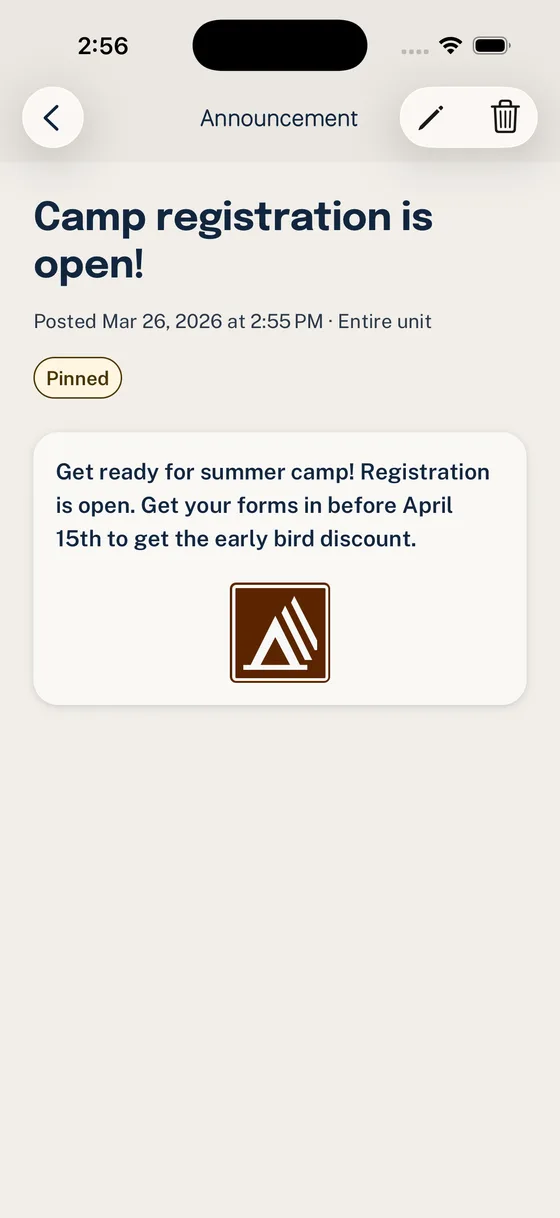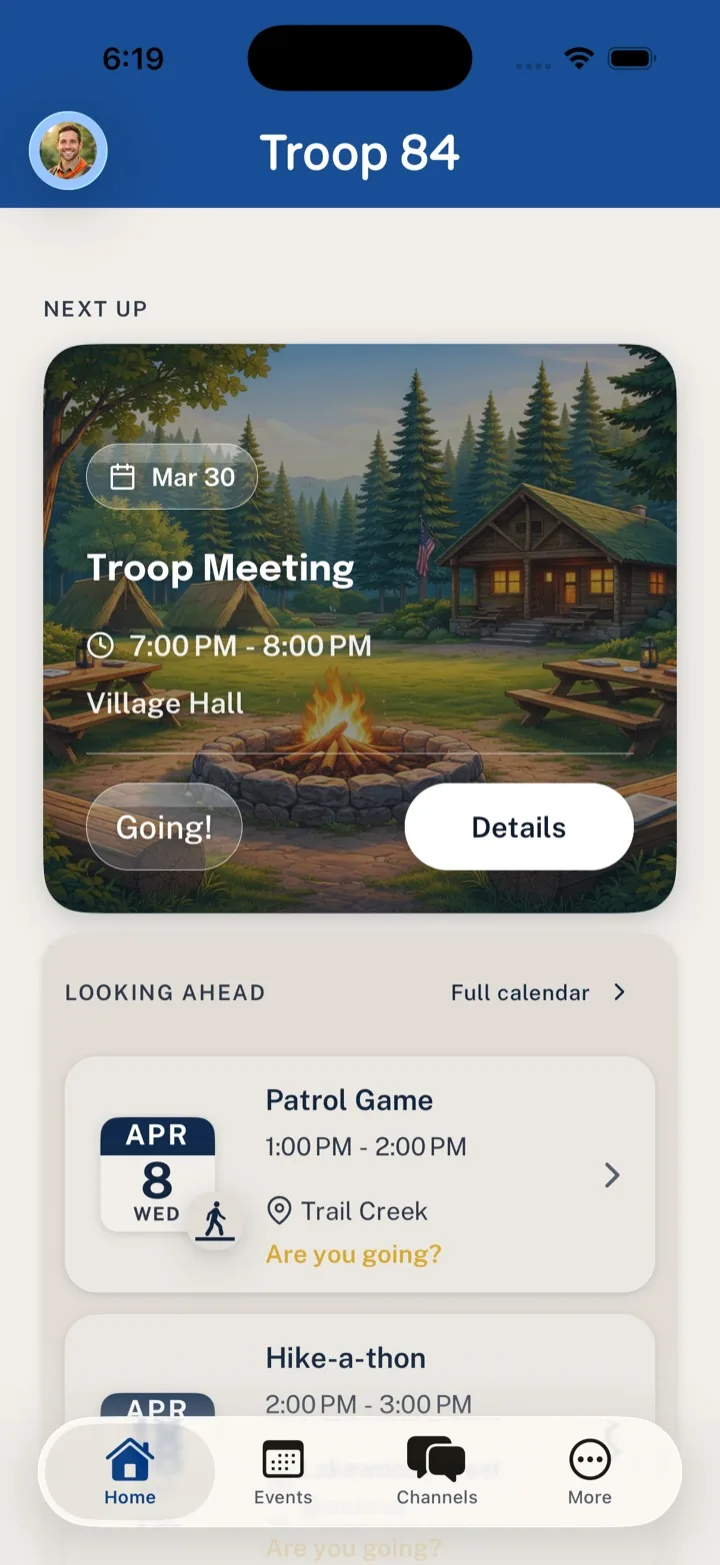
Use this guide when a committee chair needs Woggle to become the working coordination layer for the unit, not just another reminder channel. The practical goal is simple: make Events, owners, volunteer gaps, parent updates, and leader follow-up visible enough that the chair does not become the human router.
What You Will Do
- Map recurring committee work into Events, Groups, and Announcements
- Create committee or leader spaces that match real responsibilities
- Use Events as the anchor for RSVPs, deadlines, and volunteer needs
- Attach volunteer roles to the work families can help with
- Send durable Announcements instead of relying on scattered texts
- Check roster and settings surfaces before asking families to rely on Woggle
Woggle does not replace Scoutbook, official records, advancement tracking, medical forms, permission slips, Youth Protection training, council guidance, or unit policy. Use it as the coordination layer around unit work.
Before You Start
Gather enough context to make the first setup useful.
| Prepare this | Use it for |
|---|---|
| Committee roles | Deciding which Groups or Channels need to exist |
| Next two Events | Anchoring follow-up around real unit work |
| Current volunteer gaps | Creating specific volunteer roles |
| Parent communication habit | Pointing families toward Woggle without duplicating every detail |
| Roster or Household list | Checking who can see and act on updates |
| Unit policy expectations | Keeping official records and safety-sensitive decisions in the right process |
Pick the next Event and the committee work that most often falls back to the chair.
Step 1: Map the Committee Work
Write down the unit work the chair is currently routing: calendar decisions, event ownership, RSVP follow-up, volunteer gaps, committee agenda items, parent reminders, roster questions, and deadline changes.
Then decide where each kind of work belongs in Woggle. Activity-specific work belongs with an Event. Recurring leader coordination may need a committee or leader Group. Parent action notes usually work best as Announcements that point back to an Event or Group.
For the broader leadership pattern, pair this guide with The Committee Chair’s Guide to Reducing Coordination Chaos.
Step 2: Create Committee Spaces
Committee chairs usually need a few durable spaces, not a private Group for every side conversation. Start with names people understand:
- Committee
- Adult leaders
- Event chairs or activity coordinators, if they meet repeatedly
- New families, if onboarding needs focused follow-up
- Dens, patrols, or program groups that receive separate updates

When a Group has a related Channel, check who can participate and who has visibility before leaders use it for committee work.

Woggle can support clearer visibility and official unit spaces, but it does not decide your youth communication policy. Verify current council, chartered organization, and unit expectations before changing adult/youth communication patterns.
Step 3: Anchor Work in Events
The Event should hold the plan families and leaders need to act on. Most committee follow-up happens around a real activity: a campout, pack meeting, court of honor, service project, banquet, parent orientation, or committee meeting.
Create or review the Event before sending broad reminders. Include:
- Date, start time, end time, and location
- Who should attend
- RSVP deadline
- Form, payment, gear, food, or transportation notes
- Adult coverage or setup needs
- Where updates will be posted
- The point person for questions
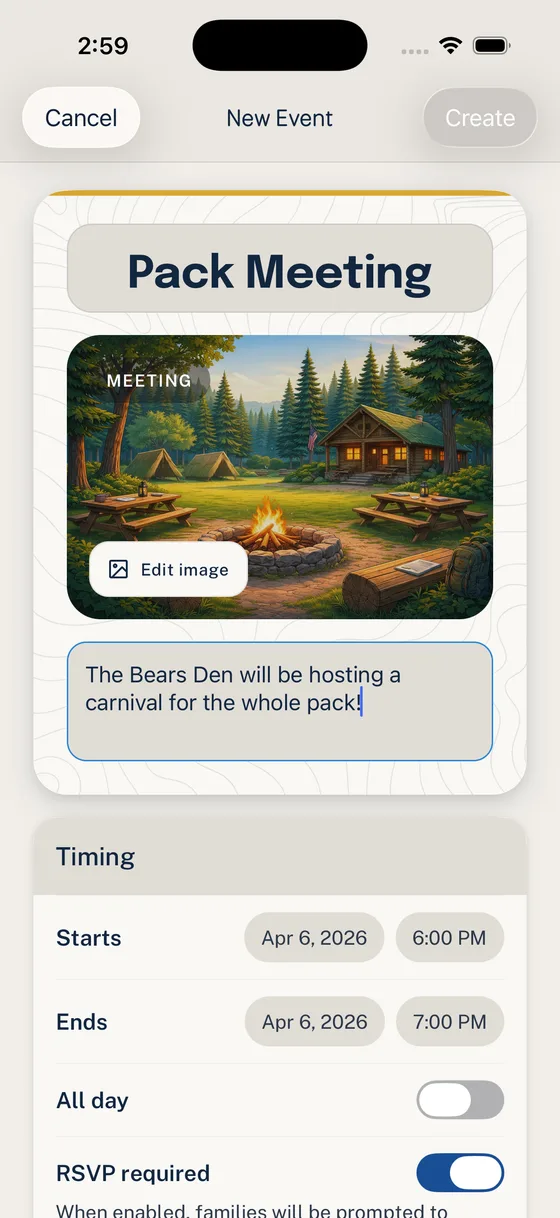
After the Event is published, use the Event detail view as the committee’s reference point during follow-up.
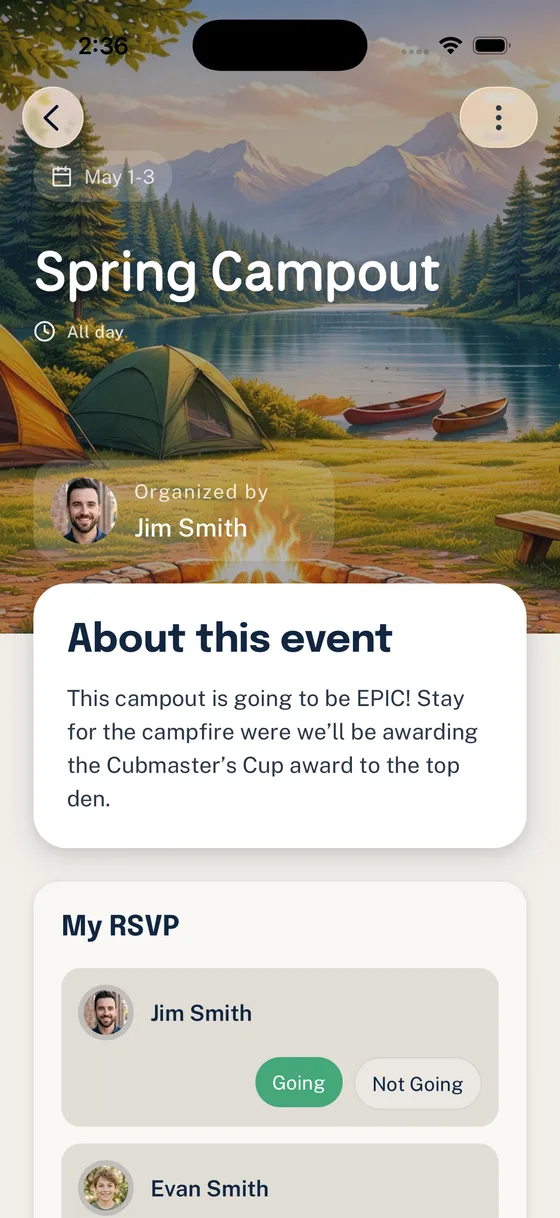
For a full Event workflow, use Run Your First Event End to End.
Step 4: Attach Volunteer Roles
Committee work often gets stuck because the ask is too vague: “Can someone help with food?” or “We still need adults.” Turn those asks into specific volunteer roles attached to the Event.
Good roles include:
- Check-in table
- Setup lead
- Cleanup lead
- Refreshment coordinator
- Driver or transportation coordinator
- Permission slip collector
- Activity station lead
- Committee meeting note-taker

Use the Event detail view to see which jobs remain open before sending another reminder.

For a general delegation standard, read How to Delegate Scout Unit Tasks Without Becoming the Human Router.
Step 5: Send Durable Announcements
Use Announcements for updates that should stay findable after the notification: RSVP deadlines, meeting changes, volunteer gaps, form reminders, weather updates, family-facing committee decisions, or a final “what to bring” note.

Choose the smallest audience that matches the action: the whole Unit, committee leaders, or a specific den, patrol, or Group.

For the detailed Announcement flow, use Send an Announcement in Woggle.
Step 6: Check Roster and Settings
Before asking families to rely on Woggle, check that the right people can see the work. Committee chairs do not need to solve every account edge case alone, but they do need a clean path for spotting them.
Use the roster to check Unit participation and Group assignments. Ask a Unit Admin to review family requests for joining or participation changes. Guardians should check existing Household profiles and account-link states before requesting another Invite. A Household profile can exist without active participation in this Unit.
If the unit has separate expectations for notifications or message urgency, check messaging settings before launch.

Committee Chair Checklist
Use this before the next committee meeting or major Event:
- The next Event has one named owner.
- The Event includes time, location, RSVP deadline, and family action.
- Volunteer roles are specific enough to claim.
- Committee and leader Groups include the right adults.
- Parent-facing Announcements point back to the Event or Group.
- Roster and Household issues have a named follow-up owner.
- Policy-sensitive items stay in the unit’s official process.
- The committee chair is not the only person who can find the plan.
If several items still depend on “ask the chair,” pick one and move it into Woggle before the next reminder goes out.
Copy-Paste Committee Follow-Up
Use this after a committee meeting when the unit is ready to move a real Event into Woggle.
Keep the first shift narrow. One Event with visible ownership teaches the habit better than asking every committee member to change every workflow at once.
What Woggle Is Not
Woggle is not an advancement system, official record system, payment processor, medical form repository, Youth Protection authority, or replacement for Scoutbook. Do not use it to bypass council, chartered organization, unit, or official Scouting requirements.
For committee chairs, its job is to make coordination easier to see: Events, RSVPs, volunteer roles, Announcements, Groups, reminders, and Household visibility.
Next Step
Choose one upcoming Event and make it the committee’s Woggle pilot. Add the Event details, attach two or three real volunteer roles, send one targeted Announcement, and use the checklist above at the next committee meeting.