Use this guide when a unit is deciding who should have Woggle admin access, who needs visibility into family and youth activity, and how to explain permissions to leaders and parents.
The goal is not to give every helpful adult every control. The goal is to match access to real responsibility: Unit setup, Groups, Events, Announcements, Households, and safer communication boundaries.
What You Will Review
- Which adults need Unit admin or leader-level access
- How parents and guardians see Household information
- How Groups and channels should map to real audiences
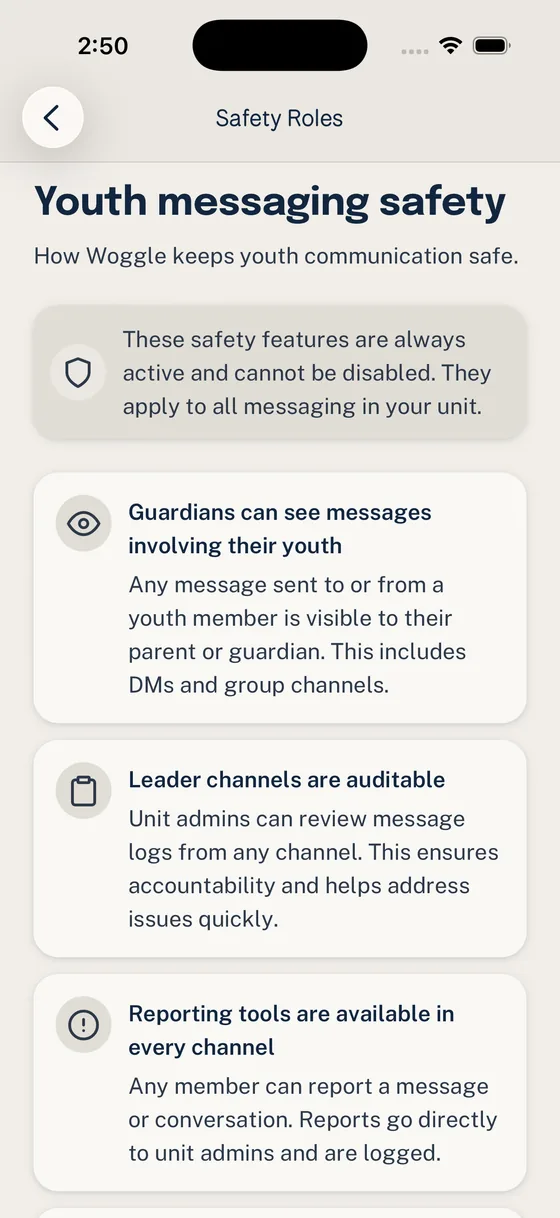
- Which youth-safety and messaging rules need a policy check
- What to ask before granting admin rights
Woggle supports practical coordination for Scout units, but it does not replace Scoutbook, official records, registration systems, Youth Protection training, council rules, chartered organization expectations, or your unit’s own communication policy.
Before You Start
Gather the people and rules that should shape the decision before changing access.
| Prepare this | Use it for |
|---|---|
| Current leader roster | Deciding who actually needs admin access |
| Committee or unit roles | Matching Woggle access to real responsibility |
| Household roster | Checking parent and guardian visibility |
| Group structure | Deciding which audiences need separate spaces |
| Unit communication policy | Confirming youth and adult messaging expectations |
| Council or organization guidance | Verifying rules outside Woggle |
If those inputs disagree, stop and resolve the unit policy question first. A tool setting should not quietly decide a leadership or youth-safety question.
Step 1: Start With the Unit Roles
Think about Woggle roles in plain language before you look at settings.
- Unit admins help configure the Unit, manage key setup decisions, and support the people using Woggle.
- Leaders or assigned admins may create or manage Events, Announcements, Groups, or roster details when that matches their job.
- Parents and guardians use Woggle to see family-relevant information, RSVP for Household members, read Announcements, and help with volunteer roles.
- Members and older Scouts may have access depending on age, unit expectations, guardian involvement, and available Woggle settings.
- Event owners coordinate a specific Event, volunteer role, reminder, or follow-up need.
- Group or channel participants see the communication space that matches their den, patrol, committee, or working team.
Those names may not appear exactly the same way in every screen. Treat them as a permission map for deciding who should be able to do what.
Step 2: Keep Admin Access Narrow
Admin access should follow responsibility, not enthusiasm. A good test is simple: would this person be expected to fix a roster, send an official unit update, adjust Groups, or help a family with access?
Give admin-style access to the smallest group that can keep the Unit running:
- one primary setup owner
- one backup who understands the same rules
- leaders who manage ongoing Groups or Events
- a communications or committee role only when they truly own that work
Avoid granting admin rights because someone is active in chat, because they are helping with one event, or because “it might be convenient.” Event ownership and volunteer responsibility do not always require Unit-wide settings access.
Step 3: Check Household Visibility
A Household stays together across Units. Guardians manage family profiles, while Unit Admins review participation, registration status, roles, and Groups for their Unit. Adding a profile or linking an account does not automatically grant Unit access. Use Manage your Household and Review family requests for those tasks.
Scout coordination usually runs through Households, not isolated individual accounts. Before inviting more families, review whether the roster helps leaders and guardians understand family context.
Look for:
- youth records without the right parent or guardian context
- parents who need access but have not accepted an Invite
- duplicate or confusing Household entries
- families that need private help because of custody, contact, or access questions
- leader-only assumptions that parents will not understand
For parent-facing setup, pair this with the quick start for parents and guardians.
Step 4: Match Groups to Audiences
Groups should make communication clearer. They should not become a copy of every side thread the unit already has.
Use Groups for durable audiences: dens, patrols, committees, adult planning teams, or recurring work teams. Use Event or Announcement targeting for one-off updates.

If a Group includes youth participants, review your unit’s expectations for adult visibility, guardian involvement, and one-to-one communication before inviting people into the space. See How to set up Groups and Channels for the fuller Group setup flow.
Step 5: Review Messaging Rules
Messaging permissions are a trust decision, not just an app setting. Check them before a rollout, after leadership changes, and before enabling youth-facing communication.

Ask:
- Are adult-to-youth communication paths aligned with current unit policy?
- Do parents or guardians have the visibility your unit expects?
- Are private channels limited to audiences that have a real purpose?
- Does the unit know where official records, medical details, and approvals belong outside Woggle?
- Who will review settings after leadership or roster changes?
Woggle is designed to support safer communication patterns, but the responsible adults still need to follow current official guidance, council expectations, and unit rules.
Permissions Summary
Use this table as a planning aid, not a substitute for the settings screen your unit uses.
| Role or context | Usually needs | Usually does not need |
|---|---|---|
| Unit admin | Setup controls, roster support, Group and communication settings, rollout troubleshooting | Unlimited access for adults without an ongoing admin job |
| Leader or assigned admin | Event, Announcement, Group, or roster access tied to their responsibility | Full Unit configuration if they only own one activity |
| Parent or guardian | Household visibility, family RSVP access, Announcements, Event details, volunteer roles | Leader-only settings or private adult planning spaces |
| Older Scout or youth member | Age-appropriate access only where the unit, guardian, and settings allow it | Bypassing guardian visibility or official communication expectations |
| Event owner | Event details, RSVP context, volunteer follow-up, relevant Announcements | Permanent Unit-wide admin rights by default |
| Group or channel participant | The space that matches their den, patrol, committee, or working team | Access to unrelated private Groups |
When in doubt, give the smaller permission first and expand only when the person has a real recurring job.
Admin Rights Checklist
Before granting or expanding admin-style access, ask these questions.
- What exact job requires this access?
- Is the job ongoing, or only tied to one Event?
- Could the person complete the job with Event, Group, or volunteer ownership instead?
- Does this access expose youth, Household, roster, or private Group information?
- Has the unit explained the relevant youth-safety and communication expectations?
- Is there a backup admin if the primary admin is unavailable?
- When will the unit review and remove access that is no longer needed?
Write down the answers somewhere the committee or leadership team can revisit. Access decisions get messy when they live only in memory.
Common Mistakes
Treating every leader like a Unit admin
Leaders need the access that matches their work. A den leader, event chair, committee member, and Unit setup owner may all need different permissions.
Using private Groups as a shortcut
Private spaces are useful, but they should have a clear audience, a real purpose, and adult/guardian visibility rules that match your unit’s expectations.
Forgetting to review access later
Roles change after elections, crossover, committee turnover, and event seasons. Put access review on the same checklist as roster cleanup.
Assuming Woggle decides policy
Woggle can support role-aware coordination and visibility. Your unit remains responsible for official records, Youth Protection expectations, parent or guardian permissions, and the rules that apply to your organization.
Next Step
Review admin access before the next family rollout. Keep the first review small: confirm the Unit admins, scan the roster for Household visibility problems, check the Group audiences, and compare messaging rules against the policy your unit already follows.